Theme‐Builder Skill:面向 AI 辅助编程的多引擎静态博客主题开发框架
Posted at 2026-07-13 Comments Gridea Pro AI
摘要
静态网站生成器(SSG)主题开发是一项需要同时掌握模板引擎语法、数据模型、CSS布局和SEO规范的复杂任务。不同SSG平台之间模板引擎的异构性进一步加剧了这一困难。本文提出Theme-Builder Skill,一个面向AI编程助手的结构化技能包,为Gridea Pro主题开发提供端到端支持。该框架采用三层架构——知识层、工具层和模板层——并显式管理三种模板引擎(Jinja2/Pongo2、Go Templates和EJS)之间的语法差异。本文的主要贡献包括:(1)通过显式的“陷阱清单”和引擎专用起始模板,系统化管理跨引擎不兼容性;(2)自动化验证流水线,包括配置校验、语法检查和模拟数据渲染,将反馈周期从分钟级压缩至秒级;(3)声明式主题配置模式,约束GUI控件类型以防止静默失败;(4)CSS变量驱动的设计系统,内置深色模式支持。本文论证了将领域专业知识编码为结构化技能包是提升AI辅助开发质量的有效范式,并讨论了该方法在静态博客主题开发之外其他需要深度领域知识的软件工程领域中的可推广性。
引言
静态网站生成器(SSG)如Hugo、Jekyll、Hexo和Gridea已成为个人博客、文档站点和轻量内容发布的主流方式。这些工具将内容(以Markdown编写)与呈现(由主题模板定义)分离,生成快速、安全且易于部署的静态HTML页面。
然而,主题开发仍然是SSG生态中最具挑战性的环节之一。开发者必须同时掌握模板引擎语法、理解SSG运行时暴露的数据模型、设计响应式CSS布局,并实现SEO最佳实践。不同SSG采用不同模板引擎的事实进一步加剧了这一问题——Hugo使用Go的html/template,Jekyll使用Liquid,Hexo默认使用EJS——使得跨平台主题迁移成为一项手动语法翻译的繁重工作。
Gridea Pro是一款基于Go、Wails和Vue.js构建的桌面端静态博客写作客户端。其渲染后端同时支持三种模板引擎:Jinja2(通过Pongo2的Go实现)、Go原生html/template和EJS。虽然这种多引擎设计为开发者提供了最大的灵活性,但也引入了显著的复杂性:Jinja2/Pongo2实现与标准Python Jinja2存在约14个已知不兼容项,Go Templates使用完全不同的变量访问模式(PascalCase点号表示法),而EJS没有模板继承机制。
本文提出Theme-Builder Skill,一个面向AI编程助手(如Claude、Trae)的结构化技能包,为Gridea Pro主题开发提供端到端支持。该框架遵循“显式优于隐式”的设计原则:所有引擎差异、配置约束和验证规则均以结构化文档和可执行脚本的形式表达,而非隐式编码在AI模型的训练参数中。
本文的核心贡献如下:
-
通过显式陷阱清单和引擎专用起始模板系统化管理跨引擎不兼容性,覆盖14个已文档化的Pongo2与标准Jinja2差异项。
-
自动化验证流水线,包括配置校验、多引擎语法检查和模拟数据渲染,将主题开发反馈周期从分钟级压缩至秒级。
-
声明式主题配置模式,采用受限GUI控件类型系统(5种允许类型),防止静默GUI渲染失败。
-
CSS变量驱动的设计系统,内置深色模式支持和响应式布局模式,仅通过配置变更即可实现主题定制。
相关工作
SSG主题系统
主流SSG平台共享一个通用的三层主题架构:模板文件、配置文件和静态资源。Hugo的主题系统使用Go的html/template配合define/template组件模式,Jekyll采用Liquid语言配合include和layout实现模板复用,Hexo默认使用EJS配合partial()进行子模板引入。Gridea Pro的独特之处在于同时支持三种引擎,这提供了最大的灵活性,但也引入了现有工具无法解决的跨引擎迁移复杂性。
现有SSG主题开发工具主要依赖基于CLI的脚手架(如hugo new theme),这些工具设计用于交互式人工使用,而非AI辅助开发。它们缺乏对模板语法错误的静态分析能力——错误仅在渲染时才能发现——且不提供GUI配置类型约束的文档说明。
AI辅助软件开发
随着大语言模型(LLM)在代码生成领域不断进步,AI辅助编程已从简单的代码补全发展到完整的软件工程任务。当前范式包括结构化提示(系统提示引导模型行为)、检索增强生成(RAG)用于注入领域知识,以及Skills/Plugins机制用于扩展模型工具调用能力。本文采用Skill机制,将领域知识(模板引擎差异、配置模式、质量检查清单)打包为可加载的技能包,使AI助手转变为主题开发任务的领域专家。
系统架构
三层架构
Theme-Builder Skill采用三层架构:知识层提供结构化领域知识(参考文档),工具层提供可执行自动化脚本,模板层提供即用型起始主题代码。各层之间通过定义良好的接口实现松耦合。
sequenceDiagram
    participant KL as Knowledge Layer
    participant TL as Tool Layer
    participant TPL as Template Layer
    participant DL as Deliverables

    KL ->> TL : guides
    TL ->> TPL : generates
    TL ->> DL : validates
    TPL ->> DL : customizes
图:Theme-Builder Skill三层架构。 知识层(SKILL.md + 10份参考文档)指导工具层(脚手架、校验、渲染测试脚本),工具层生成起始模板并校验自定义主题。
标准化六步工作流
该框架定义了一个标准化六步开发工作流,将主题开发分解为有序阶段,每个阶段具有明确的输入、输出和验证标准:
Theme-Builder Skill六步开发工作流
| 步骤 | 名称 | 核心操作 | 交付物 |
|---|---|---|---|
| 1 | 引擎选择 | 选择模板引擎(默认:Jinja2) | 引擎类型决策 |
| 2 | 脚手架生成 | 运行scaffold_theme.py |
完整目录结构 + 11个模板 + 配置 |
| 3 | 模板开发 | 在骨架基础上定制模板和CSS | 定制化主题文件 |
| 4 | 语法校验 | 运行validate_syntax.py |
ERROR/WARN/PASS报告 |
| 5 | 渲染测试 | 使用模拟数据运行render_test.py |
渲染HTML + 完整性报告 |
| 6 | 实机验证 | 将主题加载到Gridea Pro themes/目录 |
实际渲染效果 |
核心设计理念是快速失败:语法校验和渲染测试在本地执行,无需启动Gridea Pro桌面应用,将反馈周期从分钟级压缩至秒级。
标准目录结构
框架生成的每个主题遵循统一的目录结构:config.json(主题配置),assets/styles/main.css(主题样式),assets/media/images/(静态图片),templates/(11个HTML模板,包括首页、文章、归档、标签、标签页、关于、友情链接、博客、速记和404页面),以及templates/partials/(4个可复用局部模板:head、header、footer、post-card)。
多引擎模板系统
引擎选择与差异管理
Theme-Builder Skill支持三种模板引擎,分别面向不同的开发者群体:Jinja2/Pongo2作为默认推荐(Python生态),Go Templates(Hugo迁移和Go开发者),以及EJS作为兼容模式(旧版Gridea主题)。下表总结了各引擎之间的关键语法差异。
三种模板引擎特性对比
| 特性 | Jinja2/Pongo2 | Go Templates | EJS |
|---|---|---|---|
| 模板继承 | extends + block |
define + template(包裹模式) |
include(组装模式) |
| 变量访问 | config.siteName |
.Config.SiteName(PascalCase) |
config.siteName |
| 循环结构 | for post in posts |
range .Posts(含range-else) |
for (var i=0; ...)(JavaScript) |
| 自定义配置访问 | theme_config.key |
index .Site.CustomConfig "key" |
theme_config.key |
| HTML转义 | 自动转义,safe解除转义 |
自动转义,safeHTML解除转义 |
<%= %>转义,<%- %>原始 |
| 过滤器/函数 | 管道语法|filter |
函数调用func arg |
JavaScript函数 |
Pongo2兼容性挑战
Pongo2是Jinja2语法的Go实现,但约10%的语法不兼容。框架在其jinja2-guide.md参考文档中记录了14个关键不兼容项。这些差异在AI辅助开发场景中尤为关键,因为AI模型通常默认生成标准Python Jinja2语法,这在Pongo2环境下会产生难以调试的运行时错误。
两个代表性不兼容项说明了这一挑战:
**过滤器参数语法。**标准Jinja2使用括号传递过滤器参数(如{{ content|truncate(100) }}),而Pongo2使用冒号(如{{ content|truncate:100 }})。这会影响所有带参数的过滤器调用。
**日期格式化。**Pongo2的date过滤器仅接受Go原生time.Time类型。在Gridea Pro的Jinja2渲染上下文中,post.date被序列化为RFC3339字符串而非time.Time对象。直接使用post.date|date:"2006-01-02"会导致运行时错误,使整个页面降级为回退横幅。正确的做法是使用预格式化的post.dateFormat字段。
模板变量系统
模板变量系统覆盖了Gridea Pro中所有可用的数据上下文,包括全局变量(config、theme_config、menus、tags、links)、文章对象(约30个字段,涵盖内容、元数据、状态、统计和导航维度)、标签对象、分页对象、速记对象和链接对象。每个变量都记录了其类型、语义和跨引擎访问模式。系统还提供了引擎专用的过滤器实现,包括reading_time(中日韩文字感知字符计数)、excerpt(智能摘要提取)和word_count。
校验与测试框架
脚手架脚本
scaffold_theme.py是入口工具,接收主题名称、引擎类型和可选参数,生成完整的主题骨架。脚本内嵌了三种引擎的模板内容,确保每种引擎的语法正确性。生成的config.json预配置了8个常用自定义配置项,包括主题色、特色图片开关、每页文章数、深色模式、社交链接和自定义代码注入。
语法校验脚本
validate_syntax.py实现了三层校验逻辑:
**配置校验层。**检查JSON有效性、引擎字段合法性(必须为jinja2、go或ejs之一),以及customConfig类型字段白名单(仅支持5种GUI控件类型:input、textarea、select、toggle、picture-upload)。使用color、switch或number等不受支持的类型会导致Gridea Pro GUI面板显示空白控件,因此这一预检查至关重要。
**模板完整性校验层。**检查所有必需模板文件是否存在,确保结构完整性。
**引擎专用语法校验层。**对于Jinja2,检查14个Pongo2不兼容模式(过滤器括号、macro/call检测、~拼接、is defined、not in、三元表达式、not x == y静默失败、date过滤器误用、&&/||运算符),以及for/if/block标签配对和include/extends文件存在性。对于Go Templates,检查{{ }}括号配对、range/if/with/define/end配对和==使用警告。对于EJS,检查<% %>标签配对、非法的require()和import语句。结果以三个级别报告:ERROR(阻塞)、WARN(潜在风险)和PASS。
渲染测试脚本
render_test.py在语法校验通过后执行,使用模拟数据渲染所有模板,验证输出的完整性和正确性。对于Jinja2,脚本自动将Pongo2语法(冒号参数)转换为Jinja2语法(括号),使用Python jinja2库渲染,并包含18个自定义过滤器桩函数。对于Go Templates和EJS,检测运行时可用性,若环境未安装则回退为结构检查。
渲染后输出检查包括HTML完整性验证(<html>、<head>、<body>标签)、残留模板标签检测和错误字符串扫描。模拟数据集覆盖12篇测试文章(含/不含特色图片、含/不含标签、长标题、HTML特殊字符、隐藏文章)、7个标签、3条速记和2个链接,确保全面的边界情况覆盖。
主题配置模式
声明式配置
框架通过config.json中的customConfig数组提出声明式主题配置模式。每个配置项定义:name(驼峰式变量名,模板中通过theme_config.xxx访问)、label(GUI面板显示文本)、group(逻辑分组)、type(GUI控件类型,约束为5种允许值)、value(默认值)和可选的note(提示文本)。
GUI控件类型约束
Gridea Pro的GUI面板对customConfig条目实施严格的类型约束。仅五种控件类型有效:input、textarea、select、toggle和picture-upload。使用不受支持的类型会导致空白GUI控件。validate_syntax.py的配置校验层显式检查这一点,防止主题在GUI面板损坏的情况下发布。此外,Gridea Pro对config.json维护进程级缓存;修改customConfig声明需要重启应用才能生效。
CSS设计模式与响应式布局
CSS变量驱动的设计系统
脚手架生成的main.css采用CSS自定义属性构建设计系统,在:root中定义9个核心变量:颜色变量(--color-primary、--color-text、--color-text-secondary、--color-bg、--color-bg-secondary、--color-border)、排版变量(--font-sans使用系统字体栈、--font-mono)和布局变量(--max-width为720px、--header-height为64px)。该系统使主题定制仅通过配置变更即可实现,无需修改CSS规则。
深色模式实现
深色模式通过[data-theme="dark"]属性选择器实现,覆盖CSS变量值。无需额外的CSS文件或JavaScript样式注入。切换逻辑仅修改<html>元素上的data-theme属性;所有使用CSS变量的元素自动响应变更。该方法具有零运行时开销,并与Gridea Pro的enableDarkMode配置无缝集成。
响应式布局策略
响应式布局采用640px断点配合移动优先策略。桌面端使用粘性顶栏(position: sticky; top: 0)和720px内容区域。移动端调整字号、导航间距和卡片内边距。所有布局组件使用原生CSS(Flexbox),不依赖外部框架,最小化主题体积。
SEO与结构化数据
元数据标签系统
框架为每个页面模板定义了完整的元数据标签系统,包括基础meta标签(charset、viewport、description、favicon)、Open Graph标签(og:title、og:description、og:image、og:url、og:type)和Twitter Card标签。文章详情页的og:image和twitter:image自动使用文章特色图片,回退到站点默认头像或Logo。
JSON-LD结构化数据
模板支持嵌入面向搜索引擎的JSON-LD结构化数据:文章详情页使用Article模式,面包屑导航使用BreadcrumbList模式,站点搜索功能使用WebSite模式。同时提供RSS 2.0/Atom订阅模板和canonical URL链接。
讨论
质量保障
框架的质量检查清单(quality-checklist.md)作为主题发布前的最终审查标准,覆盖八个维度:模板完整性、配置校验、引擎语法正确性、渲染正确性、空值处理、HTML语义、响应式设计以及性能与可访问性。渐进式校验策略——语法校验(零依赖,纯文本分析)之后是渲染测试(需要引擎运行时)最后是实机验证——确保了效率:语法错误在数秒内即可发现,无需启动重量级渲染环境。
可推广性
Theme-Builder Skill的架构不限于静态博客主题开发。将领域专家知识编码为结构化技能包的范式——由参考文档、可执行脚本和起始模板组成——可推广到其他需要深度领域知识的软件工程领域,如数据库模式迁移、API客户端生成和框架专用样板代码生成。
局限性
当前框架存在若干局限性。首先,渲染测试脚本使用Python Jinja2模拟Pongo2,无法检测运算符优先级差异(如not x == y在Pongo2中会被静默解释为(not x) == y)。其次,从其他SSG平台(如Hexo Pug、Hugo)迁移主题需要完全手动重写而非自动翻译,原因在于模板引擎之间存在根本的范式差异。第三,框架尚未支持主题市场集成或可视化预览功能。
结论
本文提出了Theme-Builder Skill,一个面向Gridea Pro主题开发的结构化AI技能包,通过显式差异管理、自动化校验和标准化工作流解决了多引擎模板开发的挑战。该框架证明,将领域专业知识编码为结构化技能包是提升AI辅助开发质量的有效方法。未来工作包括扩展对更多模板引擎的支持、引入可视化主题预览功能、构建主题市场集成,以及开发面向跨平台转换的AI驱动主题迁移工具。
伦理声明
本工作呈现的是一款软件开发工具,不涉及人类受试者、个人数据或潜在有害应用。该框架旨在辅助开发者进行主题创作,不涉及歧视、偏见、公平性、隐私或安全问题。所有引用的代码和文档均为开源且公开可用。
可复现性声明
Theme-Builder Skill框架完全开源,以独立仓库形式提供。完整源代码,包括脚手架脚本(scaffold_theme.py)、语法校验脚本(validate_syntax.py)、渲染测试脚本(render_test.py)、模拟数据(mock-data.json)以及所有参考文档,均包含在仓库中。三套起始主题模板(Jinja2、Go Templates、EJS)作为资源目录的一部分提供。要复现主题生成工作流,依次运行python scripts/scaffold_theme.py <name> --engine jinja2、python scripts/validate_syntax.py <theme-dir>和python scripts/render_test.py <theme-dir>。模拟数据覆盖12篇具有多样化边界条件的文章(含/不含特色图片、含/不含标签、长标题、HTML特殊字符、隐藏文章)、7个标签、3条速记和2个链接。本文所有实验均基于框架的公开API,除Python 3.7+外无需额外依赖即可复现。
参考文献
Campos, U., et al. “Static Site Generators: A Systematic Literature Review.” Journal of Web Engineering, 2022.
Lewis, Patrick, et al. “Retrieval-Augmented Generation for Knowledge-Intensive NLP Tasks.” Advances in Neural Information Processing Systems, 2020.
Gridea Dev Team. “Gridea Pro——静态博客写作客户端.” https://github.com/getgridea/gridea, 2024.
flosch. “Pongo2——Go语言的Django风格模板引擎.” https://github.com/flosch/pongo2, 2024.
附录 A:Pongo2不兼容项清单
本附录列出框架管理的全部14个Pongo2/标准Jinja2不兼容项。
-
过滤器参数使用冒号而非括号
-
不支持三元表达式
-
不支持逻辑运算符
&&、||、! -
不支持
~字符串拼接 -
数组长度使用
|length过滤器而非.length属性 -
is defined测试不可用 -
not in语法存在差异 -
date过滤器仅接受time.Time(不接受字符串) -
不支持
macro和call -
标签内不允许换行
-
include路径解析规则不同 -
not x == y被静默解释为(not x) == y -
loop.length在for循环中不可用 -
extends必须是模板中的第一个标签
附录 B:LLM使用披露
在Theme-Builder Skill框架的开发过程中,大语言模型被用作通用辅助工具。具体而言,LLM辅助了脚手架、校验和渲染测试脚本的代码生成,参考文档的起草,以及三套引擎专用起始模板的生成。所有LLM生成的内容均经过人工开发者审查、测试和验证。LLM在研究构思中未发挥重要作用。作者对所有内容承担全部责任。
Posted at 2026-07-05 Comments Technology
建模方法
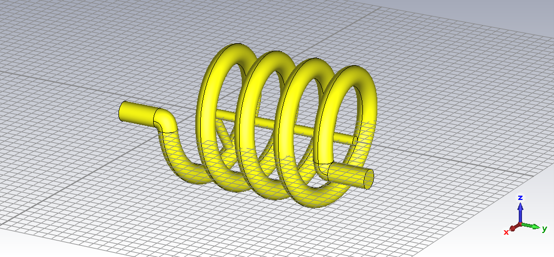
在CST中按照参考中的建模方法建好螺旋线线圈以后,沿螺旋的中轴建一根与螺旋线一样长的圆柱,再创建一根“一端在轴上,另一端在螺旋线上”的圆柱,使其长度保持线圈中径的一半。最后两端加上引脚即可
操作讲起来比较简单。螺旋线可通过 CST 的方程式建模,然后在起始处创建一个圆片,再 sweep curve,也可以只创建一个圆片直接旋转它生成螺旋体。
我们可以通过CST内置的Macro vba editor记录这一过程。因为通常情况下,想在同一个 CST 版本中复制操作历史,需要打开有相关操作的 CST 文件,选择 history list 中的操作点击 copy,在新的文件 paste。但是对于同一个 CST 版本,完全可以将操作用 VB 记录下来,保存为全局脚本,在新的文件中直接运行它。这就是 CST 的 VBA Macro 内置脚本功能的意义。
当然如果你只是直接点击 history list 中的相关操作然后点击 More 中的 Macro,使其自动生成代码,这个方法是有缺陷的。它跟 CST 的内置脚本一样,会记录为一次操作,但是同样的也完全没有模型操作记录。其实秘密藏在文档里,在 CST 的 VB 脚本预设中有一个叫“AddToHistory”的命令会记录模型操作。
现在我们拆解一下 history list,以其中一步操作为例讲解一下如何修改代码。
现在有一步操作叫“Define curve circle: curve1:circle1”,在 history list 中点击打开详情,可以看到如下这段代码。
With Circle
     .Reset
     .Name "circle1"
     .Curve "curve1"
     .Radius "wire_d/2"
     .Xcenter "r"
     .Ycenter "0"
     .Segments "0"
     .Create
End With
当我们在 history list 中点击copy复制这一个 history 项时,打开系统的剪贴板你会发现,它其实是一个JSON格式文本;但在 CST 软件内部执行时,软件会提取其中的 code 字段,将其当作 VBA 脚本 交由解释器运行,从而在 3D 界面中重绘出模型。这是 CST 进行无界面自动化建模的标准数据交换方式。复制 history list 中的该操作得到的代码如下所示。
CST History Data Exchange Format V2

{
    "history": [
        {
            "caption": "Define curve circle: curve1:circle1",
            "version": "2025.1|34.0.1|20241028",
            "hidden": false,
            "type": "vba",
            "code": [
                "With Circle\r",
                "     .Reset\r",
                "     .Name \"circle1\"\r",
                "     .Curve \"curve1\"\r",
                "     .Radius \"wire_d/2\"\r",
                "     .Xcenter \"r\"\r",
                "     .Ycenter \"0\"\r",
                "     .Segments \"0\"\r",
                "     .Create\r",
                "End With"
            ]
        }
    ]
}
现在我们在 history list 界面点击 Macro 将其转化为 VB 代码,生成的代码如下所示。
' Macro

Sub Main ()


'## Merged Block - Define curve circle: curve1:circle1
StartVersionStringOverrideMode "2025.1|34.0.1|20241028"
With Circle

     .Reset

     .Name "circle1"

     .Curve "curve1"

     .Radius "wire_d/2"

     .Xcenter "r"

     .Ycenter "0"

     .Segments "0"

     .Create

End With
StopVersionStringOverrideMode
End Sub
阅读这段代码你会发现:操作内容包裹在 With 到 End With 之间;主程序内容从 StartVersionStringOverrideMode 开始,到 StopVersionStringOverrideMode 结束,在 StartVersionStringOverrideMode 这行的后面是这段代码兼容的 CST 版本;这段代码的 history 名称在“Merged Block”这一行,而“Merged Block”的意思是“合并块”,因此生成的代码是无法编辑的块命令。
想让它在 history list 和 history list (fast model update) 中可编辑,必须将“Merged Block””改为“AddToHistory”,然后在后面再加上“, (String)”,设置一个变量名作为 String,然后将上面的操作赋给 String,这样方能处理多个操作历史。
以下是 CST 中创建螺旋线圈电感的 VBA 代码。
'#Language "WWB-COM"

Option Explicit

Sub Main ()
    StartVersionStringOverrideMode "2025.2|34.0.1|20241216"

    Dim cmd As String

    '===========================================================
    ' Step 1: 定义材料 Copper (annealed)
    '===========================================================
    cmd = "With Material" & vbCrLf & _
          "     .Reset" & vbCrLf & _
          "     .Name ""Copper (annealed)""" & vbCrLf & _
          "     .Folder """"" & vbCrLf & _
          "     .FrqType ""static""" & vbCrLf & _
          "     .Type ""Normal""" & vbCrLf & _
          "     .SetMaterialUnit ""Hz"", ""mm""" & vbCrLf & _
          "     .Epsilon ""1""" & vbCrLf & _
          "     .Mu ""1.0""" & vbCrLf & _
          "     .Kappa ""5.8e+007""" & vbCrLf & _
          "     .TanD ""0.0""" & vbCrLf & _
          "     .TanDFreq ""0.0""" & vbCrLf & _
          "     .TanDGiven ""False""" & vbCrLf & _
          "     .TanDModel ""ConstTanD""" & vbCrLf & _
          "     .KappaM ""0""" & vbCrLf & _
          "     .TanDM ""0.0""" & vbCrLf & _
          "     .TanDMFreq ""0.0""" & vbCrLf & _
          "     .TanDMGiven ""False""" & vbCrLf & _
          "     .TanDMModel ""ConstTanD""" & vbCrLf & _
          "     .DispModelEps ""None""" & vbCrLf & _
          "     .DispModelMu ""None""" & vbCrLf & _
          "     .DispersiveFittingSchemeEps ""Nth Order""" & vbCrLf & _
          "     .DispersiveFittingSchemeMu ""Nth Order""" & vbCrLf & _
          "     .UseGeneralDispersionEps ""False""" & vbCrLf & _
          "     .UseGeneralDispersionMu ""False""" & vbCrLf & _
          "     .FrqType ""all""" & vbCrLf & _
          "     .Type ""Lossy metal""" & vbCrLf & _
          "     .SetMaterialUnit ""GHz"", ""mm""" & vbCrLf & _
          "     .Mu ""1.0""" & vbCrLf & _
          "     .Kappa ""5.8e+007""" & vbCrLf & _
          "     .Rho ""8930.0""" & vbCrLf & _
          "     .ThermalType ""Normal""" & vbCrLf & _
          "     .ThermalConductivity ""401.0""" & vbCrLf & _
          "     .SpecificHeat ""390"", ""J/K/kg""" & vbCrLf & _
          "     .MetabolicRate ""0""" & vbCrLf & _
          "     .BloodFlow ""0""" & vbCrLf & _
          "     .VoxelConvection ""0""" & vbCrLf & _
          "     .MechanicsType ""Isotropic""" & vbCrLf & _
          "     .YoungsModulus ""120""" & vbCrLf & _
          "     .PoissonsRatio ""0.33""" & vbCrLf & _
          "     .ThermalExpansionRate ""17""" & vbCrLf & _
          "     .Colour ""1"", ""1"", ""0""" & vbCrLf & _
          "     .Wireframe ""False""" & vbCrLf & _
          "     .Reflection ""False""" & vbCrLf & _
          "     .Allowoutline ""True""" & vbCrLf & _
          "     .Transparentoutline ""False""" & vbCrLf & _
          "     .Transparency ""0""" & vbCrLf & _
          "     .Create" & vbCrLf & _
          "End With"
    AddToHistory "Define material: Copper (annealed)", cmd

    '===========================================================
    ' Step 2: 定义曲线 circle1
    '===========================================================
    cmd = "With Circle" & vbCrLf & _
          "     .Reset" & vbCrLf & _
          "     .Name ""circle1""" & vbCrLf & _
          "     .Curve ""curve1""" & vbCrLf & _
          "     .Radius ""wire_d/2""" & vbCrLf & _
          "     .Xcenter ""r""" & vbCrLf & _
          "     .Ycenter ""0""" & vbCrLf & _
          "     .Segments ""0""" & vbCrLf & _
          "     .Create" & vbCrLf & _
          "End With"
    AddToHistory "Define curve circle: curve1:circle1", cmd

    '===========================================================
    ' Step 3: 新建组件 component1
    '===========================================================
    cmd = "Component.New ""component1"""
    AddToHistory "New component: component1", cmd

    '===========================================================
    ' Step 4: 定义 CoverProfile solid1
    '===========================================================
    cmd = "With CoverCurve" & vbCrLf & _
          "     .Reset" & vbCrLf & _
          "     .Name ""solid1""" & vbCrLf & _
          "     .Component ""component1""" & vbCrLf & _
          "     .Material ""Copper (annealed)""" & vbCrLf & _
          "     .Curve ""curve1:circle1""" & vbCrLf & _
          "     .DeleteCurve ""True""" & vbCrLf & _
          "     .Create" & vbCrLf & _
          "End With"
    AddToHistory "Define coverprofile: component1:solid1", cmd

    '===========================================================
    ' Step 5: 拾取面
    '===========================================================
    cmd = "Pick.PickFaceFromId ""component1:solid1"", ""1"""
    AddToHistory "Pick face", cmd

    '===========================================================
    ' Step 6: 设置边
    '===========================================================
    cmd = "Pick.AddEdge ""0.0"", ""0.0"", ""0.0"", ""0.0"", ""10"", ""0.0"""
    AddToHistory "Set edge", cmd

    '===========================================================
    ' Step 7: 定义旋转体 solid2
    '===========================================================
    cmd = "With Rotate" & vbCrLf & _
          "     .Reset" & vbCrLf & _
          "     .Name ""solid2""" & vbCrLf & _
          "     .Component ""component1""" & vbCrLf & _
          "     .NumberOfPickedFaces ""1""" & vbCrLf & _
          "     .Material ""Copper (annealed)""" & vbCrLf & _
          "     .Mode ""Picks""" & vbCrLf & _
          "     .Angle ""n*360""" & vbCrLf & _
          "     .Height ""H""" & vbCrLf & _
          "     .RadiusRatio ""1.0""" & vbCrLf & _
          "     .TaperAngle ""0.0""" & vbCrLf & _
          "     .NSteps ""0""" & vbCrLf & _
          "     .SplitClosedEdges ""True""" & vbCrLf & _
          "     .SegmentedProfile ""False""" & vbCrLf & _
          "     .DeleteBaseFaceSolid ""False""" & vbCrLf & _
          "     .ClearPickedFace ""True""" & vbCrLf & _
          "     .SimplifySolid ""True""" & vbCrLf & _
          "     .UseAdvancedSegmentedRotation ""True""" & vbCrLf & _
          "     .CutEndOff ""False""" & vbCrLf & _
          "     .Create" & vbCrLf & _
          "End With"
    AddToHistory "Define rotate: component1:solid2", cmd

    '===========================================================
    ' Step 8: 定义圆柱体 solid3
    '===========================================================
    cmd = "With Cylinder" & vbCrLf & _
          "     .Reset" & vbCrLf & _
          "     .Name ""solid3""" & vbCrLf & _
          "     .Component ""component1""" & vbCrLf & _
          "     .Material ""Copper (annealed)""" & vbCrLf & _
          "     .OuterRadius ""10""" & vbCrLf & _
          "     .InnerRadius ""0.0""" & vbCrLf & _
          "     .Axis ""y""" & vbCrLf & _
          "     .Yrange ""0"", ""H""" & vbCrLf & _
          "     .Xcenter ""0""" & vbCrLf & _
          "     .Zcenter ""0""" & vbCrLf & _
          "     .Segments ""0""" & vbCrLf & _
          "     .Create" & vbCrLf & _
          "End With"
    AddToHistory "Define cylinder: component1:solid3", cmd

    '===========================================================
    ' Step 9: 定义参数 h2 (直接执行,不进历史)
    '===========================================================
    ' StoreDoubleParameter "h2", "0"

    '===========================================================
    ' Step 10: 创建沿X轴的圆柱 cylinder_radial
    '===========================================================
    cmd = "With Cylinder" & vbCrLf & _
          "     .Reset" & vbCrLf & _
          "     .Name ""cylinder_radial""" & vbCrLf & _
          "     .Component ""component1""" & vbCrLf & _
          "     .Material ""Copper (annealed)""" & vbCrLf & _
          "     .OuterRadius ""10""" & vbCrLf & _
          "     .InnerRadius ""0.0""" & vbCrLf & _
          "     .Axis ""x""" & vbCrLf & _
          "     .Xrange ""0"", ""r""" & vbCrLf & _
          "     .Ycenter ""h2""" & vbCrLf & _
          "     .Zcenter ""0""" & vbCrLf & _
          "     .Segments ""0""" & vbCrLf & _
          "     .Create" & vbCrLf & _
          "End With"
    AddToHistory "Create cylinder along X at h2", cmd

    '===========================================================
    ' Step 11: Transform旋转圆柱对齐螺旋线方向
    '===========================================================
    cmd = "With Transform" & vbCrLf & _
          "     .Reset" & vbCrLf & _
          "     .Name ""component1:cylinder_radial""" & vbCrLf & _
          "     .Origin ""Free""" & vbCrLf & _
          "     .Center ""0"", ""h2"", ""0""" & vbCrLf & _
          "     .Angle ""0"", ""360*n*h2/H"", ""0""" & vbCrLf & _
          "     .MultipleObjects ""False""" & vbCrLf & _
          "     .GroupObjects ""False""" & vbCrLf & _
          "     .Repetitions ""1""" & vbCrLf & _
          "     .MultipleSelection ""False""" & vbCrLf & _
          "     .AutoDestination ""True""" & vbCrLf & _
          "     .Transform ""Shape"", ""Rotate""" & vbCrLf & _
          "End With"
    AddToHistory "Rotate cylinder toward helix", cmd

    '===========================================================
    ' Step 12: 定义螺旋线径向线
    '===========================================================
    cmd = "With Polygon3D" & vbCrLf & _
          "     .Reset" & vbCrLf & _
          "     .Version 10" & vbCrLf & _
          "     .Name ""3dpolygon_1""" & vbCrLf & _
          "     .Curve ""3D-Analytical""" & vbCrLf & _
          "     .Point ""0"", ""h2"", ""0""" & vbCrLf & _
          "     .Point ""10*cos(2*pi*3*h2/30)"", ""h2"", ""-10*sin(2*pi*3*h2/30)""" & vbCrLf & _
          "     .Create" & vbCrLf & _
          "End With"
    AddToHistory "Radial Line at h2", cmd

    '===========================================================
    ' Step 13: 起始端圆柱 solid4 (向下延伸)
    '===========================================================
    cmd = "With Cylinder" & vbCrLf & _
          "     .Reset" & vbCrLf & _
          "     .Name ""solid4""" & vbCrLf & _
          "     .Component ""component1""" & vbCrLf & _
          "     .Material ""Copper (annealed)""" & vbCrLf & _
          "     .OuterRadius ""wire_d/2""" & vbCrLf & _
          "     .InnerRadius ""0.0""" & vbCrLf & _
          "     .Axis ""y""" & vbCrLf & _
          "     .Yrange ""-100"", ""-wire_d/2-0.4""" & vbCrLf & _
          "     .Xcenter ""r""" & vbCrLf & _
          "     .Zcenter ""wire_d/2""" & vbCrLf & _
          "     .Segments ""0""" & vbCrLf & _
          "     .Create" & vbCrLf & _
          "End With"
    AddToHistory "Define cylinder: component1:solid4 (start cap)", cmd

    '===========================================================
    ' Step 14: 拾取 solid2 起始端面 face 4
    '===========================================================
    cmd = "Pick.PickFaceFromId ""component1:solid2"", ""4"""
    AddToHistory "Pick face: component1:solid2 face 4", cmd

    '===========================================================
    ' Step 15: 拾取 solid4 端面 face 3
    '===========================================================
    cmd = "Pick.PickFaceFromId ""component1:solid4"", ""3"""
    AddToHistory "Pick face: component1:solid4 face 3", cmd

    '===========================================================
    ' Step 16: Loft连接起始端 solid5
    '===========================================================
    cmd = "With Loft" & vbCrLf & _
          "     .Reset" & vbCrLf & _
          "     .Name ""solid5""" & vbCrLf & _
          "     .Component ""component1""" & vbCrLf & _
          "     .Material ""Copper (annealed)""" & vbCrLf & _
          "     .Tangency ""0.2""" & vbCrLf & _
          "     .Minimizetwist ""true""" & vbCrLf & _
          "     .CreateNew" & vbCrLf & _
          "End With"
    AddToHistory "Define loft: component1:solid5 (start cap)", cmd

    '===========================================================
    ' Step 17: 末端圆柱 solid6 (向上延伸)
    ' Xcenter = r*cos(2*pi*n): n整数时为 r,n半圈时为 -r,自动适配
    ' Zcenter = -wire_d/2*cos(2*pi*n): n整数时为 -wire_d/2,n半圈时为 wire_d/2
    '===========================================================
    cmd = "With Cylinder" & vbCrLf & _
          "     .Reset" & vbCrLf & _
          "     .Name ""solid6""" & vbCrLf & _
          "     .Component ""component1""" & vbCrLf & _
          "     .Material ""Copper (annealed)""" & vbCrLf & _
          "     .OuterRadius ""wire_d/2""" & vbCrLf & _
          "     .InnerRadius ""0.0""" & vbCrLf & _
          "     .Axis ""y""" & vbCrLf & _
          "     .Yrange ""H+wire_d/2+0.4"", ""H+100""" & vbCrLf & _
          "     .Xcenter ""r*cos(2*pi*n)""" & vbCrLf & _
          "     .Zcenter ""-wire_d/2*cos(2*pi*n)""" & vbCrLf & _
          "     .Segments ""0""" & vbCrLf & _
          "     .Create" & vbCrLf & _
          "End With"
    AddToHistory "Define cylinder: component1:solid6 (end cap)", cmd

    '===========================================================
    ' Step 18: 拾取 solid2 末端端面 face 3
    '===========================================================
    cmd = "Pick.PickFaceFromId ""component1:solid2"", ""3"""
    AddToHistory "Pick face: component1:solid2 face 3", cmd

    '===========================================================
    ' Step 19: 拾取 solid6 端面 face 1
    '===========================================================
    cmd = "Pick.PickFaceFromId ""component1:solid6"", ""1"""
    AddToHistory "Pick face: component1:solid6 face 1", cmd

    '===========================================================
    ' Step 20: Loft连接末端 solid7
    '===========================================================
    cmd = "With Loft" & vbCrLf & _
          "     .Reset" & vbCrLf & _
          "     .Name ""solid7""" & vbCrLf & _
          "     .Component ""component1""" & vbCrLf & _
          "     .Material ""Copper (annealed)""" & vbCrLf & _
          "     .Tangency ""0.2""" & vbCrLf & _
          "     .Minimizetwist ""true""" & vbCrLf & _
          "     .CreateNew" & vbCrLf & _
          "End With"
    AddToHistory "Define loft: component1:solid7 (end cap)", cmd

    StopVersionStringOverrideMode
End Sub
上面这段代码实现效果如下图所示。
参考
电磁仿真–基本操作-CST-(4)-复杂空心电感
电磁仿真–基本操作-CST-(4)-复杂空心电感
[待整理] 如何用CST建立螺旋的模型
如何用CST建立螺旋的模型
CST中如何建立螺旋线
Windows 编译、运行与调试 Gridea-Pro 完整指南
Posted at 2026-06-20 Comments Gridea Pro
Gridea-Pro 是基于 Wails v2(Go + Vue 3) 开发的跨平台静态博客客户端,核心依赖 Go、Node.js、Wails 工具链,结合官方文档,记录源码拉取、环境配置、开发调试、编译打包全流程步骤,适配代码调试需求。
一、前置环境准备(按顺序安装)
- 安装 Git(拉取源码)
- 安装 Go 语言(核心后端依赖)
从 Go官网下载安装包,选择 Windows (x86_64) MSI 安装器。 - 安装 Node.js(前端 Vue3 依赖)
- 安装 Wails v2
(1)执行 Wails 安装命令(PowerShell):
(2)刷新环境变量(重启终端),验证安装:go install github.com/wailsapp/wails/v2/cmd/wails@latestwails version - WebView2 依赖
Windows 编译 Wails 项目需要 WebView2 运行时,系统一般预装,缺失则手动安装。
二、拉取项目源码
(略)
三、安装前端依赖
Gridea-Pro 前端代码在 frontend 目录,需要单独安装 Vue3 等依赖。在powershell中运行以下命令:
# 进入前端目录
cd frontend
# 安装所有前端依赖
npm install
# 返回项目根目录(后续命令都在根目录执行)
cd ..
四、开发模式:运行 & 实时调试
1. 启动开发调试模式
在项目根目录执行:
wails dev
执行成功后会自动编译 Go 后端代码,启动 Vue3 前端开发服务,自动弹出 Gridea-Pro 客户端窗口
2. 代码调试方法
(1)前端 Vue3 代码调试
客户端窗口打开后,按 F12 调出浏览器开发者工具;
在 Sources 面板找到前端源码,添加断点、查看日志、排查样式 / 交互问题;
修改 frontend/src 下的 Vue/JS/CSS 代码,页面会即时刷新。
(2)Go 后端代码调试
安装 VS Code,并安装官方 Go 插件。用 VS Code 打开整个 gridea-pro 项目。
在 Go 源码(根目录 .go 文件、internal 目录)左侧行号处点击添加断点。
终端保持 wails dev 运行,操作客户端功能,代码运行到断点会自动暂停。
可查看变量、调用栈、单步执行,完成后端逻辑调试。
安装 Trae & Trae Solo,用 VS Code 打开整个 gridea-pro 项目,按照弹出提示安装 Go 和 Vue 插件。使用传统调试方法的同时,亦可使用Agent交互让AI分析、修改、调试和审查代码。由于上下文处理能力,以及修改文件更新覆盖等问题,应更注重版本控制和备份。
五、编译生产版本
调试完成后,可编译生成正式 .exe 安装包 / 绿色程序,命令依旧在项目根目录执行;
wails build
编译成功后,产物默认生成在项目 build/bin 目录下;Windows 平台会生成 Gridea-Pro.exe。
精简压缩包(体积更小)
wails build -compress
编译后会额外生成压缩包,方便分发。
只打包、不生成安装程序(纯绿色 exe)
wails build -nsis=false
只保留免运行的 exe 程序,去掉 Windows 安装包。
生产模式(关闭调试、优化性能,正式发布用)
wails build -production
代码会做混淆 / 优化,去掉调试信息,适合对外发布。
兼顾体积 + 正式版本
wails build -production -compress
首次编译较慢会自动拉取依赖、编译前后端,耐心等待即可。
Posted at 2026-06-19 Comments Git
本文记录 Fork 仓库到创建分支、提交改动、发起 PR、再到删除分支的完整流程,防止自己忘记。
一、Fork远程仓库
1、打开原作者的仓库页面,如https://github.com/Gridea-Pro/gridea-pro-themes;
2、点击右上角Fork按钮,自动跳转到Create a new fork界面,点击Create fork按钮。
二、保持主分支干净
Fork 完成后,仓库会有一个默认分支(通常为 master 或 main),请勿在主分支上开发。
三、拉取远程仓库代码
使用 git clone 将Fork后的远程仓库clone到本地。
克隆远程远程仓库的方法有很多。
(1) 使用clone命令下载远程仓库,git clone
远程URL是Git用于指代“代码存储位置”的专业术语。该URL可以是您在GitHub上的仓库、其他用户的分支,甚至位于完全不同的服务器上。
您只能向两种类型的URL地址发送推送:
一个类似 https://github.com/user/repo.git 的 HTTPS URL
一个 SSH URL,例如 git@github.com:user/repo.git
Git会将远程URL与名称关联,默认的远程路径通常称为“origin”。
有时你会选择使用Github文件加速网站加速下载文件,这时候 git clone 就会使用例如
git clone https://gh.xmly.dev/https://github.com/stilleshan/ServerStatus
提交到远程仓库时会提示
remote: Invalid username or token. Password authentication is not supported for Git operations.
fatal: Authentication failed for ……
此时需要把远程仓库地址从加速地址改成原始地址,这条命令不会影响你的分支和提交。
git remote set-url origin <远程仓库地址>
(2) 使用初始化仓库下载远程仓库
1. 在当前目录初始化一个空的本地仓库
git init

2. 将本地仓库与远程仓库关联(origin 是默认的远程名称)
git remote add origin <远程仓库地址>

3. 在 fetch 之前,先用这个命令查看远程仓库的默认分支叫什么
git remote show origin

4. 从远程仓库下载所有数据
git fetch --all

5. 创建并切换到本地 main 分支,并让它跟踪远程的 origin/main
git checkout -b main --track origin/main

6. 手动创建一个本地分支来跟踪远程分支,并检出文件
# 创建并切换到本地 main 分支,并让它跟踪远程的 origin/main
git checkout -b main --track origin/main
如果你想获取远程仓库的所有分支,其实不需要加 –all,因为 git fetch origin 默认就会下载该远程仓库下的所有分支和提交。
如果你的远程仓库只有一个(即 origin),直接写 git fetch origin 效果完全一样。
只想 fetch 到主分支(main 或 master),直接指定分支名即可。
# 如果主分支是 main
git fetch origin main
创建并切换到本地分支跟踪远程分支完全取决于你 fetch 了哪个远程分支。如果你 fetch 了 main,就写 origin/main:
git checkout -b main --track origin/main
Git 提供了一个更智能的快捷命令,它会自动识别远程分支名,并在本地创建同名的分支。
# 无论远程是 main、master 还是 develop,Git 都会自动取相同的名字
git checkout --track origin/main   # 本地自动生成 main 分支
git checkout --track origin/master # 本地自动生成 master 分支
四、新建功能/修复分支
(1) 创建一个新的分支
要创建新分支,请使用以下命令:
git branch <branch_name>
(2) 创建新分支并切换至该新分支
你可以使用以下方式创建新分支并立即切换:
git checkout -b <branch_name>
五、在分支上开发并提交
本地端需要执行的相关命令如下:
git checkout master
git pull upstream master        # 同步上游
git checkout -b feat/typography
# 添加或修改文件后:
git add .
git commit -m "feat(typography): 新增typography 主题(Jinja2移植)"
git push origin feat/typography
业界通用的 git 提交规范
AngularJS 在 github上 的提交记录被业内许多人认可,逐渐被大家引用。格式:
type(scope) : subject
( 1 ) type(必须) : commit 的类别,只允许使用下面几个标识:
feat : 新功能
fix : 修复bug
docs : 文档改变
style : 代码格式改变
refactor : 某个已有功能重构
perf : 性能优化
test : 增加测试
build : 改变了build工具 如 grunt换成了 npm
revert : 撤销上一次的 commit
chore : 构建过程或辅助工具的变动
( 2 ) scope(可选) : 用于说明 commit 影响的范围,比如数据层、控制层、视图层等等,视项目不同而不同。
( 3 ) subject(必须) : commit 的简短描述,不超过50个字符。
commitizen 是一个撰写合格 Commit message 的工具,
遵循 Angular 的提交规范。
安装:
全局安装 commitizen
npm install -g commitizen
进入项目文件夹,运行如下命令:
commitizen init cz-conventional-changelog --save --save-exact
使用:
用 git cz 命令取代 git commit,这时会出现如下选项:
( 1 )选择 type
( 2 )填写 scope(选填)
? What is the scope of this change (e.g. component or file name)? (press enter to skip)
core
( 3 )填写 subject
? Write a short, imperative tense description of the change:
set a to b
完成,运行 git log 命令,查看我们刚才提交的 commit message,如下:
fix(core): set a to b
六、发起 Pull Request
在你的 GitHub Fork 页面上,点击黄色横幅 Compare & pull request;或进入 Pull requests > New pull request。
Base repository 选择原作者仓库,base branch 选择 master(或指定的开发分支);
Head repository 选择你的 Fork 分支 feat/typography。
填写 PR 标题和描述,建议和提交的 message 写的一样,例如:
feat(typography): 新增typography 主题(Jinja2移植)
点击 Create pull request。
七、合并后删除分支
等待维护者审核并合并后,可在 PR 页面点击 Delete branch;
或者在本地和远程执行:
git checkout master
git pull upstream master
git push origin master
git branch -d feat/typography
git push origin --delete feat/typography
参考
如何在 GitHub 上提交 PR (Pull Request)
如何在github上进行PR
git commit 代码提交规范
ADS中用W-Element模拟方形同轴线的RLGC建模方法
Posted at 2026-05-15 Comments Technology
此文为记录ADS方形同轴线RLGC建模从报错到功能正常调用的过程,最终解决方案见文末。
我们知道ADS中只有圆柱同轴线符号,没有其他结构的同轴线,因此我们在ADS仿真时,为了达到同样的阻抗,需要使用LineCalc计算实际阻抗在ADS中的同轴尺寸。
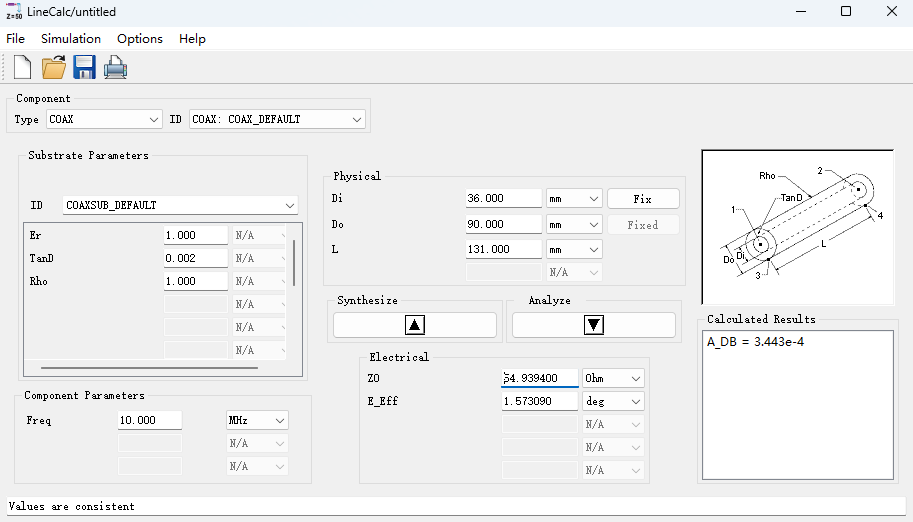
那有没有办法不用圆柱同轴符号呢?我们可以尝试一下用RLGC电路来模拟符号的方法。
比如使用W_Element符号,该符号用于通过 RLGC 参数配置多导体输电线路。
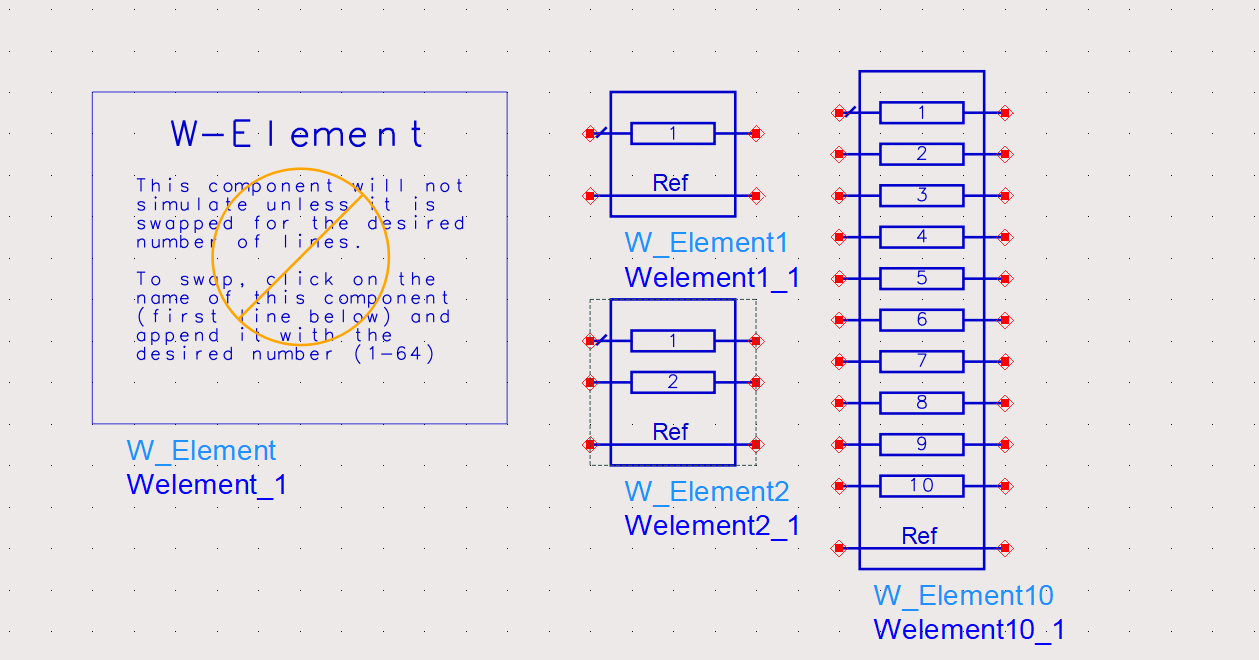
为了使用W_Element,我们需要准备RLGC文件。
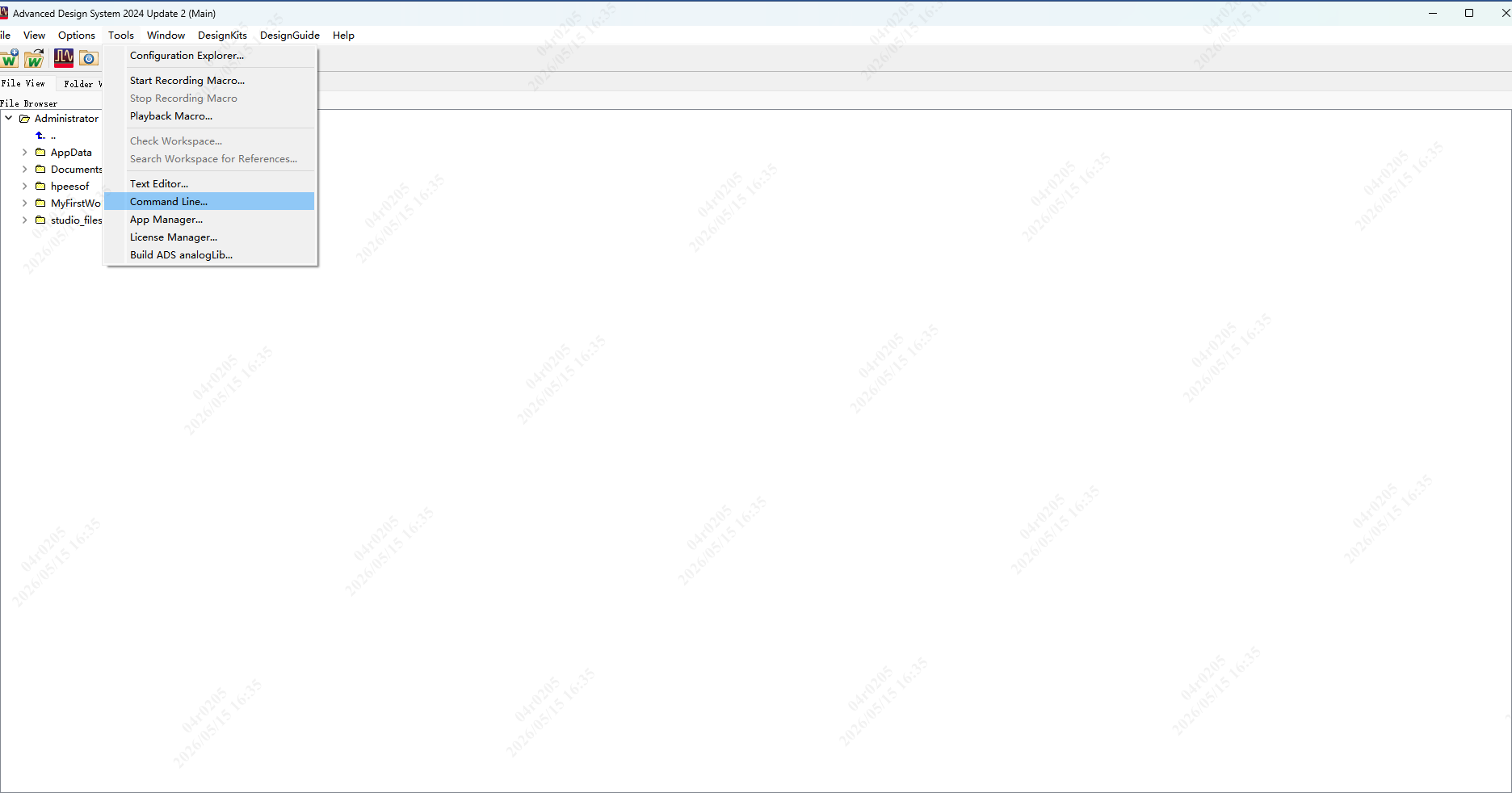
首先记住一定要打开一个workspace后再打开这个窗口,否则界面是这样的。
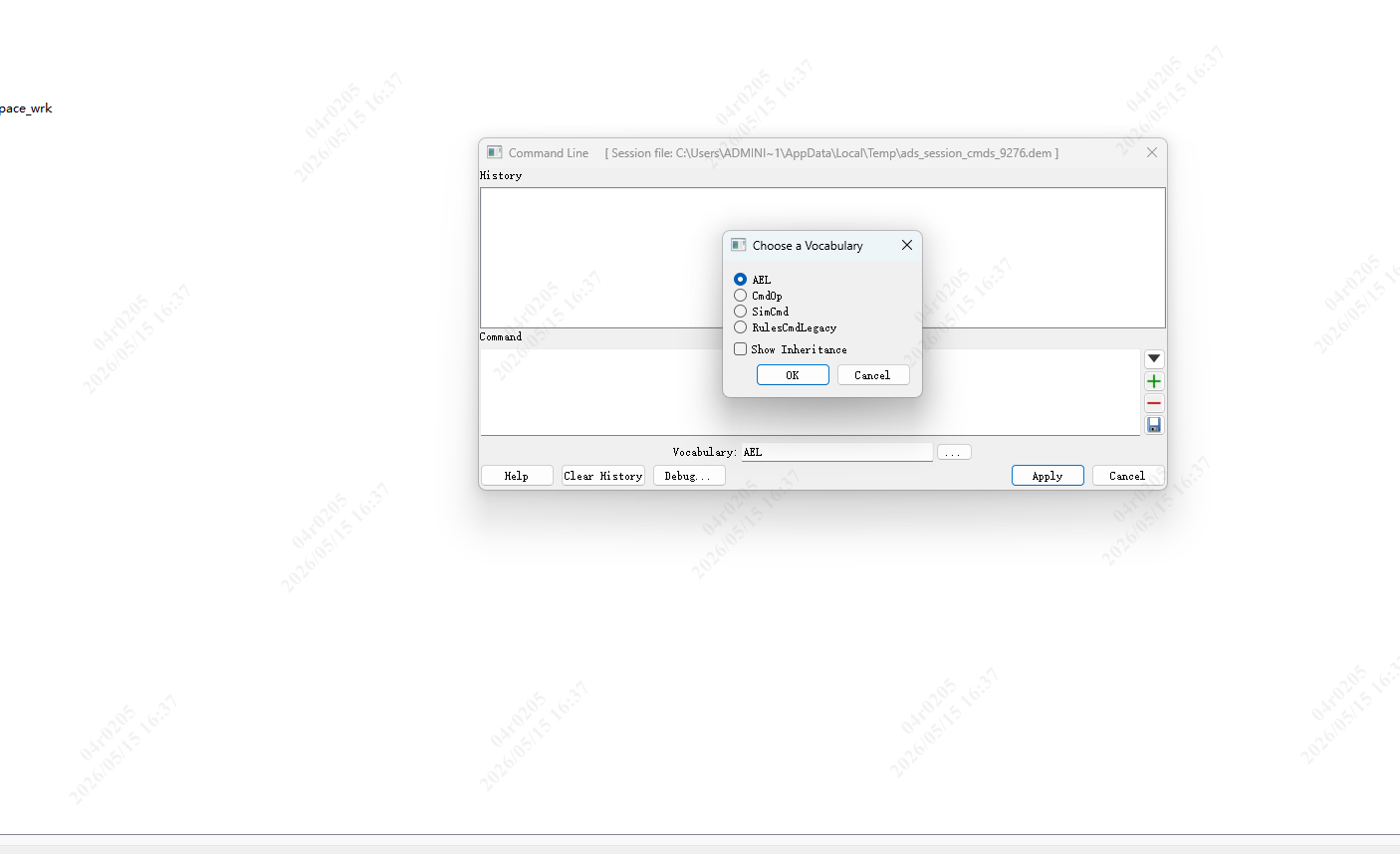
打开workspace后command line窗口就变成这样了。
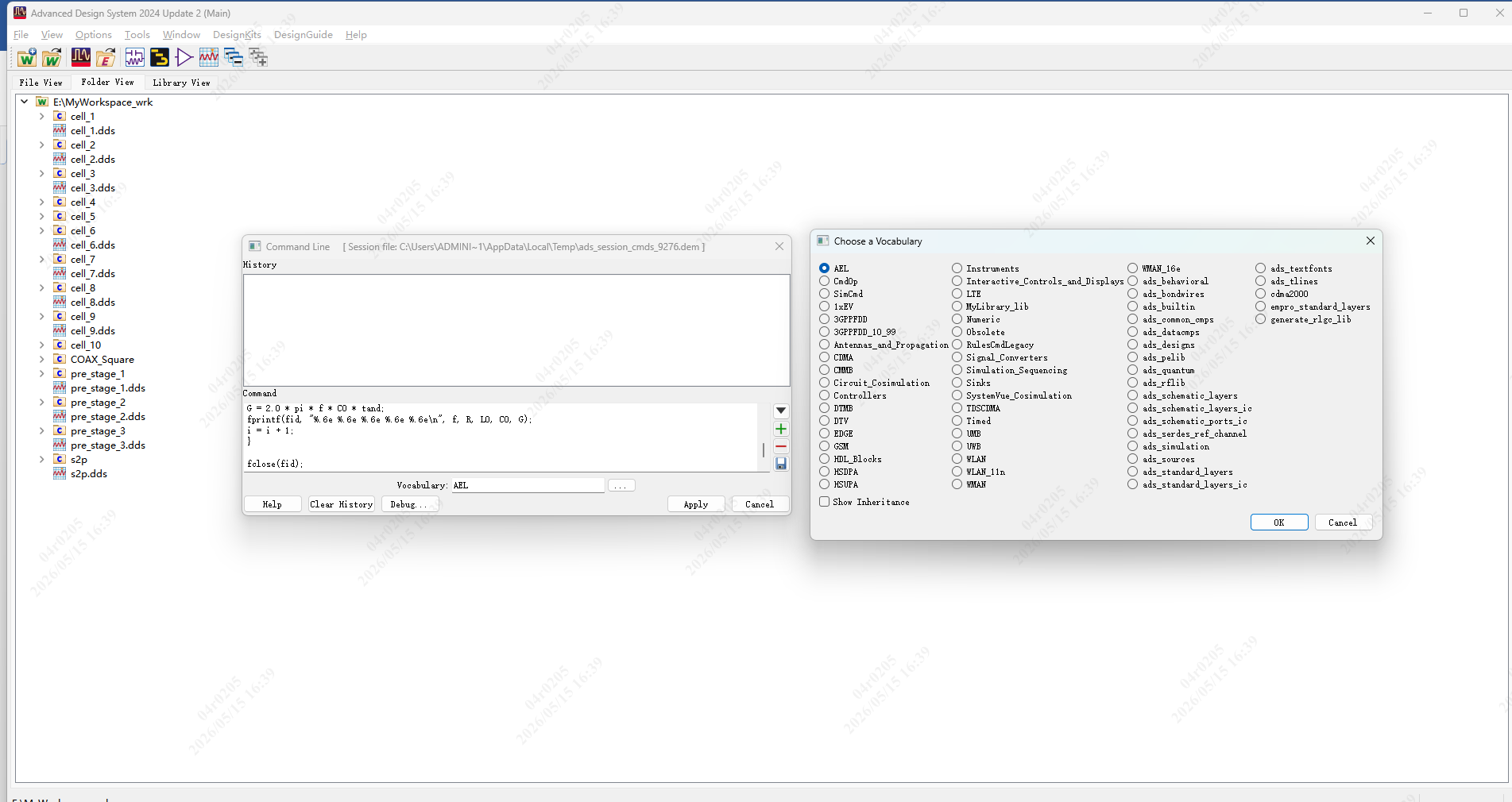
点击Apply运行文件,点击保存按钮保存ael文件到指定位置。
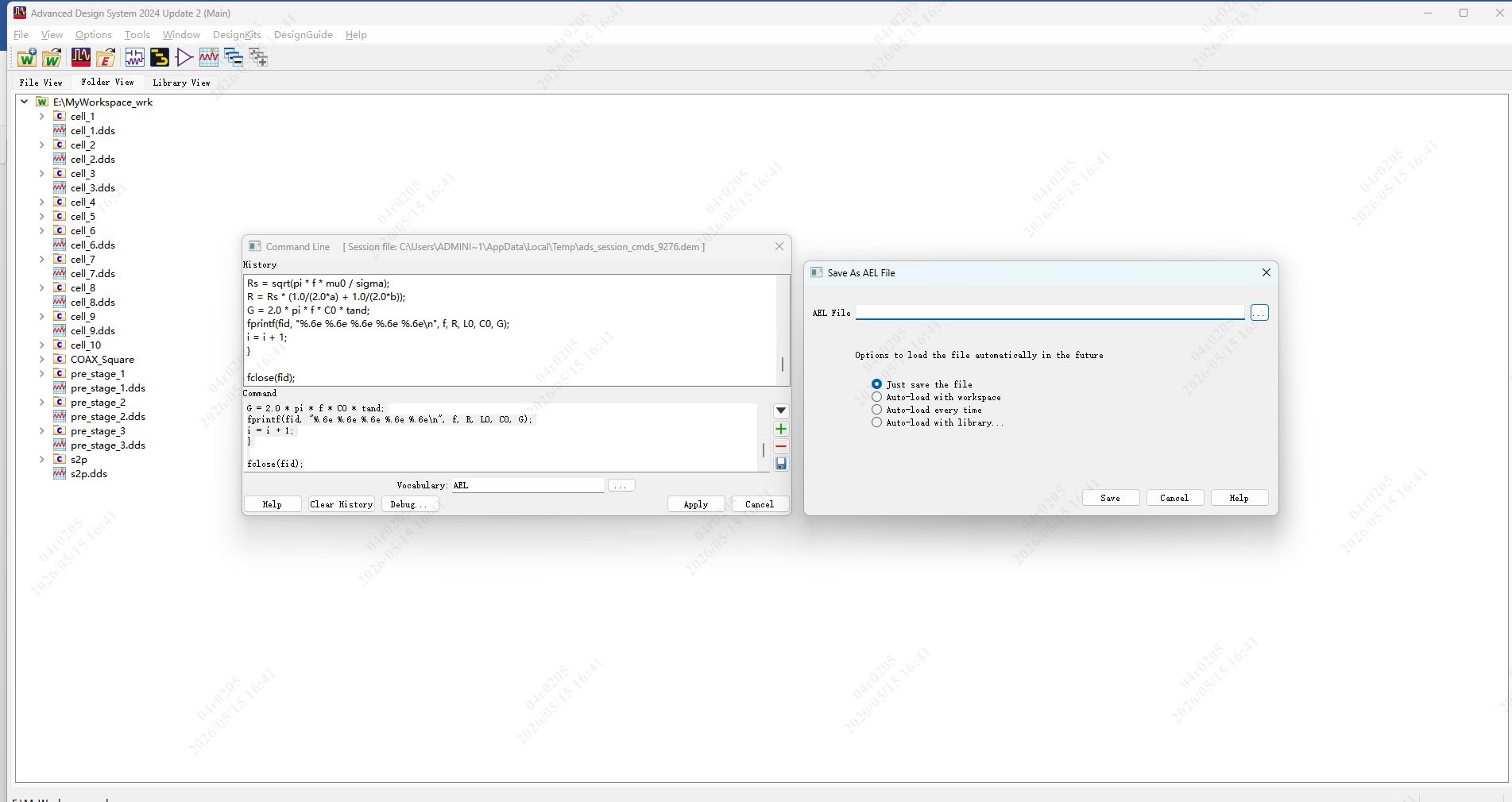
由于我们准备的代码是静默生成文件,所以控制台无输出。
代码如下——
decl pi; pi = 3.14159265358979;
decl c; c = 299792458;
decl mu0; mu0 = 1.2566370614e-6;
decl eps0; eps0 = 8.854187817e-12;
decl a; a = 0.35;
decl b; b = 0.64;
decl eps_r; eps_r = 1.0006;
decl tand; tand = 0.002;
decl sigma; sigma = 5.96e7;
decl start_freq; start_freq = 1e6;
decl stop_freq; stop_freq = 150e6;
decl num_points; num_points = 150;
decl ratio; ratio = a / b;
decl Z0; Z0 = (47.086 / sqrt(eps_r)) \* (1.0 - ratio) / (0.279 + 0.721
\* ratio);
decl v; v = c / sqrt(eps_r);
decl L0; L0 = Z0 / v;
decl C0; C0 = 1.0 / (Z0 \* v);
decl df; df = (stop_freq - start_freq) / (num_points - 1);
decl fid; fid = fopen(\"square_coax.rlgc\", \"w\");
fprintf(fid, \"\* RLGC File\\n\");
fprintf(fid, \"\* Z0=%.2f\\n\", Z0);
fprintf(fid, \"\\n\");
decl Rdc; Rdc = 1.0/(sigma\*a\*a);
fprintf(fid, \"0.000000e+00 %.6e %.6e %.6e 0.000000e+00\\n\", Rdc, L0,
C0);
decl i; i = 1;
decl f;
decl Rs;
decl R;
decl G;
while(i \<= num_points)
{
f = start_freq + (i-1)\*df;
Rs = sqrt(pi \* f \* mu0 / sigma);
R = Rs \* (1.0/(2.0\*a) + 1.0/(2.0\*b));
G = 2.0 \* pi \* f \* C0 \* tand;
fprintf(fid, \"%.6e %.6e %.6e %.6e %.6e\\n\", f, R, L0, C0, G);
i = i + 1;
}
fclose(fid);
可以看到已经生成了RLGC文件。
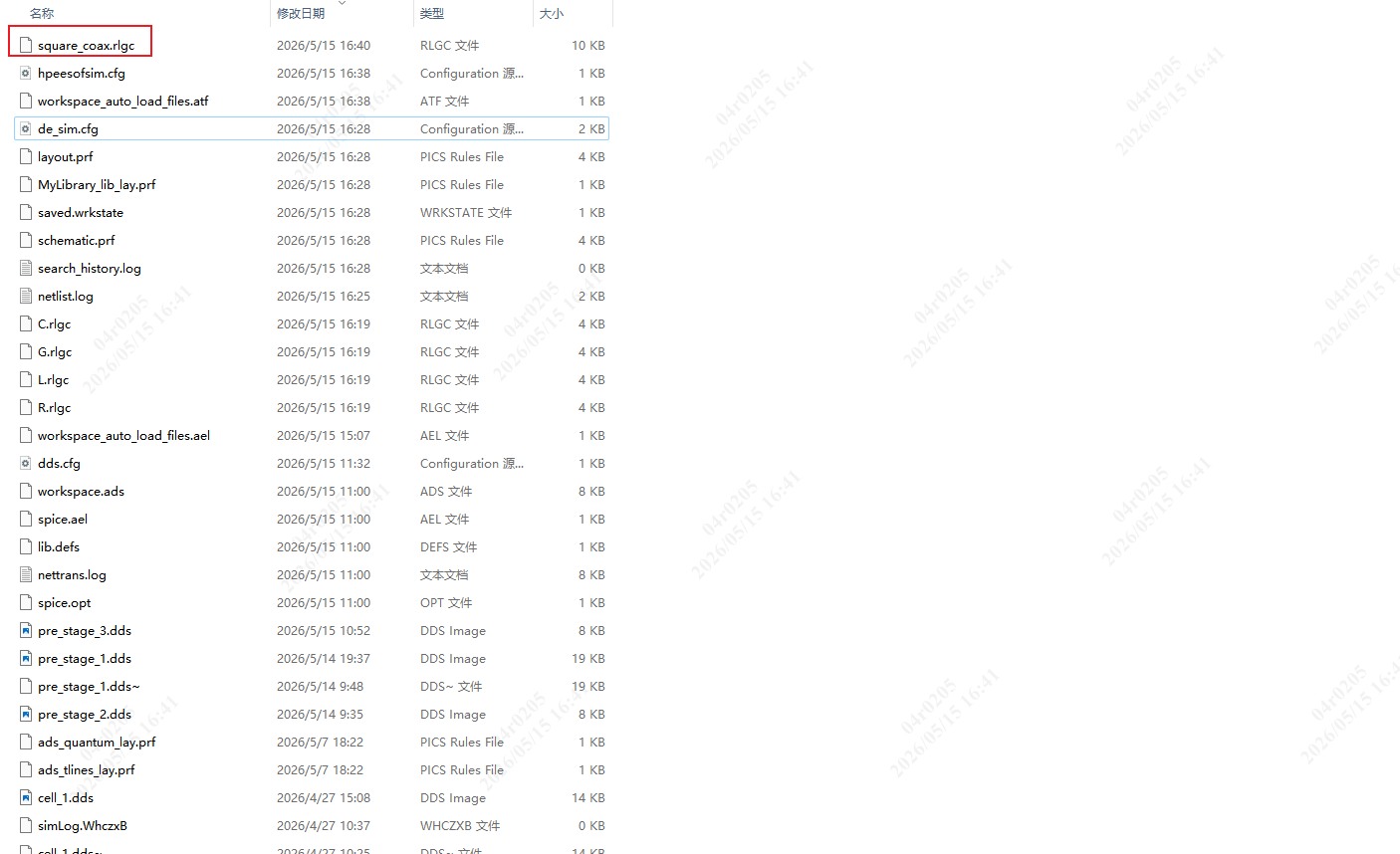
但是在如下的电路中运行报错了。
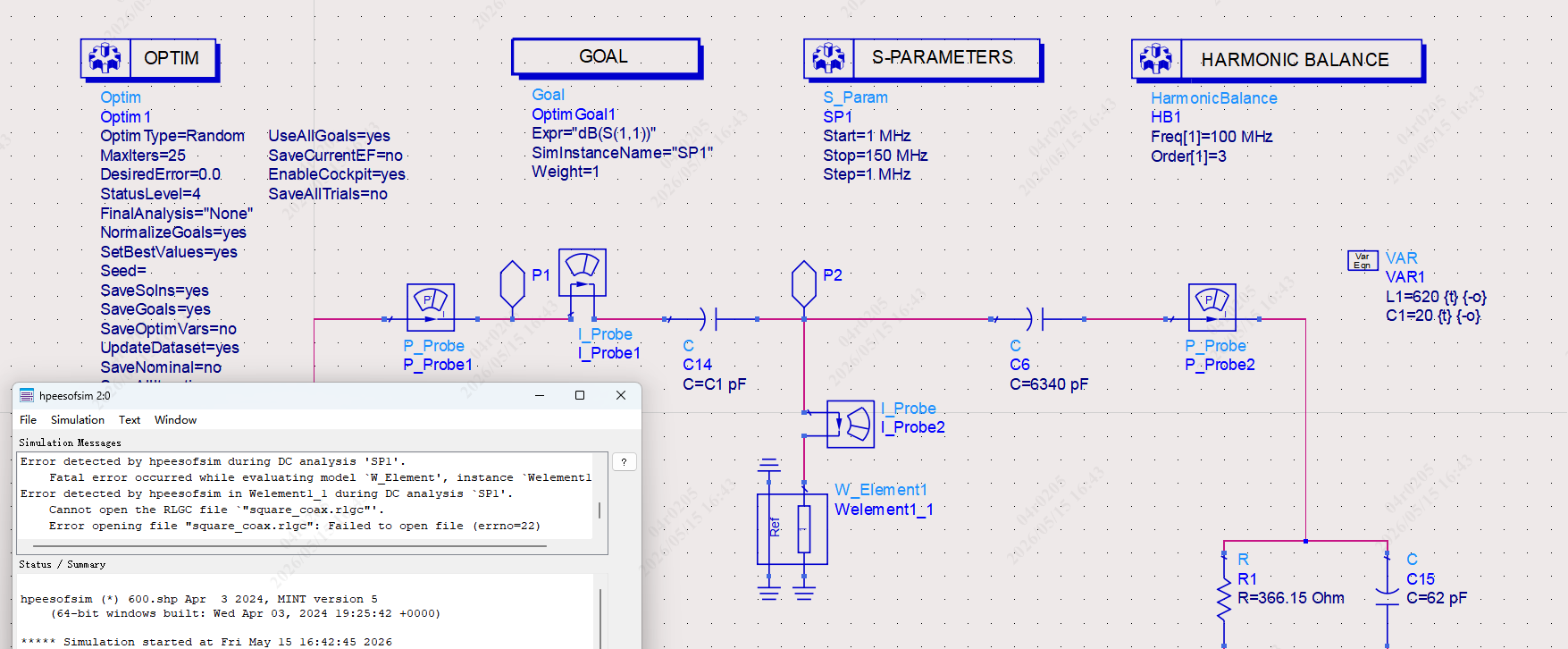
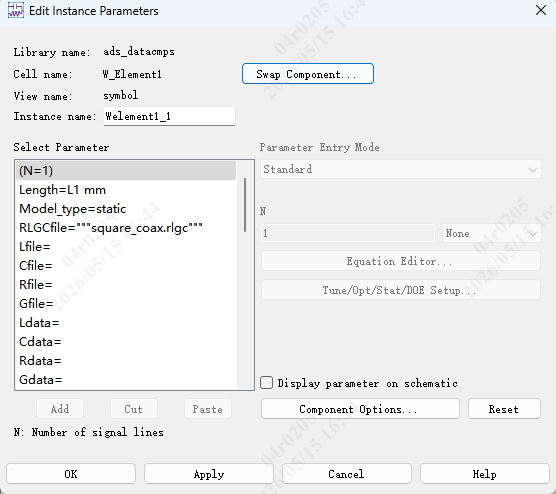
W_Element1的设置如图所示。截图是错的,输入路径不能带双引号,否则会找不到文件。建议将rlgc文件放在项目文件夹,默认文件夹层级是“.\Megawave_wrk\data”。
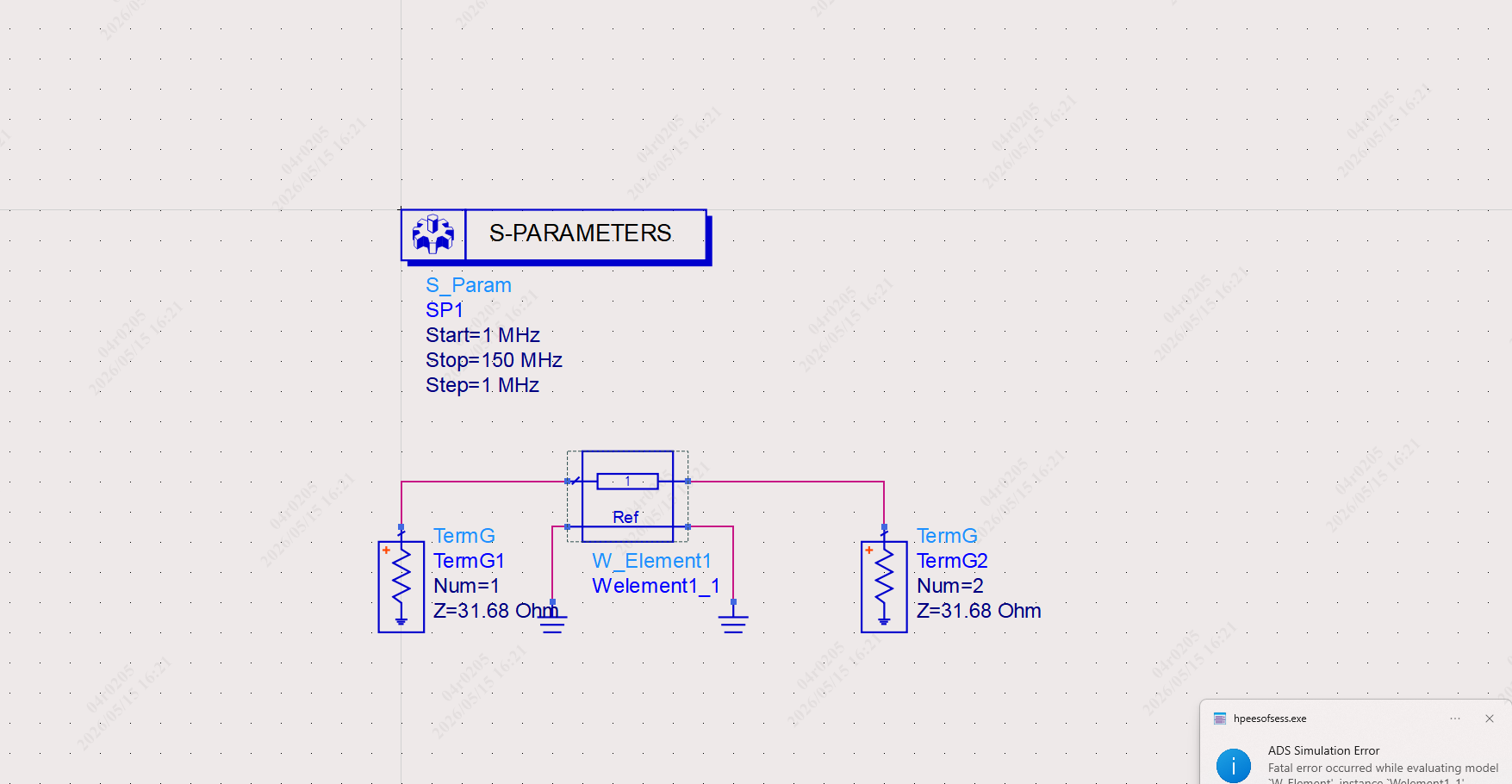
为了验证RLGC文件是否正常,以及确认W_Element1是否设置错误,我们搭建这样一个电路,频率范围设置与RLGC代码中的一致。
-
新建一个 空白原理图
-
只放这 4 个元件:
-
PORT 两个
-
W-ELEMENT1 一个
-
SP1 (仿真控制器)一个
-
-
连线:
PORT1 → W-ELEMENT1 → PORT2
地线全部默认
确认一下设置有没有问题。
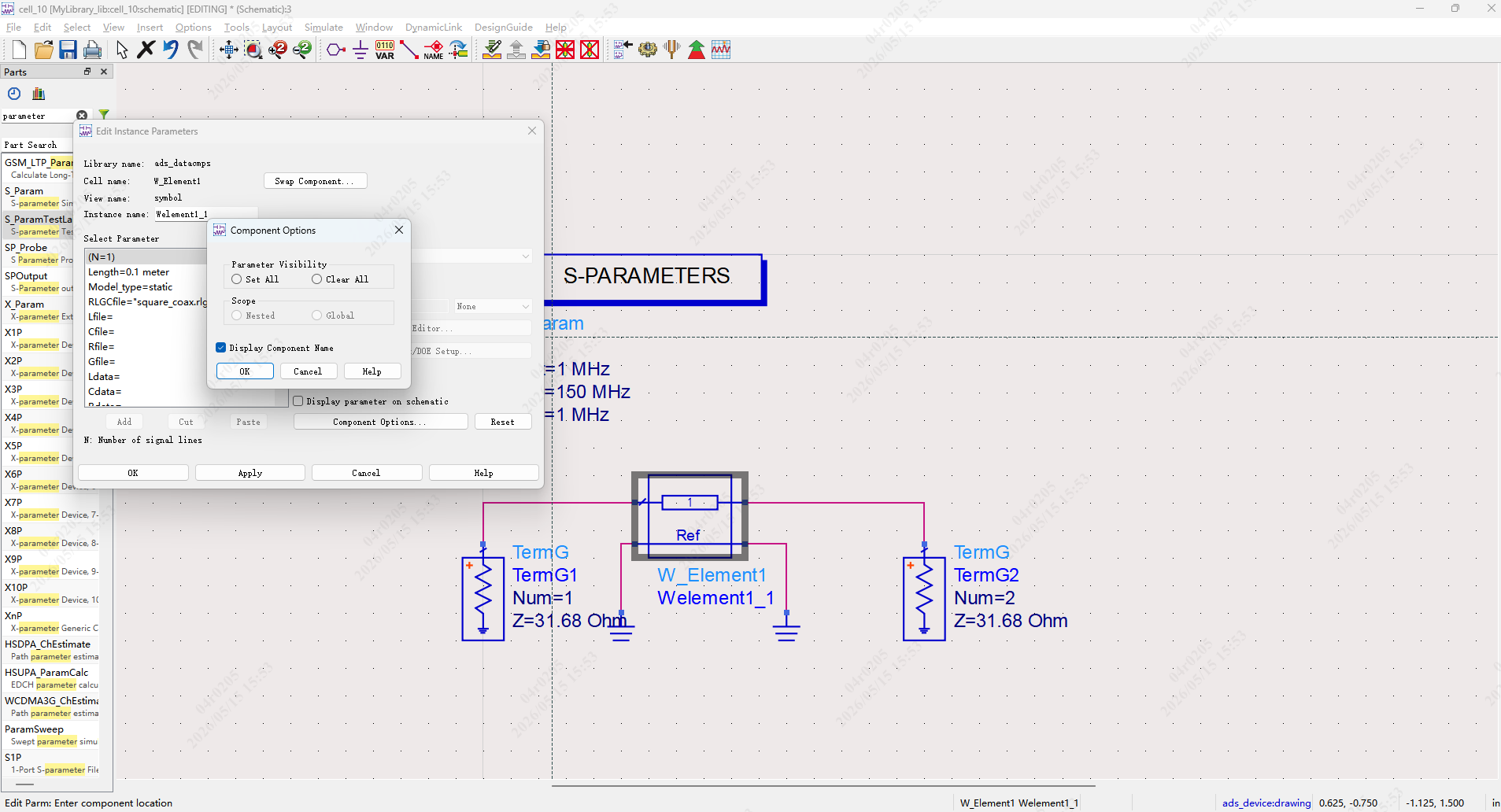
运行提示如图所示,依然无法读取RLGC文件。
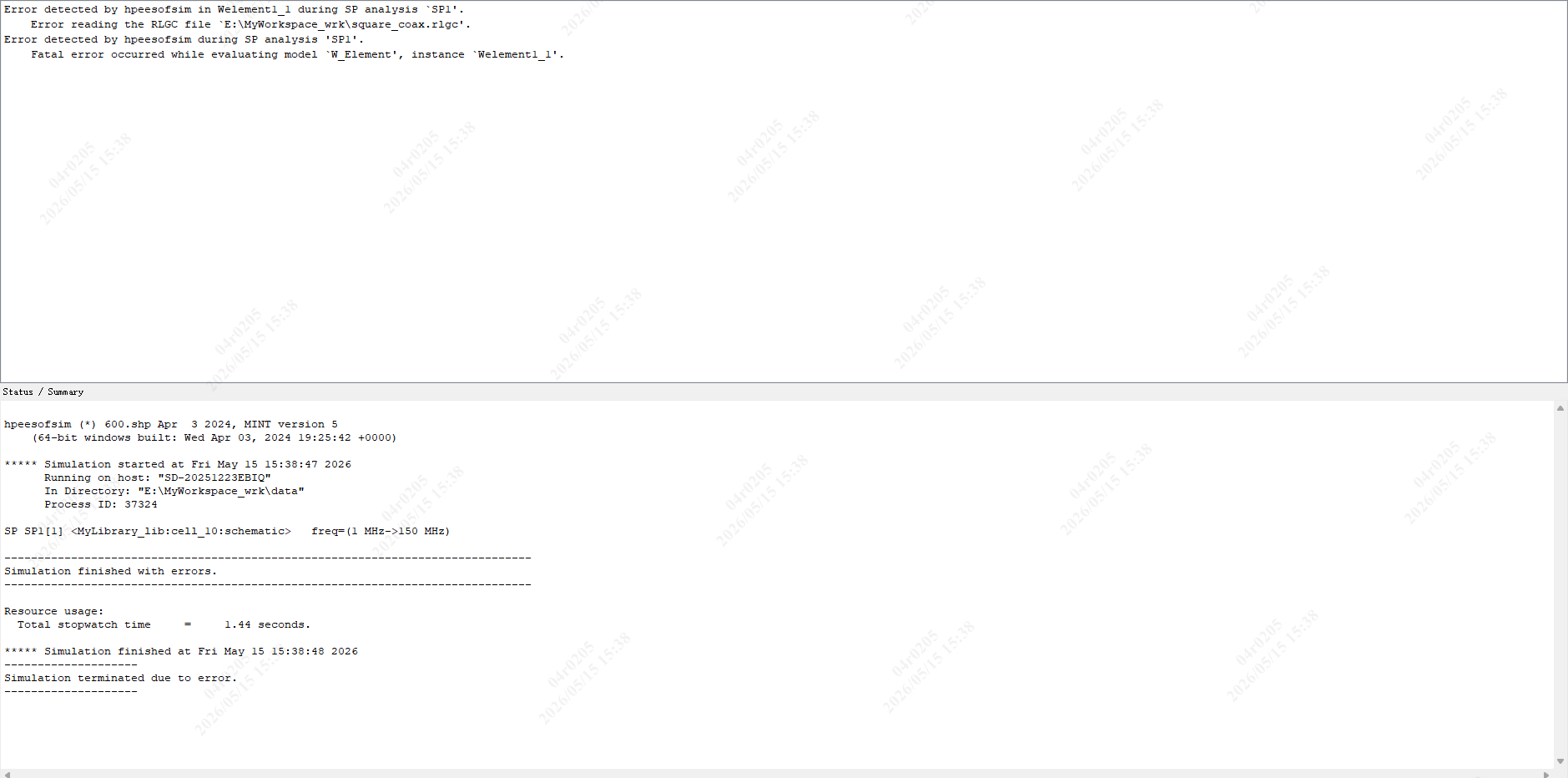
查阅官方文档寻找原因,得出以下结论。
我现在用的是 Model_type=0(静态模型),但我的 RLGC文件是按频率分段的格式写的,这完全不匹配!
一、官方文档明确说明:两种模式的文件格式完全不同
1. Model_type=0(静态模型)
-
只能用 RLGCfile 参数
-
文件里没有频率点!
-
格式:[N] L11 L21 L22 C11 C21 C22 Rdc11 Rdc21 Rdc22 Gdc11 Gdc21
Gdc22 Rs11 Rs21 Rs22 Gd11 Gd21 Gd22 -
我的文件里写了频率、1MHz、150MHz 这些,Model_type=0 会直接当成无效数据,报读取错误。
2. Model_type=1(频率相关模型)
-
不能用 RLGCfile 参数
-
必须用 Lfile / Cfile / Rfile / Gfile 分别定义每个矩阵的文件
-
每个文件的格式才是:[点数] 频率 L11 L21 L22 ...
-
我现在的文件格式,只能给 Model_type=1 用,给 Model_type=0 用必然报错!
那我们试着把 W-Element 改成频率相关模式。因为 Model_type=1 要求每个矩阵单独一个文件,把我的RLGC 文件拆成 4 个独立文件试试。
编写一下生成四个独立文件的代码——
decl pi; pi = 3.14159265358979;
decl c; c = 299792458;
decl mu0; mu0 = 1.2566370614e-6;
decl a; a = 0.35;
decl b; b = 0.64;
decl eps_r; eps_r = 1.0006;
decl tand; tand = 0.002;
decl sigma; sigma = 5.96e7;
decl start_freq; start_freq = 1e6;
decl stop_freq; stop_freq = 150e6;
decl num_points; num_points = 150;
decl ratio; ratio = a / b;
decl Z0; Z0 = (47.086 / sqrt(eps_r)) \* (1.0 - ratio) / (0.279 + 0.721
\* ratio);
decl v; v = c / sqrt(eps_r);
decl L0; L0 = Z0 / v;
decl C0; C0 = 1.0 / (Z0 \* v);
decl df; df = (stop_freq - start_freq) / (num_points - 1);
decl fidL; fidL = fopen(\"L.rlgc\", \"w\");
decl fidC; fidC = fopen(\"C.rlgc\", \"w\");
decl fidR; fidR = fopen(\"R.rlgc\", \"w\");
decl fidG; fidG = fopen(\"G.rlgc\", \"w\");
// 写入点数(含DC点,共151个)
fprintf(fidL, \"%d\\n\", num_points + 1);
fprintf(fidC, \"%d\\n\", num_points + 1);
fprintf(fidR, \"%d\\n\", num_points + 1);
fprintf(fidG, \"%d\\n\", num_points + 1);
// DC点
decl Rdc; Rdc = 1.0/(sigma\*a\*a);
fprintf(fidL, \"%.6e %.6e\\n\", 0.0, L0);
fprintf(fidC, \"%.6e %.6e\\n\", 0.0, C0);
fprintf(fidR, \"%.6e %.6e\\n\", 0.0, Rdc);
fprintf(fidG, \"%.6e %.6e\\n\", 0.0, 0.0);
decl i; i = 1;
decl f;
decl Rs;
decl R;
decl G;
while(i \<= num_points)
{
f = start_freq + (i-1)\*df;
Rs = sqrt(pi \* f \* mu0 / sigma);
R = Rs \* (1.0/(2.0\*a) + 1.0/(2.0\*b));
G = 2.0 \* pi \* f \* C0 \* tand;
fprintf(fidL, \"%.6e %.6e\\n\", f, L0);
fprintf(fidC, \"%.6e %.6e\\n\", f, C0);
fprintf(fidR, \"%.6e %.6e\\n\", f, R);
fprintf(fidG, \"%.6e %.6e\\n\", f, G);
i = i + 1;
}
fclose(fidL);
fclose(fidC);
fclose(fidR);
fclose(fidG);
运行后,我的工程目录会生成这 4 个文件,然后 W-Element1这样设置(Model_type=1)。
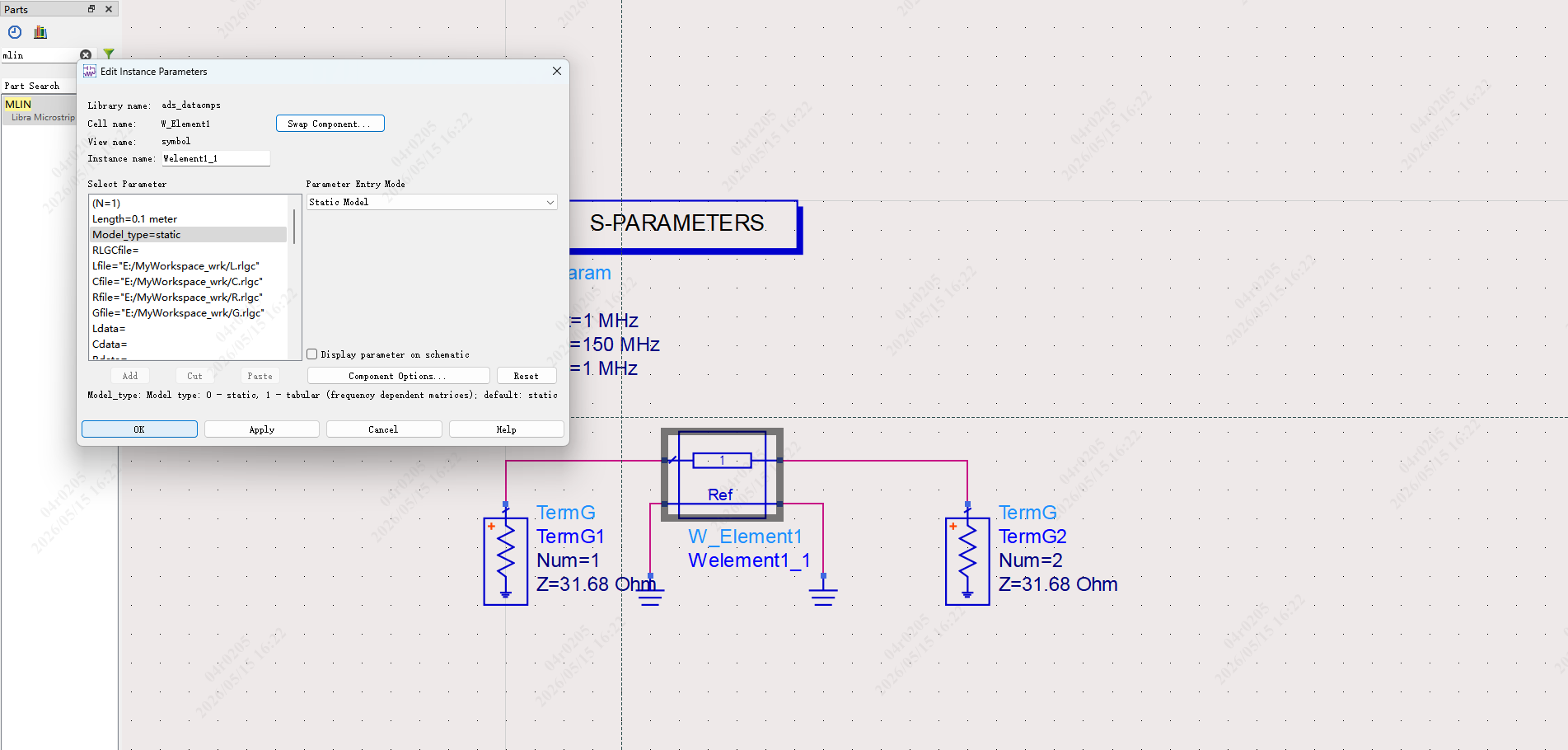
然后我们发现报了这个奇怪的错误。
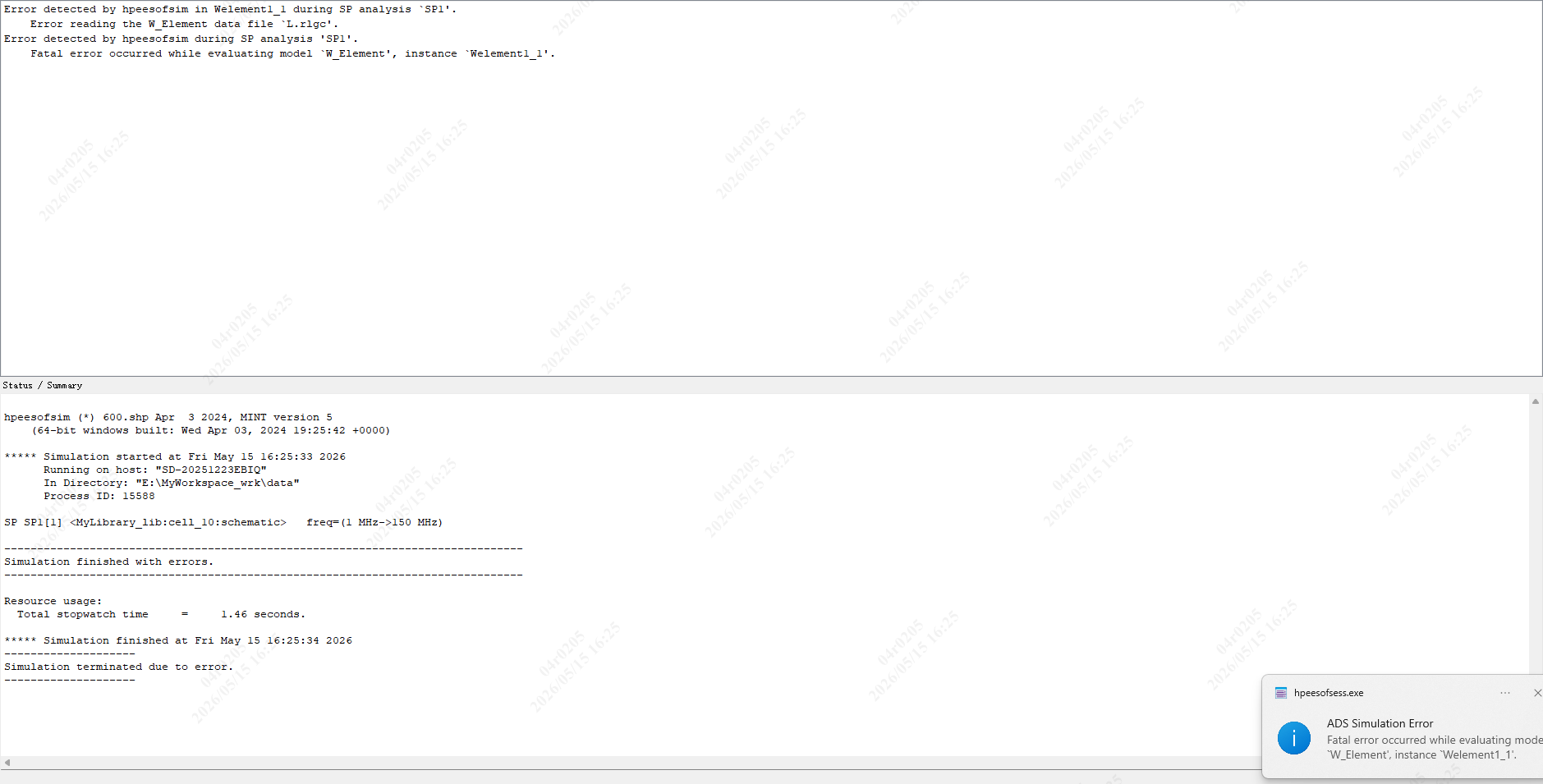
然后人工智能给了我提供奇怪的提示——
官方文档的隐藏要求:Model_type=1 的文件格式
我再仔细看了一遍我贴的帮助文档,里面写了关键一句:
For Model_type=1, the data consists of pairs, where each pair is formed
by a frequency value followed by the matrix entries at that frequency.

对 N=1 的传输线,L/C/R/G 都是 **1x1 矩阵**,所以每一行的数据格式是:

频率值 矩阵元素

但还有一个 **关键细节**,官方文档没写死,但 ADS 强制要求:

**频率值必须是整数,不能是科学计数法!**

ADS 的解析器对科学计数法(如
1.000000e+06)有兼容性问题,我文件里的频率用 1.000000e+06
写,它会解析失败,直接报 Error reading the W_Element data file。
我们现在将频率全部改成普通数字。
decl pi; pi = 3.14159265358979;
decl c; c = 299792458;
decl mu0; mu0 = 1.2566370614e-6;
decl a; a = 0.35;
decl b; b = 0.64;
decl eps_r; eps_r = 1.0006;
decl tand; tand = 0.002;
decl sigma; sigma = 5.96e7;
decl start_freq; start_freq = 1e6;
decl stop_freq; stop_freq = 150e6;
decl num_points; num_points = 150;
decl ratio; ratio = a / b;
decl Z0; Z0 = (47.086 / sqrt(eps_r)) \* (1.0 - ratio) / (0.279 + 0.721
\* ratio);
decl v; v = c / sqrt(eps_r);
decl L0; L0 = Z0 / v;
decl C0; C0 = 1.0 / (Z0 \* v);
decl df; df = (stop_freq - start_freq) / (num_points - 1);
decl fidL; fidL = fopen(\"L.rlgc\", \"w\");
decl fidC; fidC = fopen(\"C.rlgc\", \"w\");
decl fidR; fidR = fopen(\"R.rlgc\", \"w\");
decl fidG; fidG = fopen(\"G.rlgc\", \"w\");
fprintf(fidL, \"%d\\n\", num_points + 1);
fprintf(fidC, \"%d\\n\", num_points + 1);
fprintf(fidR, \"%d\\n\", num_points + 1);
fprintf(fidG, \"%d\\n\", num_points + 1);
decl Rdc; Rdc = 1.0/(sigma\*a\*a);
fprintf(fidL, \"0 %.6e\\n\", L0);
fprintf(fidC, \"0 %.6e\\n\", C0);
fprintf(fidR, \"0 %.6e\\n\", Rdc);
fprintf(fidG, \"0 %.6e\\n\", 0.0);
decl i; i = 1;
decl f;
decl Rs;
decl R;
decl G;
while(i \<= num_points)
{
f = start_freq + (i-1)\*df;
Rs = sqrt(pi \* f \* mu0 / sigma);
R = Rs \* (1.0/(2.0\*a) + 1.0/(2.0\*b));
G = 2.0 \* pi \* f \* C0 \* tand;
fprintf(fidL, \"%.0f %.6e\\n\", f, L0);
fprintf(fidC, \"%.0f %.6e\\n\", f, C0);
fprintf(fidR, \"%.0f %.6e\\n\", f, R);
fprintf(fidG, \"%.0f %.6e\\n\", f, G);
i = i + 1;
}
fclose(fidL);
fclose(fidC);
fclose(fidR);
fclose(fidG);
运行提示依然如上图所示。
我们再翻一下help文件。
For Model_type=1, the data consists of pairs, where each pair is formed
by a frequency value followed by the matrix entries at that frequency.
For N signal lines, the matrix entries are:
L11 L12 … L1N L21 L22 … LNN
Similarly for R, C, G files.
……
When N=1, the matrices are scalar (1×1).
So each line is:
frequency value
……
NOTE:
The tabular model (Model_type=1) is intended for coupled lines (N ≥ 2).
For a single line (N=1), use the static RLGC model (Model_type=0).
N=1 不能用 Model_type=1,只能用 Model_type=0。
放弃 Model_type=1,回到 Model_type=0(static),只用 1 个 RLGC 文件。
我们写这样一段.ael代码,生成文件名static的RLGC文件。
decl pi; pi = 3.14159265358979;
decl c; c = 299792458;
decl mu0; mu0 = 4 \* pi \* 1e-6;
decl a; a = 0.35;
decl b; b = 0.64;
decl eps_r; eps_r = 1.0006;
decl tand; tand = 0.002;
decl sigma; sigma = 5.96e7;
decl ratio; ratio = a / b;
decl Z0; Z0 = (47.086 / sqrt(eps_r)) \* (1.0 - ratio) / (0.279 + 0.721
\* ratio);
decl v; v = c / sqrt(eps_r);
decl L0; L0 = Z0 / v;
decl C0; C0 = 1.0 / (Z0 \* v);
decl Rdc; Rdc = 1.0/(sigma\*a\*a);
decl Gdc; Gdc = 0.0;
// 生成 STATIC 格式 RLGC 文件(N=1 专用)
decl fid; fid = fopen(\"static.rlgc\", \"w\");
fprintf(fid, \"1\\n\"); // N=1
fprintf(fid, \"%.6e \", L0); // L11
fprintf(fid, \"%.6e \", C0); // C11
fprintf(fid, \"%.6e \", Rdc); // Rdc11
fprintf(fid, \"%.6e \", Gdc); // Gdc11
fprintf(fid, \"0.0 \"); // Rs11
fprintf(fid, \"0.0\\n\"); // Gd11
fclose(fid);
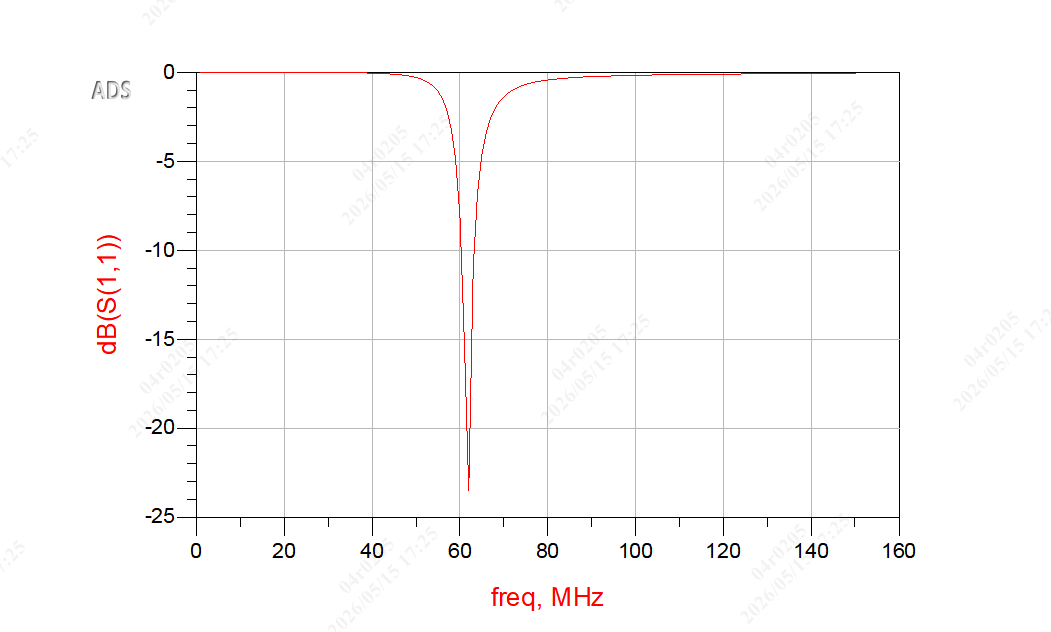
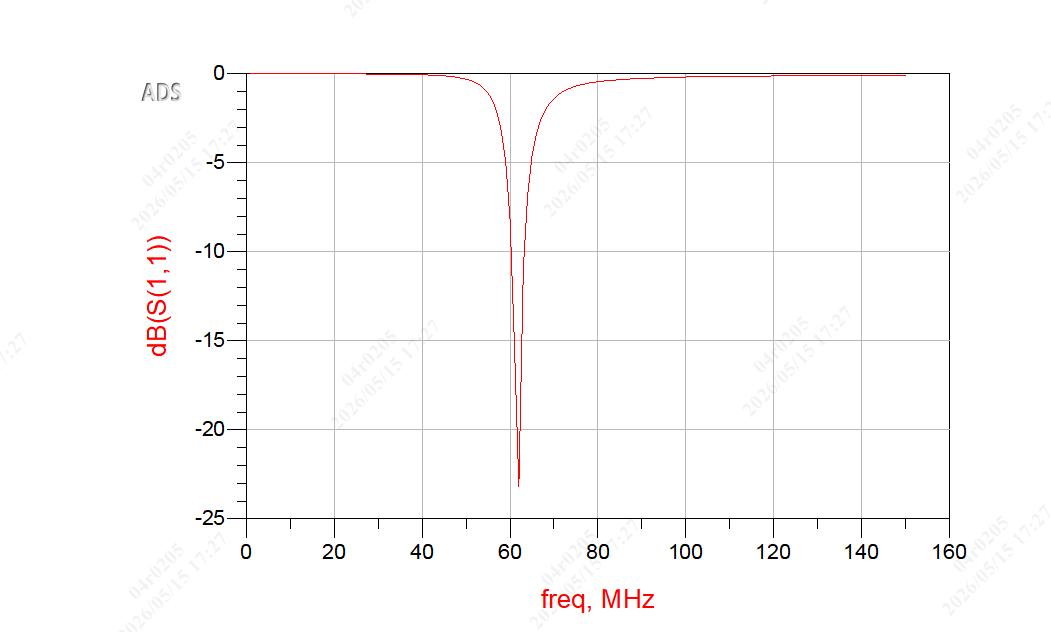
然后我们试一下,完美。
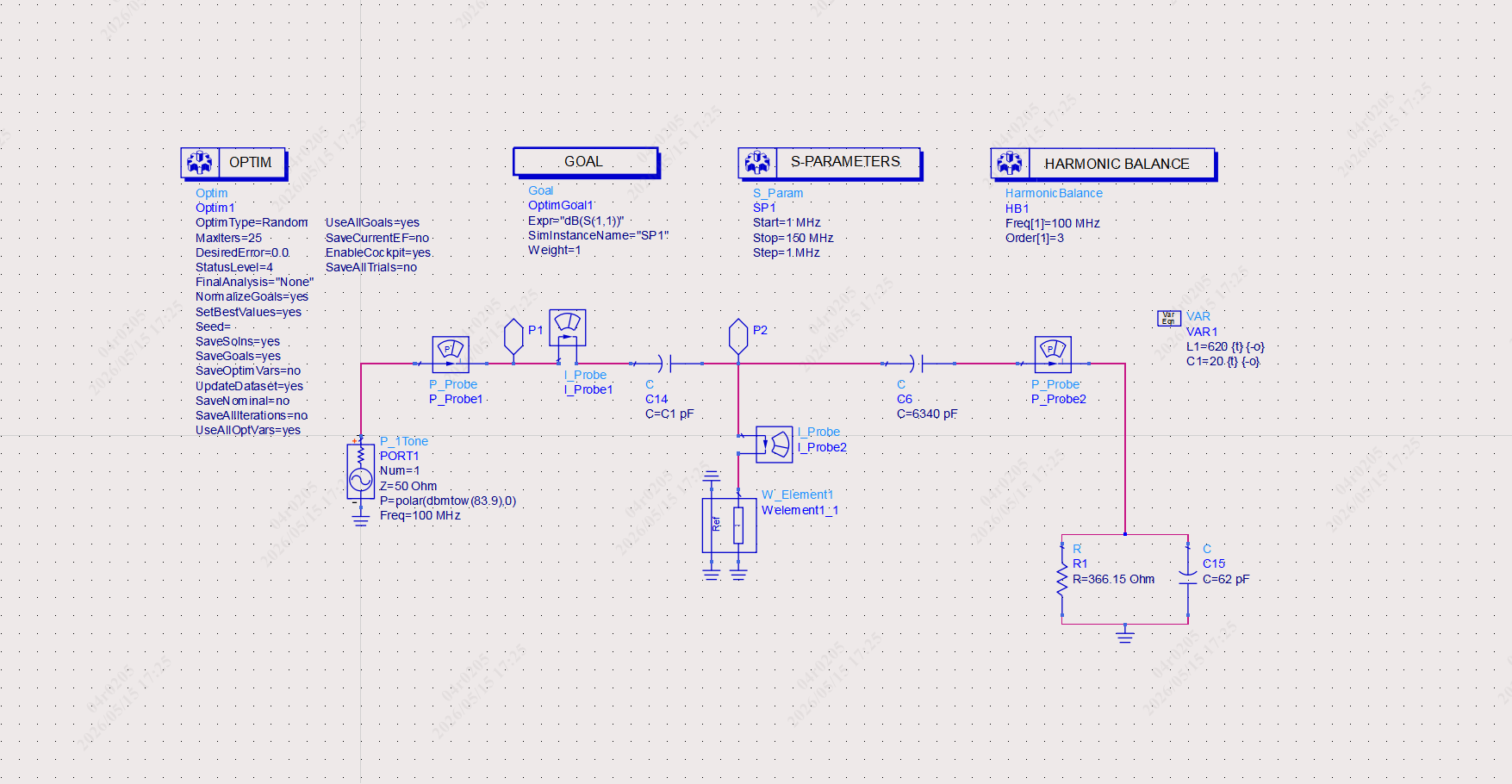
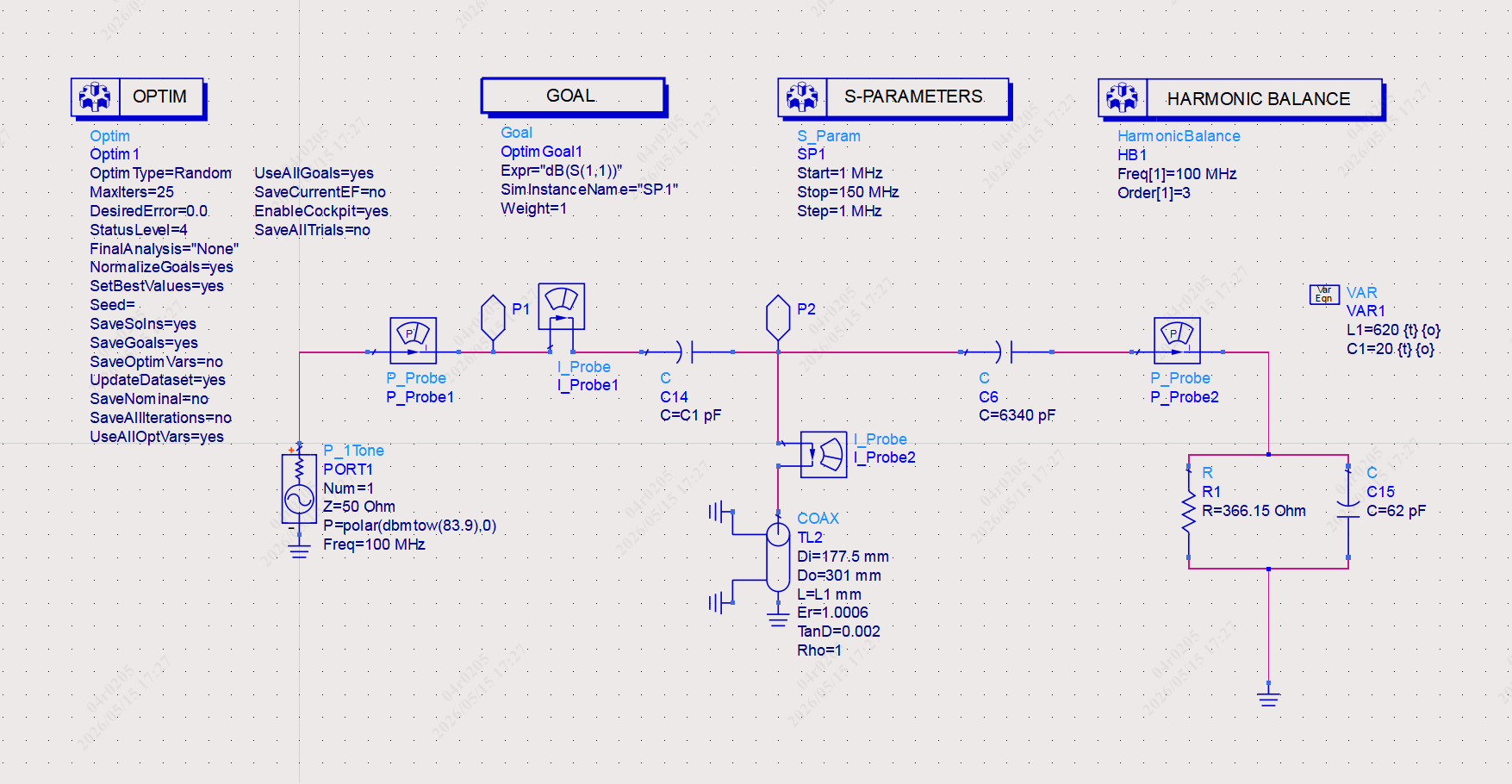
结果一模一样。
现在我们回过头来说明一下代码的计算过程:
- 基础物理常数
-
pi → 圆周率
-
c = 299792458 → 真空中光速
-
mu0 = 4πe-7 → 真空磁导率
这些是传输线计算的基础常数。
- 传输线几何参数
我仿真的是 方形同轴线:
-
a = 0.35:内导体半边长
-
b = 0.64:外导体内半边长
- 半径比 ratio
ratio = a / b
用于后面的阻抗经验公式。
- 核心公式:方形同轴线特性阻抗 Z0
Z0 = (47.086 / sqrt(eps_r)) * (1 - ratio) / (0.279 + 0.721 * ratio)
这是 ADS 官方方形同轴线阻抗经验公式
-
47.086 → 固定系数
-
sqrt (eps_r) → 介质影响
-
(1-ratio) → 几何尺寸影响
-
分母是拟合系数
输出:Z0 ≈ 31.68 Ω
- 相速度 v
v = c / sqrt(eps_r)
传输线中电磁波速度,永远比光速慢,由介质决定。
- 单位长度电感 L0
L0 = Z0 / v
传输线理论基础公式:
Z0 = sqrt(L0/C0)
v = 1/sqrt(L0*C0)
推导得到:
L0 = Z0 / v
- 单位长度电容 C0
C0 = 1 / (Z0 * v)
同样由传输线基础公式推导而来。
- 直流电阻 Rdc
Rdc = 1 / (sigma * a²)
-
sigma:导体电导率
-
a²:截面积
这是直流电阻模型。
- 直流电导 Gdc
Gdc = 0
理想介质,无漏电流。
- 生成静态 RLGC 文件(ADS 专用格式)
1
L11 C11 Rdc11 Gdc11 Rs11 Gd11
格式严格对应:
1 → N=1

L0 → 单位长度电感

C0 → 单位长度电容

Rdc → 直流电阻

Gdc → 直流漏电导

0 → 集肤效应电阻(静态模型不用)

0 → 介质损耗电导(静态模型不用)
Posted at 2026-05-12 Comments Technology
已知电子管阳极电压Va=16kV,帘栅极电压Vg2=1200V,导通角70°。
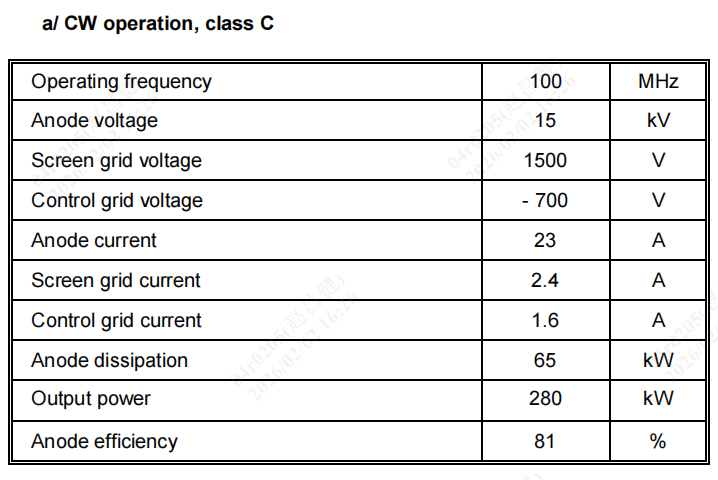
查询TH781技术规格书,已知工作频率100MHz,帘栅压1500V时输出功率为280kW。
即Eg2=1500V,P∼=280kW。
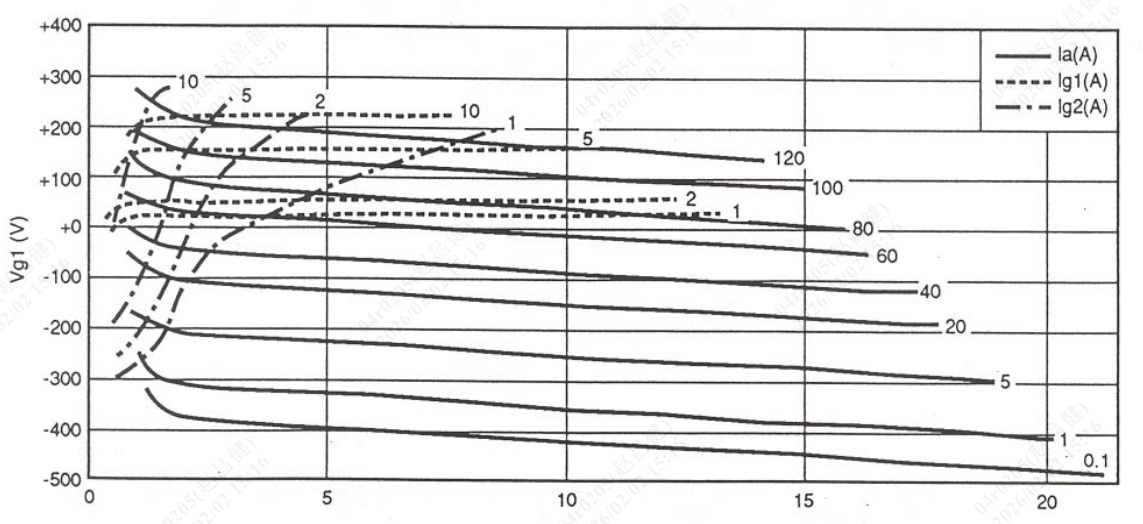
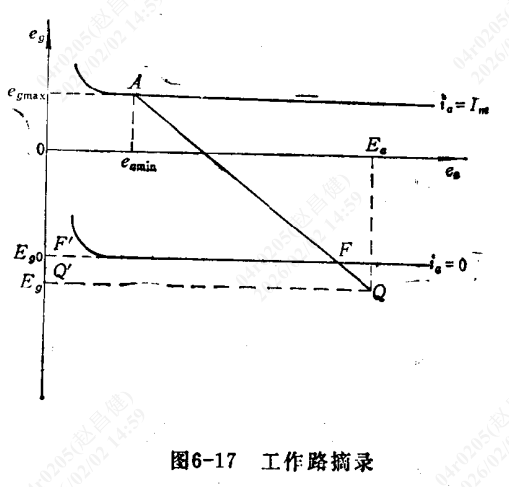
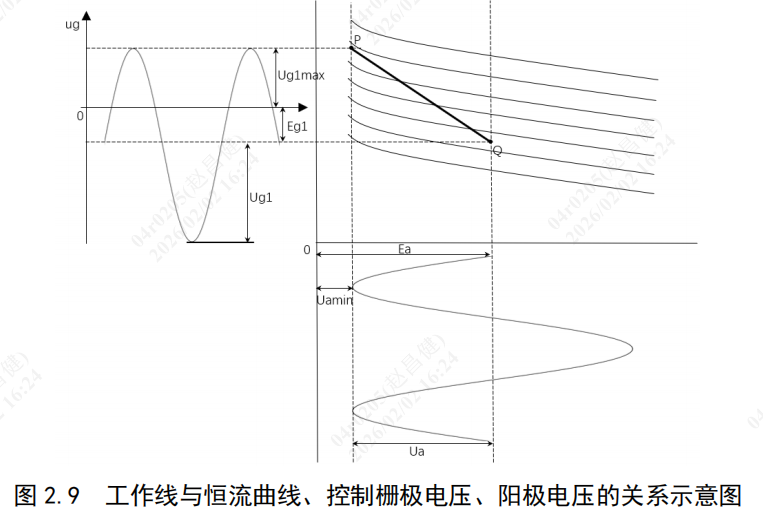
由发射管的板流恒流特性曲线可知,每顺势都有一对栅压eg和板压ea互相对应,
当wt=0°瞬时,有eg=egmax与ea=eamin对应;
我们取此时EaUa的经验值,EaUa=0.9得,eamin=Ea−Ua=0.1Ea,Ua=0.9Ea=14.4kV;
当wt=90°瞬时,有eg=Eg与ea=Ea对应;
确定静态工作点为ea=16kV,Ia=0A。由此可得eamin=1.6kV。
根据发射管的输出功率P∼=21Ia1Ua,
得EaUa取经验值时的基波分量Ia1=0.9Ea2P∼=2*280/(0.9*16)=
38.8889 A
当wt=0瞬时,egmax时对应的Im,根据丙类放大器基波电流与分解系数α1的关系:Ia1=Im∗α1,解的Im=α1Ia1;
根据α1=π(1−cosθ)θ−sinθcosθ,求得α1=0.43555446。
Im=38.8889/0.43555446=89.2859A;
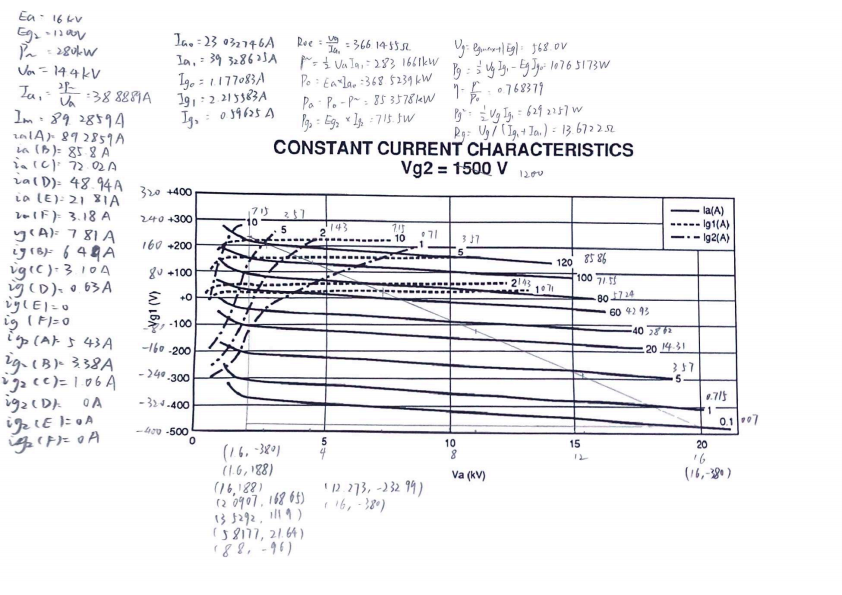
当wt=0瞬时,取P点为(0.1$E_{a},e_{amin}$)=(1.6kV,188V)
当wt=90°瞬时,取Q点为(Ea,Eg)=(16kV,-380V)
从坐标点获取参数:
栅偏压 Eg = Q.y = -380.00 V
栅极激励电压最大值 eg_max = A.y = 188.00 V
栅极激励电压振幅 Ug = eg_max + |Eg| = 188.00 + 380.00 = 568.00 V
十三点法计算原理如下——
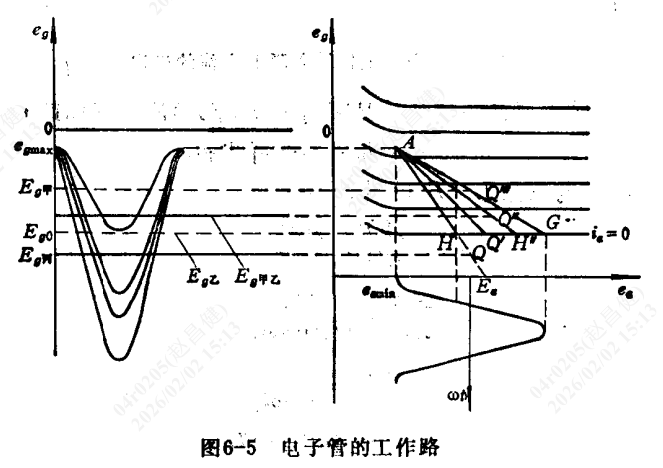
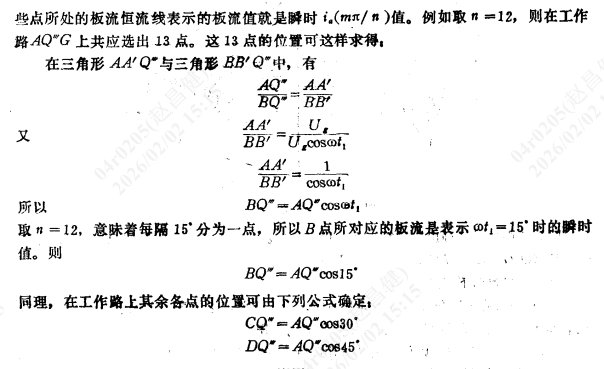
原理:沿斜边AQ从A点(0°)到Q点(90°)按t=1−cos(θ)比例取点
请输入三个顶点坐标(格式:横坐标kV 纵坐标V):
直角顶点 O(x y): 1.6 -380
水平端点 Q(x y): 16 -380
垂直端点 A(x y): 1.6 188
三角形信息:
斜边端点:A(1.600 kV, 188.0 V) → Q(16.000 kV, -380.0 V)
斜边投影:Δx = 14.400 kV, Δy = -568.0 V
直角验证(OA·OQ): 0.000000 (应≈0)
经过十三点法计算可得,ABCDEF点的坐标分别为:
| 角度 | 比例 t | 距A长度 | 横坐标(kV) | 纵坐标(V) | 点 |
|---|---|---|---|---|---|
| 0.0° | 0 | 0 | 1.6 | 188 | A |
| 15.0° | 0.034074 | 19.36 | 2.0907 | 168.65 | B |
| 30.0° | 0.133975 | 76.122 | 3.5292 | 111.9 | C |
| 45.0° | 0.292893 | 166.417 | 5.8177 | 21.64 | D |
| 60.0° | 0.5 | 284.091 | 8.8 | -96 | E |
| 75.0° | 0.741181 | 421.126 | 12.273 | -232.99 | F |
| 90.0° | 1 | 568.183 | 16 | -380 | Q |
通过观察恒流特性曲线得到,
ia(A)=
89.2859A,ia(B)=85.8A,ia(C)=72.02A,ia(D)=48.94A,ia(E)=21.81A,ia(F)=3.18A
ig(A)=7.81A,ig(B)=6.49A, ig(C)=3.10A, ig(D)=0.63A,
ig(E)=0A, ig(F)=0A
ig2(A)=5.43A,ig2(B)=3.38A,
ig2(C)=1.06A,ig2(D)=0A,
ig2(A)=0A,ig2(B)=0A
| 电流 | A | B | C | D | E | F |
|---|---|---|---|---|---|---|
| ia | 89.2859 A | 85.8 A | 72.02 A | 48.94 A | 21.81 A | 3.18 A |
| ig | 7.81 A | 6.49 A | 3.10 A | 0.63 A | 0 | 0 |
| i(g2) | 5.43 A | 3.38 A | 1.06 A | 0 | 0 | 0 |
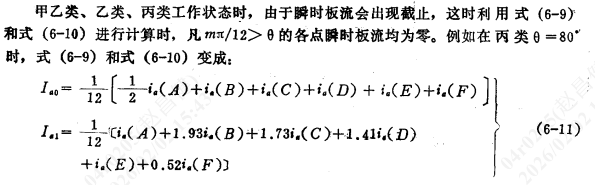
根据上面得到的值计算Ia0、Ia1,得到Ia0=23.032746A,Ia1=39.328625A;
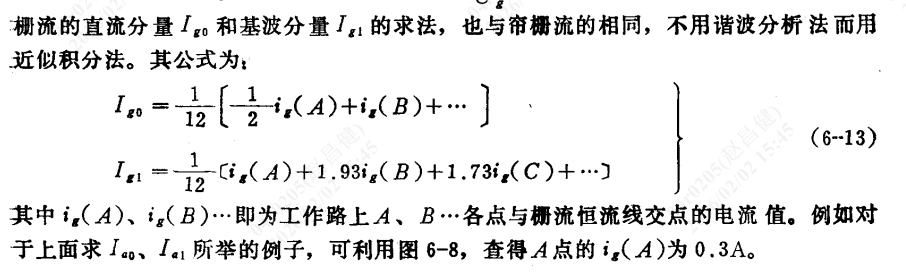
根据上面得到的值计算Ig0、Ig1,得到Ig0=1.177083A,Ig1=2.215583A;
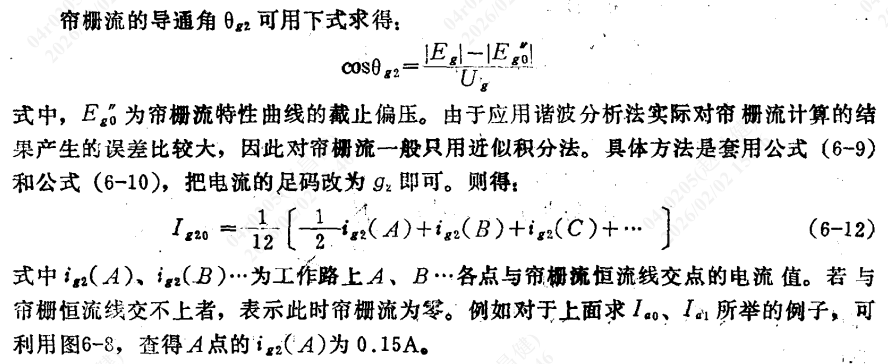
根据上面得到的值计算Ig20,得到Ig20=0.596250A;
板级负载电阻Roe=Ia1Ua= 14400.00
V / 39.3286 A = 366.1455 Ω;
输入功率P∼=21UaIa1=0.5 * 14400.00 V *
39.3286 A = 283.1661 kW;
输出功率Po=EaIa0=16.00 kV * 23.0327 A = 368.5239 kW;
板级损耗Pa=Po−P∼=368.5239 kW - 283.1661 kW = 85.3578
kW;
帘栅极损耗Pg2=Eg2Ig20=1200.00 V * 0.596250 A
= 715.5000 W;
栅极损耗Pg=21UgIg1−EgIg0=0.5*568.00*2.215583 -
(-380.00)*1.177083 = 1076.5173 W;
板级效率η=PoP∼=283.1661 kW / 368.5239 kW =
0.768379 (76.84%);
激励功率Pg∼=21UgIg1=0.5 * 568.00 V *
2.215583 A = 629.2257 W;
放大器的输入阻抗Rg=Ig1+Ia1Ug=568.00 V /
(2.215583 A + 39.328625 A) = 13.6722 Ω。
| 符号 | 名称 | 数值 | 单位 | 符号 | 名称 | 数值 | 单位 |
|---|---|---|---|---|---|---|---|
| Ia0 | 板极直流分量 | 23.0327 | A | Ia1 | 板极基波分量 | 39.3286 | A |
| Ig0 | 栅极直流分量 | 1.1771 | A | Ig1 | 栅极基波分量 | 2.2156 | A |
| Ig20 | 帘栅极直流分量 | 0.5963 | A | ||||
| Roe | 板极负载电阻 Ua1/Ia1 |
366.15 | Ω | P~ | 输出功率 ½Ua1Ia1 |
283.17 | kW |
| P0 | 直流输入功率 EaIa0 |
368.52 | kW | Rge | 栅地输入阻抗 Ug/(Ig1+Ia1) |
13.67 | Ω |
| Pa | 板极损耗 P0-P~ |
85.36 | kW | Pg2 | 帘栅极损耗 Eg2Ig20 |
715.50 | W |
| Pg | 栅极损耗 ½UgIg1-EgIg0 |
1076.52 | W | Pg1 | 激励功率 ½UgIg1 |
629.23 | W |
| η | 板级效率 | P~/P0 | 76.84 | % | |||
C语言代码
#include <stdio.h>
#include <math.h>

#define PI 3.14159265358979323846
#define DEG_TO_RAD(x) ((x) * PI / 180.0)

// 全局变量,用于各阶段传递数据
double Ea, Eg, E_g2;           // 电压参数
double theta_deg, theta_rad;   // 导通角
int n;                         // 分解系数序号
double alpha_n;                // 分解系数
double Im;                     // 脉冲电流峰值
double Ia1_calculated;         // 阶段1计算的Ia1
double Ua;                     // 阳极电压振幅
double Ua_over_Ea;             // 板压利用系数
double P_tilde;                // 射频输出功率 P~ (kW)

// 13点法坐标点
typedef struct {
	double x;      // 横坐标 (kV)
	double y;      // 纵坐标 (V)
	char name;     // 点名称
} Point;

Point points[7];   // A, B, C, D, E, F, Q

// 电流采样值
double ia[6];      // Ia(A) ~ Ia(F)
double ig[6];      // Ig(A) ~ Ig(F)
double ig2[6];     // Ig2(A) ~ Ig2(F)

// 计算结果
double Ia0, Ia1;   // 阳极电流直流分量和基波分量
double Ig0, Ig1;   // 栅极电流直流分量和基波分量
double Ig2_0;      // 帘栅极电流直流分量

// 最终计算结果
double R_oe;       // 板级负载电阻
double P_out_rf;   // 输出功率 (射频功率)
double P_in_dc;    // 输入功率 (直流功率)
double P_a;        // 板级损耗
double P_g2;       // 帘栅极损耗
double P_g;        // 栅极损耗
double eta;        // 板级效率
double P_g_drive;  // 激励功率
double R_g;        // 放大器输入阻抗
double U_g;        // 栅极激励电压振幅

// 函数声明
double calculate_alpha(double theta, int n);
void stage1_calculate_Im();
void stage2_thirteen_points();
void stage3_calculate_Ia();
void stage4_calculate_Ig();
void stage5_calculate_Ig2();
void stage6_final_calculations();

int main() {
	printf("=================================================\n");
	printf("    电子四极管技术参数计算系统\n");
	printf("=================================================\n\n");

	// 阶段1:计算Im
	stage1_calculate_Im();

	// 阶段2:13点法坐标计算
	stage2_thirteen_points();

	// 阶段3:计算Ia0, Ia1
	stage3_calculate_Ia();

	// 阶段4:计算Ig0, Ig1
	stage4_calculate_Ig();

	// 阶段5:计算Ig2_0
	stage5_calculate_Ig2();

	// 阶段6:最终计算
	stage6_final_calculations();

	printf("\n=================================================\n");
	printf("    所有计算完成!\n");
	printf("=================================================\n");

	return 0;
}

// 计算分解系数 α_n
double calculate_alpha(double theta, int n) {
	if (n == 0) {
		// α0 = (sinθ - θcosθ) / (π(1-cosθ))
		return (sin(theta) - theta * cos(theta)) / (PI * (1 - cos(theta)));
	} else if (n == 1) {
		// α1 = (θ - sinθcosθ) / (π(1-cosθ))
		return (theta - sin(theta) * cos(theta)) / (PI * (1 - cos(theta)));
	} else {
		// αn = 2[sin(nθ)cosθ - ncos(nθ)sinθ] / [π(1-cosθ)n(n²-1)]
		double numerator = 2 * (sin(n * theta) * cos(theta) - n * cos(n * theta) * sin(theta));
		double denominator = PI * (1 - cos(theta)) * n * (n * n - 1);
		return numerator / denominator;
	}
}

// 阶段1:输入基本参数,计算Im
void stage1_calculate_Im() {
	printf("【阶段1】计算脉冲电流峰值 Im\n");
	printf("-------------------------------------------------\n");

	// 输入Ea和Eg2
	printf("请输入阳极电压 Ea (kV): ");
	scanf("%lf", &Ea);

	printf("请输入帘栅极电压 Eg2 (V) [默认1500V]: ");
	scanf("%lf", &E_g2);
	if (E_g2 == 0) E_g2 = 1500.0;  // 默认值

	// 直接输入射频输出功率 P~
	printf("请输入射频输出功率 P~ (kW) [默认280.0kW]: ");
	scanf("%lf", &P_tilde);
	if (P_tilde == 0) P_tilde = 280.0;  // 默认值,与原计算后P~=252/0.9≈280一致

	double P_rf = P_tilde * 1000.0;  // 转换为W

	// 输入导通角
	printf("请输入导通角 θ (度): ");
	scanf("%lf", &theta_deg);
	theta_rad = DEG_TO_RAD(theta_deg);

	// 输入分解系数序号
	printf("请输入分解系数序号 n (0, 1, 2...): ");
	scanf("%d", &n);

	// 计算分解系数
	alpha_n = calculate_alpha(theta_rad, n);

	printf("\n计算结果:\n");
	printf("  角度 θ = %.2f° (%.6f 弧度)\n", theta_deg, theta_rad);
	printf("  分解系数 α_%d = %.8f\n", n, alpha_n);

	// 输入板压利用系数
	printf("请输入板压利用系数 Ua/Ea (范围0.85~0.95): ");
	scanf("%lf", &Ua_over_Ea);
	if (Ua_over_Ea < 0.85 || Ua_over_Ea > 0.95) {
		printf("警告:板压利用系数超出常规范围!\n");
	}

	// 计算Ua
	Ua = Ua_over_Ea * Ea * 1000;  // 转换为V

	printf("  板压利用系数 Ua/Ea = %.4f\n", Ua_over_Ea);
	printf("  阳极电压振幅 Ua = %.2f kV\n", Ua / 1000.0);

	// 计算基波分量 Ia1 = 2*P~ / Ua
	Ia1_calculated = (2.0 * P_rf) / Ua;
	printf("  基波电流分量 Ia1 = 2*P~/Ua = %.4f A\n", Ia1_calculated);

	// 计算Im = Ia1 / α1 (当n=1时)
	if (n == 1) {
		Im = Ia1_calculated / alpha_n;
	} else {
		// 如果n≠1,需要重新计算α1
		double alpha1 = calculate_alpha(theta_rad, 1);
		printf("  计算α1 = %.8f 用于求Im\n", alpha1);
		Im = Ia1_calculated / alpha1;
	}

	printf("\n>>> 脉冲电流峰值 Im = %.4f A\n", Im);
	printf("-------------------------------------------------\n\n");
}

// 阶段2:13点法坐标计算
void stage2_thirteen_points() {
	Point O, Q, A;  // 直角顶点、水平端点、垂直端点

	printf("【阶段2】13点法交点坐标计算\n");
	printf("-------------------------------------------------\n");
	printf("原理:沿斜边AQ从A点(0°)到Q点(90°)按 t = 1-cos(θ) 比例取点\n\n");

	// 输入三个顶点
	printf("请输入三个顶点坐标(格式:横坐标kV 纵坐标V):\n");
	printf("直角顶点 O(x y): ");
	scanf("%lf %lf", &O.x, &O.y);
	printf("水平端点 Q(x y): ");
	scanf("%lf %lf", &Q.x, &Q.y);
	printf("垂直端点 A(x y): ");
	scanf("%lf %lf", &A.x, &A.y);

	// 计算斜边向量
	double dx = Q.x - A.x;
	double dy = Q.y - A.y;
	double slope_length = sqrt(dx*dx + dy*dy);

	printf("\n三角形信息:\n");
	printf("  斜边端点:A(%.3f kV, %.1f V) → Q(%.3f kV, %.1f V)\n", A.x, A.y, Q.x, Q.y);
	printf("  斜边投影:Δx = %.3f kV, Δy = %.1f V\n", dx, dy);

	// 验证直角
	double oa_dx = A.x - O.x, oa_dy = A.y - O.y;
	double oq_dx = Q.x - O.x, oq_dy = Q.y - O.y;
	double dot = oa_dx*oq_dx + oa_dy*oq_dy;
	printf("  直角验证(OA·OQ): %.6f (应≈0)\n", dot);

	// 13点法角度定义
	double angles[] = {0, 15, 30, 45, 60, 75, 90};
	char point_names[] = {'A', 'B', 'C', 'D', 'E', 'F', 'Q'};

	printf("\n13点法交点坐标:\n");
	printf("角度  | 比例t   | 距A长度 | 横坐标(kV) | 纵坐标(V)   | 点\n");
	printf("------|---------|---------|------------|-------------|----\n");

	for (int i = 0; i < 7; i++) {
		double angle_rad = DEG_TO_RAD(angles[i]);
		double t = 1.0 - cos(angle_rad);  // 核心公式

		points[i].x = A.x + t * dx;
		points[i].y = A.y + t * dy;
		points[i].name = point_names[i];

		double dist_from_A = t * slope_length;

		printf("%5.1f°| %.6f| %8.3f| %11.4f| %12.2f| %c\n",
			   angles[i], t, dist_from_A, points[i].x, points[i].y, points[i].name);
	}

	// 将水平端点Q的y值赋给Eg,将垂直端点A的y值作为eg_max
	Eg = Q.y;
	double eg_max = A.y;  // 垂直端点A的y坐标就是eg_max

	// 计算Ug = eg_max + |Eg|
	U_g = eg_max + fabs(Eg);
	printf("\n>>> 从坐标点获取参数:\n");
	printf("  栅偏压 Eg = Q.y = %.2f V\n", Eg);
	printf("  栅极激励电压最大值 eg_max = A.y = %.2f V\n", eg_max);
	printf("  栅极激励电压振幅 Ug = eg_max + |Eg| = %.2f + %.2f = %.2f V\n",
		   eg_max, fabs(Eg), U_g);

	printf("\n>>> 坐标计算完成,请根据恒流特性曲线读取各点电流值\n");
	printf("-------------------------------------------------\n\n");
}

// 阶段3:输入Ia(A)~Ia(F),计算Ia0, Ia1
void stage3_calculate_Ia() {
	printf("【阶段3】计算阳极电流分量 Ia0, Ia1\n");
	printf("-------------------------------------------------\n");
	printf("请输入从恒流特性曲线读取的阳极电流值 (A):\n");

	const char* labels[] = {"A", "B", "C", "D", "E", "F"};
	for (int i = 0; i < 6; i++) {
		printf("  i_a(%s) = ", labels[i]);
		scanf("%lf", &ia[i]);
	}

	// 使用13点法公式计算
	Ia0 = (1.0/12.0) * (0.5*ia[0] + ia[1] + ia[2] + ia[3] + ia[4] + ia[5]);
	Ia1 = (1.0/12.0) * (ia[0] + 1.93*ia[1] + 1.73*ia[2] + 1.41*ia[3] + ia[4] + 0.52*ia[5]);

	printf("\n输入值:\n");
	for (int i = 0; i < 6; i++) {
		printf("  i_a(%s) = %.4f A\n", labels[i], ia[i]);
	}

	printf("\n>>> 计算结果:\n");
	printf("  阳极电流直流分量 Ia0 = %.6f A\n", Ia0);
	printf("  阳极电流基波分量 Ia1 = %.6f A\n", Ia1);
	printf("-------------------------------------------------\n\n");
}

// 阶段4:输入Ig(A)~Ig(F),计算Ig0, Ig1
void stage4_calculate_Ig() {
	printf("【阶段4】计算栅极电流分量 Ig0, Ig1\n");
	printf("-------------------------------------------------\n");
	printf("请输入从恒流特性曲线读取的栅极电流值 (A):\n");

	const char* labels[] = {"A", "B", "C", "D", "E", "F"};
	for (int i = 0; i < 6; i++) {
		printf("  i_g(%s) = ", labels[i]);
		scanf("%lf", &ig[i]);
	}

	Ig0 = (1.0/12.0) * (0.5*ig[0] + ig[1] + ig[2] + ig[3] + ig[4] + ig[5]);
	Ig1 = (1.0/12.0) * (ig[0] + 1.93*ig[1] + 1.73*ig[2] + 1.41*ig[3] + ig[4] + 0.52*ig[5]);

	printf("\n输入值:\n");
	for (int i = 0; i < 6; i++) {
		printf("  i_g(%s) = %.4f A\n", labels[i], ig[i]);
	}

	printf("\n>>> 计算结果:\n");
	printf("  栅极电流直流分量 Ig0 = %.6f A\n", Ig0);
	printf("  栅极电流基波分量 Ig1 = %.6f A\n", Ig1);
	printf("-------------------------------------------------\n\n");
}

// 阶段5:输入Ig2(A)~Ig2(F),计算Ig2_0
void stage5_calculate_Ig2() {
	printf("【阶段5】计算帘栅极电流直流分量 Ig2_0\n");
	printf("-------------------------------------------------\n");
	printf("请输入从恒流特性曲线读取的帘栅极电流值 (A):\n");

	const char* labels[] = {"A", "B", "C", "D", "E", "F"};
	for (int i = 0; i < 6; i++) {
		printf("  i_g2(%s) = ", labels[i]);
		scanf("%lf", &ig2[i]);
	}

	Ig2_0 = (1.0/12.0) * (0.5*ig2[0] + ig2[1] + ig2[2] + ig2[3] + ig2[4] + ig2[5]);

	printf("\n输入值:\n");
	for (int i = 0; i < 6; i++) {
		printf("  i_g2(%s) = %.4f A\n", labels[i], ig2[i]);
	}

	printf("\n>>> 计算结果:\n");
	printf("  帘栅极电流直流分量 Ig2_0 = %.6f A\n", Ig2_0);
	printf("-------------------------------------------------\n\n");
}

// 阶段6:最终计算所有剩余参数
void stage6_final_calculations() {
	printf("【阶段6】最终参数计算\n");
	printf("-------------------------------------------------\n");

	// 重新计算eg_max和Ug,因为stage2中计算的是局部变量
	double eg_max = points[0].y;  // A点的y坐标
	double Eg_value = points[6].y; // Q点的y坐标
	double Ug_value = eg_max + fabs(Eg_value);

	// 1. 板级负载电阻 Roe = Ua / Ia1
	R_oe = Ua / Ia1;
	printf("1. 板级负载电阻:\n");
	printf("   Roe = Ua / Ia1 = %.2f V / %.4f A = %.4f Ω\n", Ua, Ia1, R_oe);

	// 2. 输入功率 (射频输出功率) P~ = 0.5 * Ua * Ia1
	P_out_rf = 0.5 * Ua * Ia1;
	printf("\n2. 射频输出功率:\n");
	printf("   P~ = 0.5 * Ua * Ia1 = 0.5 * %.2f V * %.4f A = %.4f kW\n",
		   Ua, Ia1, P_out_rf/1000.0);

	// 3. 输出功率 (直流输入功率) Po = Ea * Ia0
	P_in_dc = (Ea * 1000) * Ia0;
	printf("\n3. 直流输入功率:\n");
	printf("   Po = Ea * Ia0 = %.2f kV * %.4f A = %.4f kW\n",
		   Ea, Ia0, P_in_dc/1000.0);

	// 4. 板级损耗 Pa = Po - P~
	P_a = P_in_dc - P_out_rf;
	printf("\n4. 板级损耗:\n");
	printf("   Pa = Po - P~ = %.4f kW - %.4f kW = %.4f kW\n",
		   P_in_dc/1000.0, P_out_rf/1000.0, P_a/1000.0);

	// 5. 帘栅极损耗 Pg2 = Eg2 * Ig2_0
	P_g2 = E_g2 * Ig2_0;
	printf("\n5. 帘栅极损耗:\n");
	printf("   Pg2 = Eg2 * Ig2_0 = %.2f V * %.6f A = %.4f W\n",
		   E_g2, Ig2_0, P_g2);

	// 6. 栅极损耗 Pg = 0.5*Ug*Ig1 - Eg*Ig0
	P_g = 0.5 * Ug_value * Ig1 - Eg_value * Ig0;
	printf("\n6. 栅极损耗:\n");
	printf("   栅极激励电压最大值 eg_max = A.y = %.2f V\n", eg_max);
	printf("   栅偏压 Eg = Q.y = %.2f V\n", Eg_value);
	printf("   栅极激励电压振幅 Ug = eg_max + |Eg| = %.2f V\n", Ug_value);
	printf("   Pg = 0.5*Ug*Ig1 - Eg*Ig0 = 0.5*%.2f*%.6f - (%.2f)*%.6f = %.4f W\n",
		   Ug_value, Ig1, Eg_value, Ig0, P_g);

	// 7. 板级效率 η = P~ / Po
	eta = P_out_rf / P_in_dc;
	printf("\n7. 板级效率:\n");
	printf("   η = P~ / Po = %.4f kW / %.4f kW = %.6f (%.2f%%)\n",
		   P_out_rf/1000.0, P_in_dc/1000.0, eta, eta*100.0);

	// 8. 激励功率 Pg~ = 0.5 * Ug * Ig1
	P_g_drive = 0.5 * Ug_value * Ig1;
	printf("\n8. 激励功率:\n");
	printf("   Pg~ = 0.5 * Ug * Ig1 = 0.5 * %.2f V * %.6f A = %.4f W\n",
		   Ug_value, Ig1, P_g_drive);

	// 9. 放大器输入阻抗 Rg = Ug / (Ig1 + Ia1)   // 修改为包含Ia1
	R_g = Ug_value / (Ig1 + Ia1);
	printf("\n9. 放大器输入阻抗:\n");
	printf("   Rg = Ug / (Ig1 + Ia1) = %.2f V / (%.6f A + %.6f A) = %.4f Ω\n",
		   Ug_value, Ig1, Ia1, R_g);

	printf("\n-------------------------------------------------\n");
	printf("【计算结果汇总】\n");
	printf("-------------------------------------------------\n");
	printf("基本参数:\n");
	printf("  Ea = %.2f kV, Eg = %.2f V, Eg2 = %.2f V\n", Ea, Eg_value, E_g2);
	printf("  板压利用系数 Ua/Ea = %.4f\n", Ua_over_Ea);
	printf("  阳极电压振幅 Ua = %.2f kV\n", Ua/1000.0);
	printf("  θ = %.2f°, Im = %.4f A\n", theta_deg, Im);
	printf("  栅极激励电压最大值 eg_max = %.2f V\n", eg_max);
	printf("  栅极激励电压振幅 Ug = %.2f V\n", Ug_value);
	printf("  射频输出功率 P~ = %.2f kW\n", P_tilde);
	printf("\n电流分量:\n");
	printf("  Ia0 = %.6f A, Ia1 = %.6f A\n", Ia0, Ia1);
	printf("  Ig0 = %.6f A, Ig1 = %.6f A\n", Ig0, Ig1);
	printf("  Ig2_0 = %.6f A\n", Ig2_0);
	printf("\n功率与效率:\n");
	printf("  射频输出功率 P~ = %.4f kW\n", P_out_rf/1000.0);
	printf("  直流输入功率 Po = %.4f kW\n", P_in_dc/1000.0);
	printf("  板级损耗 Pa = %.4f kW\n", P_a/1000.0);
	printf("  帘栅极损耗 Pg2 = %.4f W\n", P_g2);
	printf("  栅极损耗 Pg = %.4f W\n", P_g);
	printf("  板级效率 η = %.2f%%\n", eta*100.0);
	printf("\n阻抗与激励:\n");
	printf("  板级负载电阻 Roe = %.4f Ω\n", R_oe);
	printf("  输入阻抗 Rg = %.4f Ω (基于Ig1+Ia1)\n", R_g);
	printf("  激励功率 Pg~ = %.4f W\n", P_g_drive);
	printf("-------------------------------------------------\n");
}
参考
[1]岑伟德.调频立体声广播发射机[M].北京:国防工业出版社,1990.
[2]罗勇杰.兆瓦级电子四极管电气参数设计与数值模拟[D].湛江:广东海洋大学,2016.
[3]张军.艾玛克电子管特性计算器计算法在维护工作中的应用[J].广播电视网络,2021(S01):29-34.
[4]曹丰岭.栅地电路与阴地电路[J].广播电视信息(下半月刊),2007(12):2.
Posted at 2023-11-14 Comments Technology
Posted at 2023-10-04 Comments Technology
本教程主要基于配置Jekyll博客本地开发环境(Windows)和win7下搭建Jekyll写作环境,以我自己的方式尝试搭建,把过程和遇到的困难总结一下。
相信各位读者在阅读本文后,在Windows 7上能更快地配置好Jekyll博客本地开发环境。
一、安装 Ruby
在 Windows 上运行 Jekyll 需要先安装 Ruby。在Ruby 官网中我们可以看到官网推荐的版本。
使用 Windows 7 的读者 不要 安装 官网推荐的版本,点击图中的Achieve进入这个页面,选择 rubyinstaller-devkit-2.7.6-1 下载X64或X86版本。
如果能访问网站但下载不动文件,可以使用 wget 下载文件。这里提供我输入的命令——
wget https://github.com/oneclick/rubyinstaller2/releases/download/RubyInstaller-2.7.6-1/rubyinstaller-devkit-2.7.6-1-x64.exe
如果以上两个链接打不开,可以前往ruby-lang,点击文中的rubyinstaller.cn。同样,前往下载页面,点击进入文中的上海交通大学镜像服务-rubyinstaller2下载ruby。
下载后进行安装,在安装过程中不能更改软件安装路径否则会导致后续的 Jekyll 安装失败。(换句话说就是什么选项都不要动。)
安装完成后,会自动弹出 cmd.exe如下图所示, 提示安装 MSYS2,它是用来编译 Ruby 本地包的。
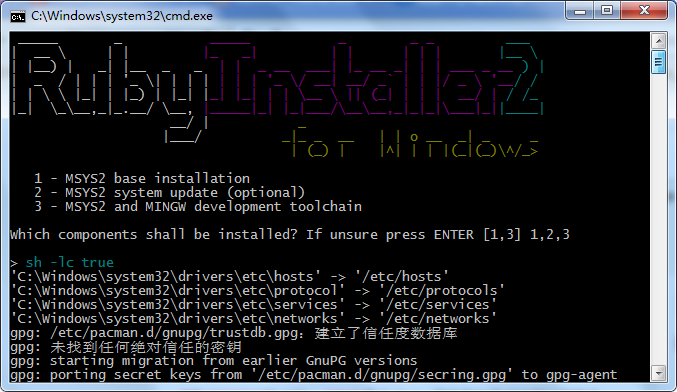
这里带你把坑一一踩完。
首先不要像图中这样输入,应该先输入1,再输入3,再出现提示就按回车键结束。至于2,输了也白输,就像这样——
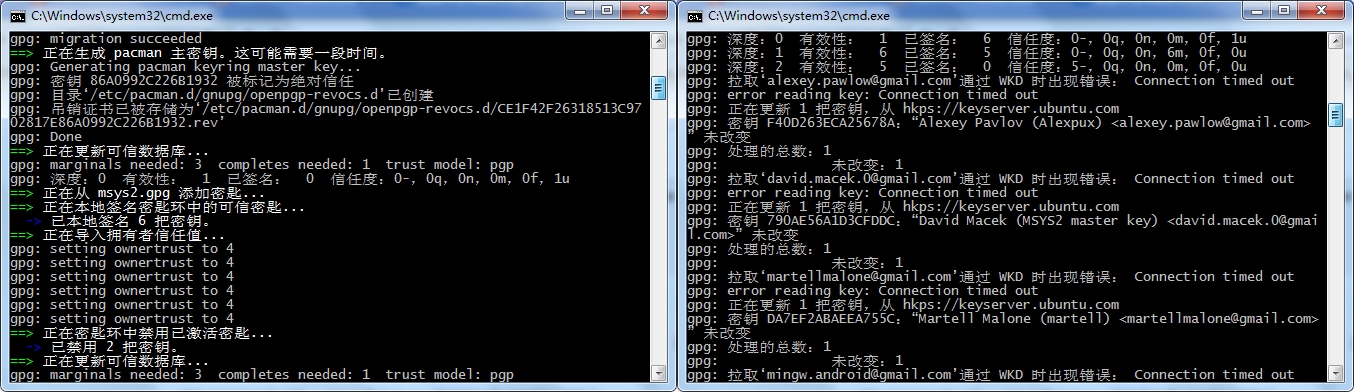
安装结束后,分别输入 ruby -v 和 gem -v 查看版本,确认安装完成。
ruby -v
gem -v

二、安装 Jekyll
虽然目前 Jekyll 的版本已经到了 4 以上,但是还有很多问题(大坑),会导致很多包的版本不匹配,Windows 7 用户就按照知乎博主的建议安装3.8.5,3.8.5是比较可靠的,如果你已经安装了其他版本,建议卸载,命令如下:
gem uninstall jekyll -v 你的版本
再安装3.8.5:
gem install jekyll -v 3.8.5
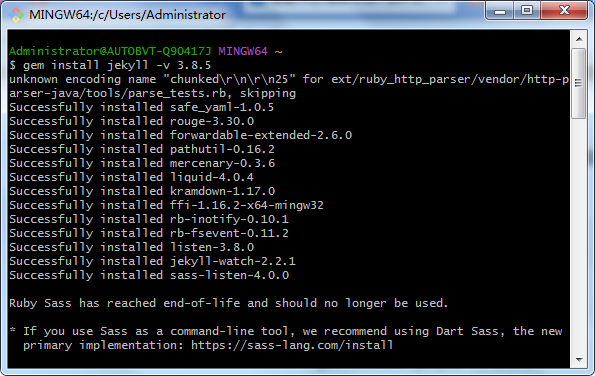
注意这里不要使用下面的命令安装——
gem install jekyll bundler
单独安装bundler这一步是必要的,可以用上面的格式,但安装jekyll千万不要用上面这个命令。
读者朋友可以试一下现在运行jekyll serve,会报错。
安装完jekyll后我们可以用jekyll -v检查一下是否出现相似的错误。
注意这时我们还没安装 bundler 。
接下来输入以下命令安装bundler。
gem install bundler
接着确认安装完成。
jekyll -v
bundle -v
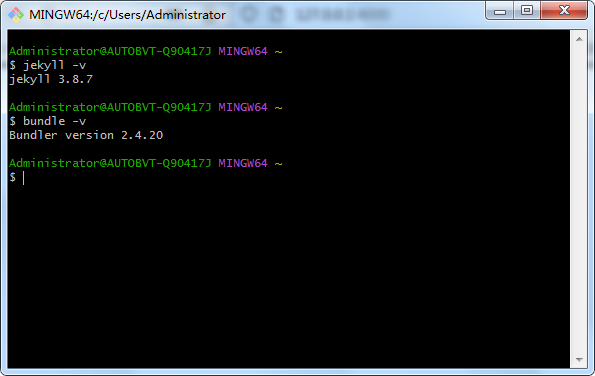
使用 bundle config 修改 Ruby 镜像源
Bundler 的 Gem 源代码镜像命令 (后面使用jekyll时会用到)
bundle config mirror.https://rubygems.org https://gems.ruby-china.org
这一步是“使用 bundle config 修改 Ruby 镜像源”。如果后面输入bundle install没报错,就不要输入上面的命令,https://gems.ruby-china.org很有可能连不上。
如果修改了Ruby镜像源后连不上,不要输入以下命令——
bundle config --delete 'mirror.https://rubygems.org https://gems.ruby-china.org'
应该输入——
bundle config --delete mirror.https://rubygems.org https://gems.ruby-china.org
Jeklly,启动!
基本静态页面生成。这一步大部分人都不会出错。
jekyll new myblog
cd myblog
jekyll serve
Server address: http://127.0.0.1:4000
Server running… press ctrl-c to stop.
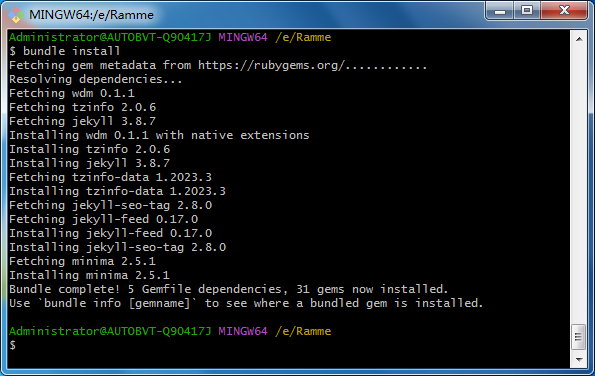
出现…(Bundler::GemNotFound)问题解决方法
bundle install 一下。下载完以后 jekyll serve 就又能运行了。
出现 You have already activated i18n 1.14.1, but your Gemfile requires i18n 0.9.5. …(Gem::LoadError) 问题解决方法
Prepending bundle exec to your command may solve this.
输入bundle exec jekyll serve即可使用,通常第一次使用不会出现该提示。
Jekyll主题Ramme
我们在测试前应查看 Gemfile 文件内容,这次我们先jekyll -v探探路。
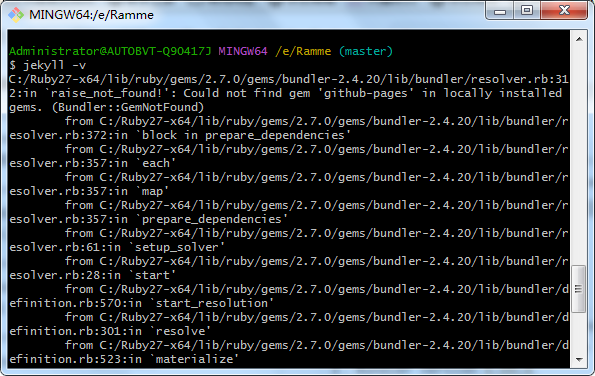
打开Gemfile文件。
source 'http://rubygems.org'

gem 'github-pages'
gem 'rouge'
gem 'jekyll'
gem 'jekyll-mentions'
gem 'jekyll-feed'
gem 'jekyll-sitemap'
gem 'jekyll-gist'
输入 gem install github-pages会安装github-pages、jekyll-sitemap和jekyll-gist。rouge、jekyll-mentions和jekyll-feed暂时安装不上。
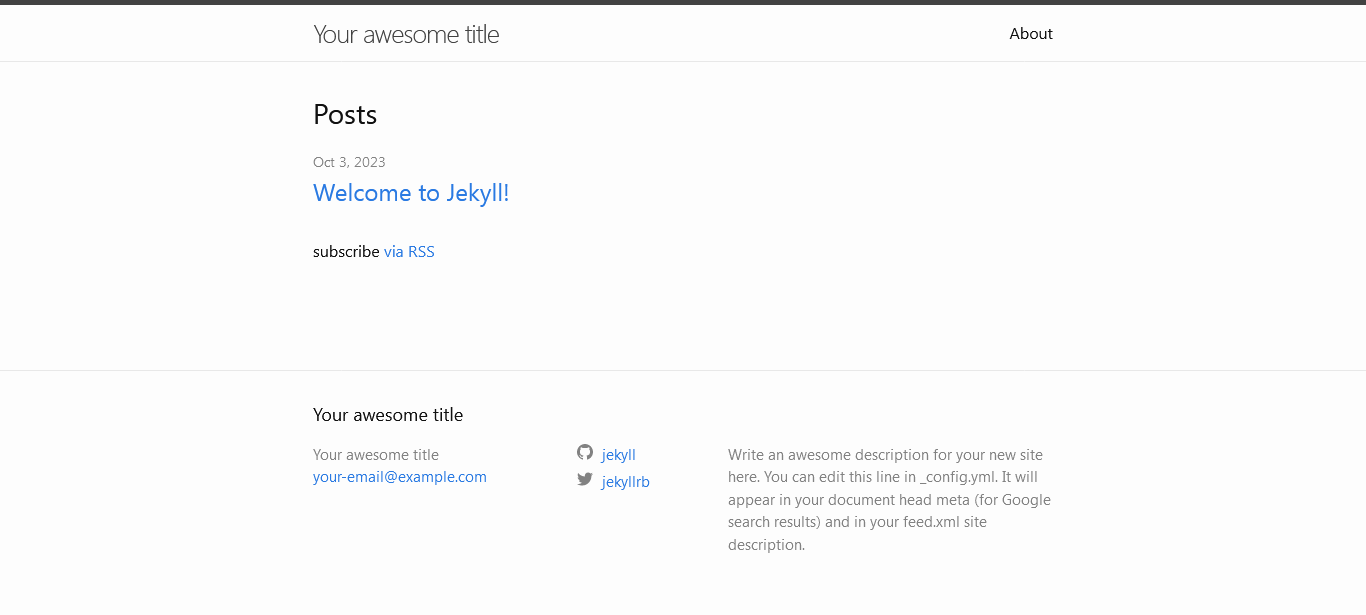
以上步骤可做可不做,输入bundle install,接着输入bundle exec jekyll serve,浏览器打开http://127.0.0.1:4000,结束!
http://127.0.0.1:4000
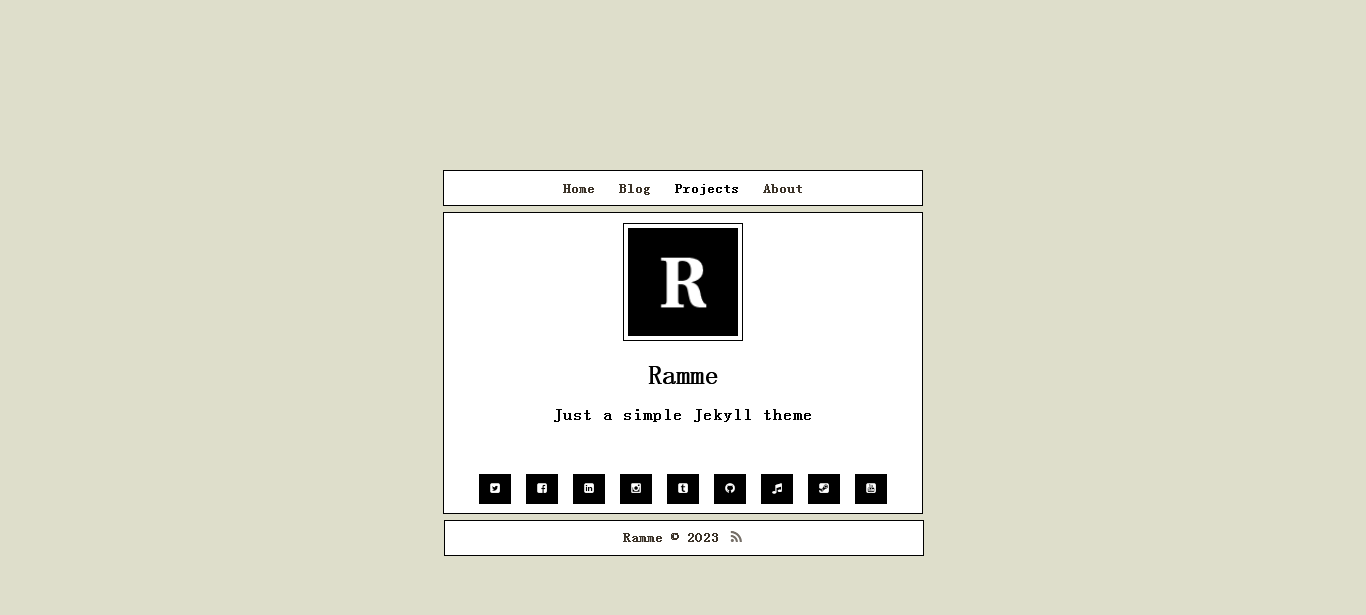
在主题文件夹我们会发现新增了这几个文件/文件夹——
...\Ramme\.sass-cache"
...\Ramme\_site"
...\Ramme\Gemfile.lock"
总结
Jekyll安装和使用过程中,我们会遇到各种各样的问题,有些可以按照网上的教程解决,有些需要我们打开思路另辟蹊径。
这里举几个例子:
运行gem uninstall –all提示:ERROR: While executing gem … (Gem::DependencyRemovalException) Uninstallation aborted due to dependent gem(s)
运行 gem cleanup 后依然出现:ERROR: While executing gem … (Gem::DependencyRemovalException) Uninstallation aborted due to dependent gem(s)
你遇到的问题是尝试卸载一个或多个 gem 时,系统发现这些 gem 正在被其他 gem 依赖,因此无法卸载。这种情况通常在尝试卸载一个被其他 gem 直接或间接依赖的 gem 时出现。
这段话划掉……单个gem问题请对症下药,此路不通。
PS:gem list --details 这将会列出所有的gem,并且会显示它们的版本、作者、安装路径等详细信息。
ERROR: Could not find a valid gem ‘jekyll’ (= 3.8.5) in any repository
出现该错误有可能是你删除了gem sources内容导致的,当然也可能不是。视具体情况而定。
1、检查 Gem 源:首先,检查你的 gem 源是否正确。你可以使用以下命令查看当前的 gem 源:
gem sources
默认情况下,你可能会看到一个名为 ‘https://rubygems.org/' 的源。这是 Ruby Gems 的主要源。如果需要添加其他的源,你可以使用以下命令:
gem source -a <新的源地址>
2、更新 Ruby 和 Gem:如果你的 Ruby 或 Gem 的版本过旧,可能会导致一些兼容性问题。你可以通过以下命令更新 Ruby 和 Gem:
# 更新 Ruby
sudo apt-get install ruby-full

# 更新 Gem
gem update --system
3、尝试指定版本号:如果上述方法都不行,你可以尝试指定 ‘jekyll’ gem 的版本号进行安装。例如,如果你知道一个特定版本的 ‘jekyll’ 是可用的,你可以使用以下命令安装:
gem install jekyll --version "=<版本号>"
gem source -a https://rubygems.org提示Error fetching https://rubygems.org: timed out (https://rubygems.org/specs.4.8.gz)
1、清除 Gem 缓存:有时候,Gem 缓存可能会导致问题。你可以试着清除缓存然后再次尝试。在命令行中输入以下命令:
gem cleanup
2、更换 Gem 源:如果以上方法都不行,你还可以尝试更换 Gem 源。有许多其他的 Ruby Gem 源可供选择,比如 Ruby China 的源:
gem source -r https://rubygems.org
gem source -a https://gems.ruby-china.com/
gem source -r https://rubygems.org 提示source https://rubygems.org not present in cache
当你尝试使用 gem source -r https://rubygems.org 命令来从缓存中移除一个源时,如果系统提示你 “source https://rubygems.org not present in cache”,那就意味着你的缓存中并没有这个源的数据。
如果你不一定要使用 https://rubygems.org 这个源,你可以尝试更换其他的源,比如使用 Ruby China 的源。
Jekyll提示使用了older的bundler版本
不用考虑——
gem uninstall bundler -v 你的版本
gem install bundler -v 要求的版本
gem update bundler 即可。
提示ERROR: While executing gem … (Gem::RemoteFetcher::UnknownHostError)
timed out (https://gems.ruby-china.com/quick/Marshal.4.8/bundler-2.4.20.gems pec.rz)
这是上一个问题安装特定版本bundler时出现的。不需要尝试更换源,update即可。
一个没试过的方法(不用试)——
手动下载并安装:如果以上方法都无法解决问题,你可以尝试手动下载Marshal gem的压缩包,然后解压并安装。在终端中执行以下命令:
# 下载Marshal gem的压缩包
# 将URL替换为实际的下载地址
wget https://gems.ruby-china.com/quick/Marshal.4.8/bundler-2.4.20.gemspec.rz

# 解压压缩包
unzip bundler-2.4.20.gemspec.rz

# 安装Marshal gem
gem install bundler-2.4.20/*.gemspec --no-document
bundle install显示Fetching source index from … Retrying fetcher due to error (2/4): Bundler::HTTPError Could not fetch specs from … due to underlying error <timed out …
通常跟网络连接和Rubygems 服务器没多大关系,请检查jekyll serve时是否报告jekyll版本旧了,比如原先该主题Jekyll 3.8.5 即可,这会提示要Jekyll 3.9.3。
如果一直不行请从Ruby开始重新操作。
三、卸载一切
卸载Jekyll
通常我们输入以下命令卸载Jekyll——
gem uninstall jekyll -v <jekyll version>
提示我们
ERROR:  While executing gem ... (Gem::DependencyRemovalException)
    Uninstallation aborted due to dependent gem(s)
这个错误表明至少有一个或多个 gem 依赖于 Jekyll,因此系统不允许你卸载它。
为了解决这个问题,你可以采取以下步骤:
- 查找依赖 Jekyll 的 gem
你可以使用以下命令来查找哪些 gem 依赖于 Jekyll:
gem dependency jekyll
这会列出所有直接依赖于 Jekyll 的 gem。
2. 考虑卸载依赖的 gem
如果你确定不再需要那些依赖于 Jekyll 的 gem,你可以尝试先卸载它们,然后再卸载 Jekyll。例如,如果 some_gem 依赖于 Jekyll,你可以这样操作:
gem uninstall some_gem
- 使用 –ignore-dependencies 选项
如果你确定要卸载 Jekyll,并且不关心其他 gem 是否还能正常工作,你可以使用 --ignore-dependencies 选项来强制卸载它:
gem uninstall jekyll --ignore-dependencies
卸载所有gem包
要卸载所有gem包,你可以使用Ruby的包管理器gem提供的命令来完成。以下是一些步骤来卸载所有gem包:
- 使用
gem list命令来列出所有已安装的gem包。这将显示所有已安装的gem包及其版本号。像这样——
gem list
activesupport (7.0.8)
addressable (2.8.5)
base64 (0.1.1)
benchmark (default: 0.1.0)
bigdecimal (default: 2.0.0)
bundler (default: 2.1.4)
cgi (default: 0.1.0.1)
coffee-script (2.4.1)
coffee-script-source (1.11.1)
colorator (1.1.0)
commonmarker (0.23.10)
concurrent-ruby (1.2.2)
csv (default: 3.1.2)
date (default: 3.0.3)
dbm (default: 1.1.0)
delegate (default: 0.1.0)
did_you_mean (default: 1.4.0)
dnsruby (1.70.0)
em-websocket (0.5.3)
etc (default: 1.1.0)
ethon (0.16.0)
eventmachine (1.2.7 x64-mingw32)
execjs (2.9.1)
faraday (2.7.11)
faraday-net_http (3.0.2)
fcntl (default: 1.0.0)
ffi (1.16.2 x64-mingw32)
fiddle (default: 1.0.0)
fileutils (default: 1.4.1)
forwardable (default: 1.3.1)
forwardable-extended (2.6.0)
gdbm (default: 2.1.0)
gemoji (3.0.1)
getoptlong (default: 0.1.0)
github-pages (228)
github-pages-health-check (1.17.9)
google-protobuf (3.24.3 x64-mingw32)
html-pipeline (2.14.3)
http_parser.rb (0.8.0)
i18n (1.14.1)
io-console (default: 0.5.6)
ipaddr (default: 1.2.2)
irb (default: 1.2.6)
jekyll-avatar (0.7.0)
jekyll-coffeescript (1.1.1)
jekyll-commonmark (1.4.0)
jekyll-commonmark-ghpages (0.4.0)
jekyll-default-layout (0.1.4)
jekyll-feed (0.17.0, 0.15.1)
jekyll-gist (1.5.0)
jekyll-github-metadata (2.13.0)
jekyll-include-cache (0.2.1)
jekyll-mentions (1.6.0)
jekyll-optional-front-matter (0.3.2)
jekyll-paginate (1.1.0)
jekyll-readme-index (0.3.0)
jekyll-redirect-from (0.16.0)
jekyll-relative-links (0.6.1)
jekyll-remote-theme (0.4.3)
jekyll-sass-converter (1.5.2)
jekyll-seo-tag (2.8.0)
jekyll-sitemap (1.4.0)
jekyll-swiss (1.0.0)
jekyll-theme-architect (0.2.0)
jekyll-theme-cayman (0.2.0)
jekyll-theme-dinky (0.2.0)
jekyll-theme-hacker (0.2.0)
jekyll-theme-leap-day (0.2.0)
jekyll-theme-merlot (0.2.0)
jekyll-theme-midnight (0.2.0)
jekyll-theme-minimal (0.2.0)
jekyll-theme-modernist (0.2.0)
jekyll-theme-primer (0.6.0)
jekyll-theme-slate (0.2.0)
jekyll-theme-tactile (0.2.0)
jekyll-theme-time-machine (0.2.0)
jekyll-titles-from-headings (0.5.3)
jekyll-watch (2.2.1)
jemoji (0.12.0)
json (default: 2.3.0)
kramdown (2.4.0, 2.3.2)
kramdown-parser-gfm (1.1.0)
liquid (4.0.4)
listen (3.8.0)
logger (default: 1.4.2)
matrix (default: 0.2.0)
mercenary (0.3.6)
minima (2.5.1)
minitest (5.13.0)
mutex_m (default: 0.1.0)
net-pop (default: 0.1.0)
net-smtp (default: 0.1.0)
net-telnet (0.2.0)
nokogiri (1.15.4 x64-mingw32)
observer (default: 0.1.0)
octokit (4.25.1)
open3 (default: 0.1.0)
openssl (default: 2.1.3)
ostruct (default: 0.2.0)
pathutil (0.16.2)
power_assert (1.1.7)
prime (default: 0.1.1)
pstore (default: 0.1.0)
psych (default: 3.1.0)
public_suffix (5.0.3, 4.0.7)
racc (default: 1.4.16)
rake (13.0.1)
rb-fsevent (0.11.2)
rb-inotify (0.10.1)
rdoc (default: 6.2.1.1)
readline (default: 0.0.2)
reline (default: 0.1.5)
rexml (default: 3.2.3.1)
rouge (3.30.0, 3.26.0)
rss (default: 0.2.8)
ruby2_keywords (0.0.5)
rubyzip (2.3.2)
safe_yaml (1.0.5)
sass (3.7.4)
sass-listen (4.0.0)
sawyer (0.9.2)
sdbm (default: 1.0.0)
simpleidn (0.2.1)
singleton (default: 0.1.0)
stringio (default: 0.1.0)
strscan (default: 1.0.3)
terminal-table (3.0.2, 1.8.0)
test-unit (3.3.4)
thread_safe (0.3.6)
timeout (default: 0.1.0)
tracer (default: 0.1.0)
typhoeus (1.4.0)
tzinfo (2.0.6)
tzinfo-data (1.2023.3)
unf (0.1.4)
unf_ext (0.0.8.2 x64-mingw32)
unicode-display_width (2.5.0, 1.8.0)
uri (default: 0.10.0)
wdm (0.1.1)
webrick (1.8.1, default: 1.6.1)
xmlrpc (0.3.0)
yaml (default: 0.1.0)
zlib (default: 1.1.0)
- 要卸载所有gem包,你可以使用gem uninstall命令,并跟上每个gem包的名称和版本号。例如,如果你想要卸载名为gem-name的gem包,可以使用以下命令:
gem uninstall gem-name -v versionNumber
- 重复上述步骤,为每个gem包执行gem uninstall命令,直到你卸载了所有不需要的gem包。
- 在卸载所有gem包后,你还可以使用gem cleanup命令来清理无用的gem文件。这将删除所有不再需要的gem文件,以释放磁盘空间。
gem cleanup
我们换种思路卸载所有gem包。有两种方法可以实现这个目标。
第一种方法:
ruby -e "gem_list = `gem list --no-versions`.split($/).drop(1); gem_list.each { |gem| `gem uninstall -aIx #{gem}` }"
这段代码首先会获取所有已安装的gem包的列表,然后遍历这个列表,对每个gem包执行卸载操作。
第二种方法:
如果你的RubyGems版本大于等于2.1.0,你可以使用以下命令:
gem uninstall -aIx
这个命令会卸载所有版本的gem包,忽略依赖项,并包含可执行文件。
示例:
Administrator@AUTOBVT-Q90417J MINGW64 /e/Ramme (master)
$ gem uninstall -aIx
Successfully uninstalled activesupport-7.0.8
Successfully uninstalled addressable-2.8.5
Successfully uninstalled base64-0.1.1
Successfully uninstalled coffee-script-2.4.1
Successfully uninstalled coffee-script-source-1.11.1
Successfully uninstalled colorator-1.1.0
Removing commonmarker
Successfully uninstalled commonmarker-0.23.10
Successfully uninstalled concurrent-ruby-1.2.2
Successfully uninstalled dnsruby-1.70.0
Successfully uninstalled em-websocket-0.5.3
Successfully uninstalled ethon-0.16.0
Successfully uninstalled eventmachine-1.2.7-x64-mingw32
Successfully uninstalled execjs-2.9.1
Successfully uninstalled faraday-2.7.11
Successfully uninstalled faraday-net_http-3.0.2
Successfully uninstalled ffi-1.16.2-x64-mingw32
Successfully uninstalled forwardable-extended-2.6.0
Removing gemoji
Successfully uninstalled gemoji-3.0.1
Removing github-pages
Successfully uninstalled github-pages-228
Successfully uninstalled github-pages-health-check-1.17.9
Successfully uninstalled google-protobuf-3.24.3-x64-mingw32
Successfully uninstalled html-pipeline-2.14.3
Successfully uninstalled http_parser.rb-0.8.0
Successfully uninstalled i18n-1.14.1
Successfully uninstalled jekyll-avatar-0.7.0
Successfully uninstalled jekyll-coffeescript-1.1.1
Successfully uninstalled jekyll-commonmark-1.4.0
Successfully uninstalled jekyll-commonmark-ghpages-0.4.0
Successfully uninstalled jekyll-default-layout-0.1.4
Successfully uninstalled jekyll-feed-0.17.0
Successfully uninstalled jekyll-feed-0.15.1
Successfully uninstalled jekyll-gist-1.5.0
Successfully uninstalled jekyll-github-metadata-2.13.0
Successfully uninstalled jekyll-include-cache-0.2.1
Successfully uninstalled jekyll-mentions-1.6.0
Successfully uninstalled jekyll-optional-front-matter-0.3.2
Successfully uninstalled jekyll-paginate-1.1.0
Successfully uninstalled jekyll-readme-index-0.3.0
Successfully uninstalled jekyll-redirect-from-0.16.0
Successfully uninstalled jekyll-relative-links-0.6.1
Successfully uninstalled jekyll-remote-theme-0.4.3
Successfully uninstalled jekyll-sass-converter-1.5.2
Successfully uninstalled jekyll-seo-tag-2.8.0
Successfully uninstalled jekyll-sitemap-1.4.0
Successfully uninstalled jekyll-swiss-1.0.0
Successfully uninstalled jekyll-theme-architect-0.2.0
Successfully uninstalled jekyll-theme-cayman-0.2.0
Successfully uninstalled jekyll-theme-dinky-0.2.0
Successfully uninstalled jekyll-theme-hacker-0.2.0
Successfully uninstalled jekyll-theme-leap-day-0.2.0
Successfully uninstalled jekyll-theme-merlot-0.2.0
Successfully uninstalled jekyll-theme-midnight-0.2.0
Successfully uninstalled jekyll-theme-minimal-0.2.0
Successfully uninstalled jekyll-theme-modernist-0.2.0
Successfully uninstalled jekyll-theme-primer-0.6.0
Successfully uninstalled jekyll-theme-slate-0.2.0
Successfully uninstalled jekyll-theme-tactile-0.2.0
Successfully uninstalled jekyll-theme-time-machine-0.2.0
Successfully uninstalled jekyll-titles-from-headings-0.5.3
Successfully uninstalled jekyll-watch-2.2.1
Successfully uninstalled jemoji-0.12.0
Successfully uninstalled kramdown-2.4.0
Removing kramdown
Successfully uninstalled kramdown-2.3.2
Successfully uninstalled kramdown-parser-gfm-1.1.0
Successfully uninstalled liquid-4.0.4
Removing listen
Successfully uninstalled listen-3.8.0
Successfully uninstalled mercenary-0.3.6
Successfully uninstalled minima-2.5.1
Successfully uninstalled minitest-5.13.0
Successfully uninstalled net-telnet-0.2.0
Removing nokogiri
Successfully uninstalled nokogiri-1.15.4-x64-mingw32
Successfully uninstalled octokit-4.25.1
Successfully uninstalled pathutil-0.16.2
Successfully uninstalled power_assert-1.1.7
Successfully uninstalled public_suffix-5.0.3
Successfully uninstalled public_suffix-4.0.7
Removing rake
Successfully uninstalled rake-13.0.1
Successfully uninstalled rb-fsevent-0.11.2
Successfully uninstalled rb-inotify-0.10.1
Successfully uninstalled rouge-3.30.0
Removing rougify
Successfully uninstalled rouge-3.26.0
Successfully uninstalled ruby2_keywords-0.0.5
Successfully uninstalled rubyzip-2.3.2
Removing safe_yaml
Successfully uninstalled safe_yaml-1.0.5
Removing sass
Removing sass-convert
Removing scss
Successfully uninstalled sass-3.7.4
Successfully uninstalled sass-listen-4.0.0
Successfully uninstalled sawyer-0.9.2
Successfully uninstalled simpleidn-0.2.1
Successfully uninstalled terminal-table-3.0.2
Successfully uninstalled terminal-table-1.8.0
Successfully uninstalled test-unit-3.3.4
Successfully uninstalled thread_safe-0.3.6
Successfully uninstalled typhoeus-1.4.0
Successfully uninstalled tzinfo-2.0.6
Successfully uninstalled tzinfo-data-1.2023.3
Successfully uninstalled unf-0.1.4
Successfully uninstalled unf_ext-0.0.8.2-x64-mingw32
Successfully uninstalled unicode-display_width-2.5.0
Successfully uninstalled unicode-display_width-1.8.0
Successfully uninstalled wdm-0.1.1
Successfully uninstalled webrick-1.8.1
Successfully uninstalled xmlrpc-0.3.0
INFO:  Uninstalled all gems in C:/Ruby27-x64/lib/ruby/gems/2.7.0
如果你的RubyGems版本小于2.1.0,你需要使用类似下面的脚本:
for i in `gem list --no-versions`; do gem uninstall -aIx $i; done
这段代码同样会遍历所有已安装的gem包,并对每个gem包执行卸载操作。
请注意,这些操作会卸载你系统上安装的所有gem包,包括那些可能对你的系统或项目至关重要的包。在执行这些操作之前,请确保你了解卸载这些gem包可能带来的影响,并确保你有恢复这些gem包的方法(例如,通过备份或重新安装它们)。此外,这些命令只会卸载你通过gem安装的gem包,如果你使用其他方式(如RVM、rbenv或其他包管理器)安装的gem包,你可能需要使用相应的方法来卸载它们。
鉴于gem包如此之多,如果你需要快速卸载多个gem包,请阅读以下内容——
Sublime Text 如何删除所有括号内内容
Sublime Text 并没有直接提供一键删除所有括号内内容的功能。但你可以使用正则表达式(Regex)配合查找和替换(Find and Replace)功能来实现这个目标。
- 使用 Ctrl + H 打开查找和替换面板。
- 在 “Find” 框中,输入以下的正则表达式:
\([^)]*\)。这个正则表达式会匹配任何在圆括号 () 中的内容。如果你想要匹配方括号 [] 或大括号 {} 中的内容,你可以相应地修改这个正则表达式。
\([^)]*\)
- 点击 “Replace All” 按钮,Sublime Text 就会删除所有匹配到的括号内的内容。
卸载gem和bundler
Ruby自带gem环境,因此当你卸载Ruby时,gem也会被一并卸载。这是因为gem是Ruby的一部分,它们共同构成了Ruby的运行环境。所以,如果你需要重新安装gem,通常需要在重新安装Ruby之后进行。
当你卸载Ruby时,Bundler通常也会被卸载,因为Bundler是一个Ruby gem,它依赖于Ruby的运行环境。Bundler用于管理Ruby项目的依赖关系,它是Ruby生态系统中的一个关键组件,但它是作为gem安装的,因此与Ruby本身紧密相关。
卸载Ruby后检查gem和bundler。
$ gem -v
bash: gem: command not found

$ bundler -v
bash: bundler: command not found
END!
参考
配置Jekyll博客本地开发环境(Windows)
win7下搭建Jekyll写作环境
jekyll s出现…(Bundler::GemNotFound)问题解决方法-2018-10-05
刘月林 | 使用 bundle config 修改 Ruby 镜像源
Ramme - Theme Info
Jekyll 安装、使用方法与卸载
文心一言
扩展阅读
如何卸载使用 bundle install`安装的所有gem-腾讯云开发者社区
Static Site Generators - Jamstack Themes
如何使用Sublime Text 4搭建 C/C++ 语言开发环境
Posted at 2023-08-29 Comments Technology
刚刚安装的 Sublime Text 无法自行具备运行 C、C++ 代码的能力,需要我们手动对其进行设置。
配置GCC 编译环境
开始设置前,我们需要初始化好 GCC 编译环境。打开命令行窗口,输入gcc -v,如果输出GCC的具体版本等信息,表明当前系统以成功配置了 GCC 编译环境。(如图所示)
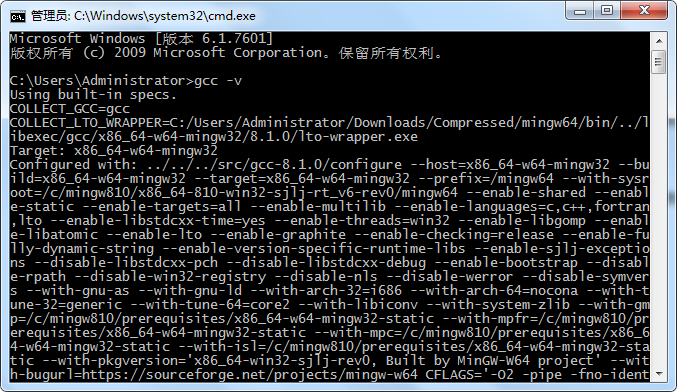
如果未配置GCC 编译环境,可阅读MinGW-w64安装教程——著名C/C++编译器GCC的Windows版本进行安装。
MinGW-W64 Online Installer:
sourceforge.net/project… 下载 mingw-get-setup.exe
MinGW Installation Manager → Basic Setup → 勾选 “mingw32-base” & “mingw32-gcc-g++” → Installation → Apply ChangesMinGW 离线安装:
sourceforge.net/project…
选择 MinGW-W64 GCC-8.1.0 的 x86_64-win32-seh
下载后文件: “x86_64-8.1.0-release-win32-seh-rt_v6-rev0.7z”
解压再配置环境变量
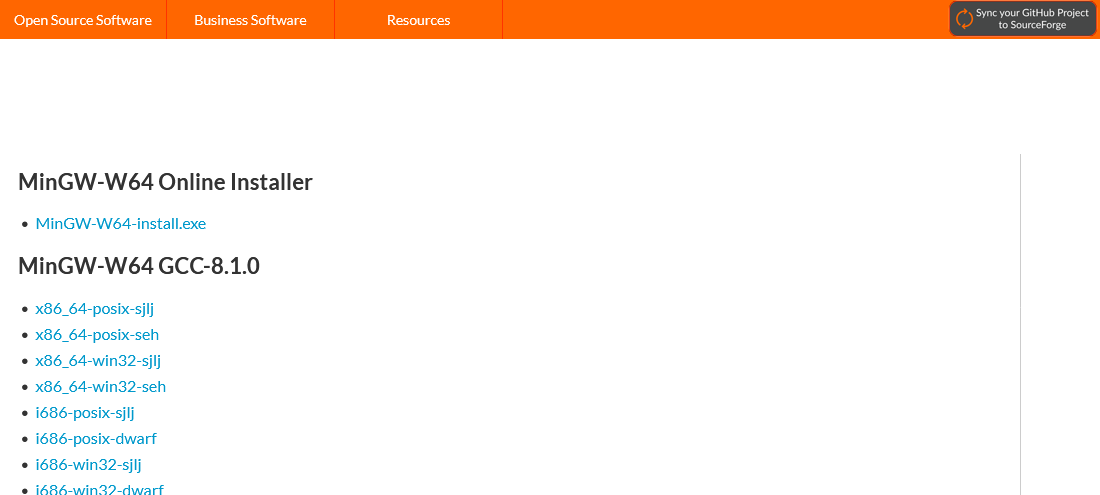
注意选择以下其中一个下载,不要下载MinGW-W64 Online Installer。
- x86_64-posix-sjlj
- x86_64-posix-seh
- x86_64-win32-sjlj
- x86_64-win32-seh
sjlj,seh的区别:
- sjlj 全称是 SetJump / LongJump,前者设还原点,后者跳到还原点。可用于 32 位或者 64 位系统。
- seh(Structured Exception Handling,结构化异常处理)是 Borland 公司的,微软买了其专利使用权,它利用了 FS 段寄存器,将还原点压入栈,收到异常时再弹出。相较而言,sjlj 是 C 标准库就有的东西,seh 在 2014 年前是有专利的,从性能上说 seh 比 sjlj 快。只用于64位系统。
【x86_64 64位】
1、seh 是新发明的,而 sjlj 则是古老的。只用于64位系统。
2、seh 性能比较好,但不支持 32位。 sjlj 稳定性好,支持 32位和64位。因此,x86_64 系统架构的推荐使用 seh 的异常处理模型。
posix 和 win32 的区别是指编译器使用的线程模型。posix 是一种 UNIX API 标准,而 win32 是 Windows 的 API 标准。这两者之间有一些区别,例如在 mingw-w64 中,使用 posix 线程将启用 C++11/C11 多线程功能,并使 libgcc 依赖于 libwinpthreads。而使用 win32 线程则不会启用 C++11 多线程功能。
如果在 Windows 下开发 Linux 应用程序,则选择 posix;如果开发 Windows 平台下的应用程序,就需要选择 Win32。
这个你自己选择吧,你偏向于原生的C标准就选posix,面向Windows编程就选win32,如果你还是选择困难的话,毕竟我们最常用的还是Windows,选win32也没什么问题。
运行MinGW-W64-install.exe会安装失败。
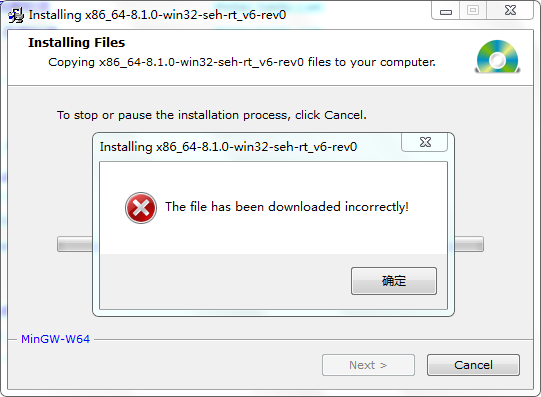
下载 x86_64-win32-seh 的7z文件后解压。
添加环境变量,变量路径替换为解压路径。
环境变量内容如下:
- 变量名 变量值
- C_INCLUDEDE_PATH C:\MinGW\include
- LIBRARY_PATH C:\MinGW\lib
- Path C:\MinGW\bin
配置 Sublime Text 编辑器(GCC)
在已安装好 GCC 编译器的基础上,接下来开始正式配置 Sublime Text 编辑器。
在菜单栏中依次点击“Tools -> Build System -> New Build System”,由此即可在 Sublime Text 打开一个临时文件,如下所示:
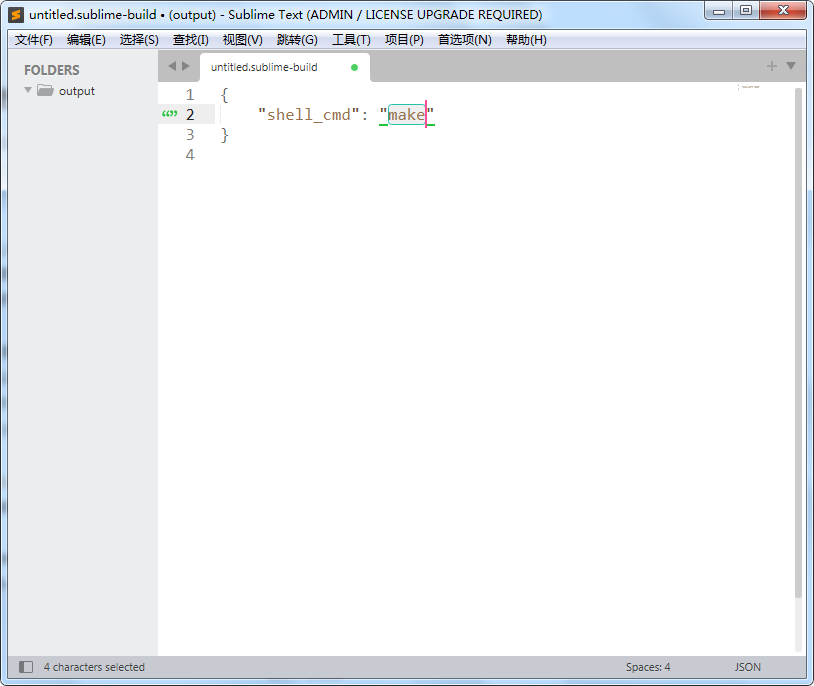
删除其所有内容,并将如下内容完整地复制到该文件中:
{
    "cmd": ["gcc","${file}","-o", "${file_path}/${file_base_name}"],
    "file_regex":"^(..[^:]*):([0-9]+):?([0-9]+)?:? (.*)$",
    "working_dir":"${file_path}",
    "selector": "source.c",
    "encoding":"cp936",
    "variants":
    [
        {
            "name": "C_Run",
            "cmd": ["cmd","/c", "gcc", "${file}", "-o", "${file_path}/${file_base_name}","&&", "cmd", "/c","${file_path}/${file_base_name}"]
        },
        {
            "name":"C_RunInCommand",
            "cmd": ["cmd","/c", "gcc", "${file}","-o","${file_path}/${file_base_name}", "&&","start", "cmd", "/c","${file_path}/${file_base_name} & pause"]
         }
    ]
}
按住Ctrl + S保存上述文件,并将文件取名为 gcc.sublime-build ,点击保存。
重新打开 Sublime Text,并依次在菜单栏中选择“Tools -> Build System”, 在该选项中就可以看到上一步创建好的 gcc_sublime-build 的文件名 gcc。
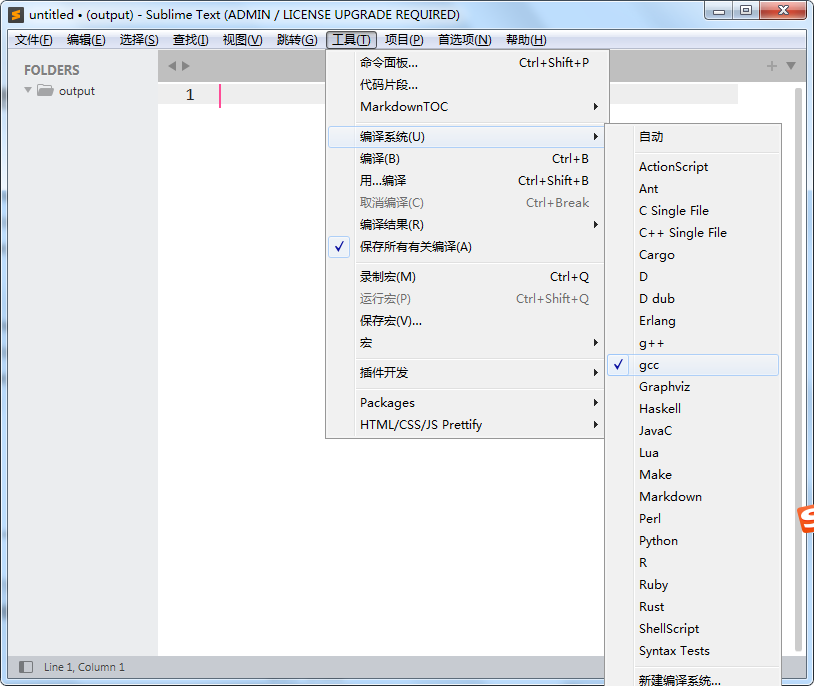
通过勾选 gcc 编译选项,我们就可以直接在 Sublime Text 运行写好的 C 语言程序。
编写一个 Hellow Word 程序, 选择“Tools -> Build With…”选项(Ctrl+Shift+B )编译运行。
这里有 gcc、gcc-C_Run 和 gcc-RunInCommand 3 个选项,其中 gcc 用于编译程序(读者可自行查看执行结果),gcc-C_Run 用于在 Sublime Text 内部调用 GCC 编译器并显示程序的执行结果,gcc_RunInCommand 用于在命令行窗口中借助 gcc 指令运行该程序并输出执行结果。
同样,如果想搭建 C++ 开发环境,只需再建立一个 g++.sublime-build 配置文件,并将如下内容拷贝到该文件中:
{
    "cmd": ["g++","-Wall", "${file}", "-o", "${file_path}/${file_base_name}"],
    "file_regex": "^(..[^:]*):([0-9]+):?([0-9]+)?:? (.*)$",
    "working_dir": "${file_path}",
    "selector": "source.c, source.c++",
    "encoding":"cp936",
    "variants":
    [
        {
            "name": "C++_Run",
            "cmd": ["cmd", "/c", "g++", "-Wall","${file}", "-o", "${file_path}/${file_base_name}", "&&", "cmd", "/c", "${file_path}/${file_base_name}"]
        },
        {
            "name": "C++_RunInCommand",
            "cmd": ["cmd", "/c", "g++", "-Wall","${file}", "-o", "${file_path}/${file_base_name}", "&&", "start", "cmd", "/c", "${file_path}/${file_base_name} & echo.&pause"]
        }
    ]
}
配置TCC 编译环境
Tiny C Compiler(简称TCC, 或Tiny CC)是一个超小、超快的标准C语言编译器。
TCC Official Website Download Link
Windows 用户请下载 tcc-0.9.27-win64-bin.zip ,将下载好的文件,解压到某一文件夹即可。
在系统环境变量中双击Path,点击新建,添加tcc文件夹路径。
命令行窗口输入tcc检查是否配置完成。
C:\Users\Administrator>tcc
Tiny C Compiler 0.9.27 - Copyright (C) 2001-2006 Fabrice Bellard
Usage: tcc [options...] [-o outfile] [-c] infile(s)...
       tcc [options...] -run infile [arguments...]
General options:
  -c          compile only - generate an object file
  -o outfile  set output filename
  -run        run compiled source
  -fflag      set or reset (with 'no-' prefix) 'flag' (see tcc -hh)
  -Wwarning   set or reset (with 'no-' prefix) 'warning' (see tcc -hh)
  -w          disable all warnings
  -v -vv      show version, show search paths or loaded files
  -h -hh      show this, show more help
  -bench      show compilation statistics
  -           use stdin pipe as infile
  @listfile   read arguments from listfile
Preprocessor options:
  -Idir       add include path 'dir'
  -Dsym[=val] define 'sym' with value 'val'
  -Usym       undefine 'sym'
  -E          preprocess only
Linker options:
  -Ldir       add library path 'dir'
  -llib       link with dynamic or static library 'lib'
  -r          generate (relocatable) object file
  -shared     generate a shared library/dll
  -rdynamic   export all global symbols to dynamic linker
  -soname     set name for shared library to be used at runtime
  -Wl,-opt[=val]  set linker option (see tcc -hh)
Debugger options:
  -g          generate runtime debug info
  -b          compile with built-in memory and bounds checker (implies -g)
  -bt N       show N callers in stack traces
Misc. options:
  -x[c|a|n]   specify type of the next infile
  -nostdinc   do not use standard system include paths
  -nostdlib   do not link with standard crt and libraries
  -Bdir       set tcc's private include/library dir
  -MD         generate dependency file for make
  -MF file    specify dependency file name
  -m32/64     defer to i386/x86_64 cross compiler
Tools:
  create library  : tcc -ar [rcsv] lib.a files
  create def file : tcc -impdef lib.dll [-v] [-o lib.def]
使用方法
方法1. 打开命令行,转到源代码目录,输入: tcc 源代码文件名 即可。
此时,会在文件夹内生成.exe文件,双击即可运行。
方法2. 此方法为常用方法
打开命令行,转到源代码目录,输入: tcc -run 源代码文件名。
配置 Sublime Text 编辑器(TCC)
在已安装好 GCC 编译器的基础上,接下来开始正式配置 Sublime Text 编辑器。
在菜单栏中依次点击“Tools -> Build System -> New Build System”,由此即可在 Sublime Text 打开一个临时文件。
删除其所有内容,并将如下内容完整地复制到该文件中:
{
    "file_regex": "^(..[^:]*):([0-9]+):?([0-9]+)?:? (.*)$",
    "working_dir": "${file_path}",
    "selector": "source.c",
    "encoding": "gbk",

    "linux":    {"shell_cmd": "tcc -o ${file_path}/${file_base_name} ${file}"},
    "osx":      {"shell_cmd": "tcc -o ${file_path}/${file_base_name} ${file}"},
    "windows":  {"shell_cmd": "tcc -o ${file_path}/${file_base_name}.exe ${file}"},

    "variants": [
        {
            "name": "Run",
            "linux":    {"shell_cmd": "tcc -run ${file}"},
            "osx":      {"shell_cmd": "tcc -run ${file}"},
            "windows":  {"cmd": ["tcc", "-run", "${file}"]},
        },
        {
            "name": "Run(CMD)",
            "linux": {
                "shell_cmd": "gnome-terminal -e 'bash -c \"echo tcc -run ${file};echo;time tcc -run \\\"${file}\\\";echo ;echo Press any key to exit...;read -n 1;exit;\"'"
            },
            "windows": {
                // "shell_cmd": "git-bash -c \"echo tcc -run ${file_name};echo;time winpty tcc -run ${file_name};echo;echo Press any key to exit...;read -n 1;exit;\"",
                "cmd": [
                    "cmd", "/c",
                    "start", "cmd", "/c", "tcc -run ${file} &echo.&pause"
                ],
            },
            "osx": {}
        }
    ]
}
解决中文乱码
ConvertToUTF8: Reload With Encoding解决的是 Sublime Text 显示的编码问题,不能解决编译生成打开的cmd窗口文字乱码问题。
应该在保存程序文件前先File→Set File Encoding To→GBK或BIG5。
参考
MinGW-w64安装教程——著名C/C++编译器GCC的Windows版本
如何使用Sublime Text3搭建C语言开发环境_sublime c语言_LOVE_SCENARIO的博客
Sublime Text运行C和C++程序 - 楚千羽
【cpp 开发工具】MingGW 各版本区别及安装说明 - isanthree
Windows 下 MinGW 的选择与安装 - NEGOCES
MingW-W64-builds那么多版本,他们的区别是什么呢?_Ha-Ha-Interesting的博客
Sublime Text 配置C语言开发环境 - 简书
TCC(Tiny C Compiler)安装及使用方法-CSDN博客
推荐
Posted at 2023-08-27 Comments Technology
详细教程
下载LaTex
访问官网,点击Concise instructions, per platform: 下的 install on Windows 。

找到Easy install。
When installing from the internet, we recommend downloading and running install-tl-windows.exe.
This installer first unpacks itself and then starts the installer proper, which is the same as for other platforms. An ‘Advanced’ button gives you many additional customization options.
When successful, the installer tries to do the post-install things that are considered appropriate on Windows:
- Adds a TeX Live submenu of Windows’ Start menu. Entries include a GUI for TeX Live Manager and the TeXworks editor if was installed.
- Optionally adds some filetypes and file associations.
- Adds the directory of TeX Live Windows binaries to the search path.
The TeX Live Manager GUI mentioned above can be used to add or remove packages, and to keep the installation up to date.
Note. For Cygwin installations, see the Unix/Linux page.
下载上文的install-tl-windows.exe 到本地,双击运行。
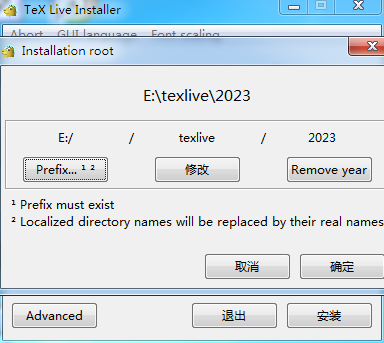
安装完成,如下图:
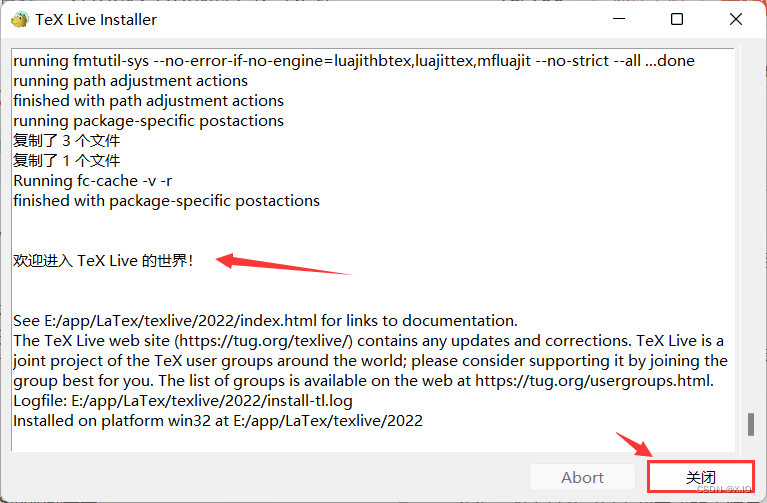
Sublime Text 配置
Ctrl+Shift+P,输入LaTeXTools安装它。不过如今安装不上,只能手动安装。
把整个仓库克隆到本地,塞到 Sublime Text 的插件文件夹(C:\Users\Administrator\AppData\Roaming\Sublime Text\Packages)
git clone https://github.com/SublimeText/LaTeXTools
先把Sublime关闭掉,然后再重启软件,使Sublime能够在菜单中加载出 LaTeXTools。
Sublime中进行LaTexTools配置
在Sublime菜单栏依次选择Preferences-Package Settings-LaTexTools-Reset user settings to default。
然后重新在Sublime菜单栏依次选择Preferences-Package Settings-LaTexTools-Settings-User。
使用快捷键Ctrl+F,下方弹出搜索窗口,在其中输入windows为关键字,按Enter进行搜索。找到“windows”的path路径:
	"windows": {
		// Path used when invoking tex & friends; "" is fine for MiKTeX
		// For TeXlive 2011 (or other years) use
		// "texpath" : "C:\\texlive\\2011\\bin\\win32;$PATH",
		"texpath" : "",
		// TeX distro: "miktex" or "texlive"
		"distro" : "miktex",
		// Command to invoke Sumatra. If blank, "SumatraPDF.exe" is used (it has to be on your PATH)
		"sumatra": "",
		// Command to invoke Sublime Text. Used if the keep_focus toggle is true.
		// If blank, "subl.exe" or "sublime_text.exe" will be used.
		"sublime_executable": "",
		// how long (in seconds) to wait after the jump_to_pdf command completes
		// before switching focus back to Sublime Text. This may need to be
		// adjusted depending on your machine and configuration.
		"keep_focus_delay": 0.5
	},
将其修改成如下内容:
	"windows": {
		// Path used when invoking tex & friends; "" is fine for MiKTeX
		// For TeXlive 2011 (or other years) use
		// "texpath" : "C:\\texlive\\2011\\bin\\win32;$PATH",
		"texpath" : "E:\\texlive\\2023\\bin\\windows;$PATH",
		// TeX distro: "miktex" or "texlive"
		"distro" : "texlive",
		// Command to invoke Sumatra. If blank, "SumatraPDF.exe" is used (it has to be on your PATH)
		"sumatra": "",
		// Command to invoke Sublime Text. Used if the keep_focus toggle is true.
		// If blank, "subl.exe" or "sublime_text.exe" will be used.
		"sublime_executable": "C:\\Program Files\\Sublime Text\\subl.exe",
		// how long (in seconds) to wait after the jump_to_pdf command completes
		// before switching focus back to Sublime Text. This may need to be
		// adjusted depending on your machine and configuration.
		"keep_focus_delay": 60
	},
注意观察上面更改的部分, 分别是:
- 第 5 行: 在 texpath 后面的双引号之间添加 texlive 的 win32 的文件路径.
- 第 7 行: 在 distro 后面的双引号之间键入 texlive, 也就选择你安装的 TeX 的发行版本的,我的是 texlive, 所以键入 texlive , 如果你安装的是 miktex, 当然也应该改成 miktex.
- 第 9 行: 在 sumatra 后面的双引号之间输入 SumatraPDF 的安装路径.
- 第 12 行: sublime_executable 后面的双引号后面填入 subl.exe 的路径.
- 第 16 行: 此行是设置从pdf 阅读器调整到 Sublime Text 的时间, 通常也设置长些, 默认的 0.5 秒的效果就是看到 SumatraPDF阅读器一闪而过, 这也许不是一个好的体验.
关闭 Sublime text 编译过程中开启新窗口
这里大家可以看到我们没有添加第 9 行的内容,而是修改了第 12 行的内容。
Windows平台 subl.exe 与 Sublime_text.exe 在同一个安装路径下,我们可以只填入 subl.exe 的路径。
至于一些教程提到的改"builder": "traditional",为"builder": "simple",……
默认是traditional,请勿修改。
使用LaTeXTools前请阅读该插件的 README.markdown,这里我摘取部分大家需要关注的内容——
Keybindings
Keybindings have been chosen to make them easier to remember, and also to minimize clashes with existing (and standard) ST bindings. I am taking advantage of the fact that ST supports key combinations, i.e. sequences of two (or more) keys. The basic principle is simple:
-
Most LaTeXTools facilities are triggered using
Ctrl+l(Windows, Linux) orCmd+l(OS X), followed by some other key or key combination -
Compilation uses the standard ST “build” keybinding, i.e.
Ctrl-bon Windows and Linux andCmd-bon OS X. So does the “goto anything” facility (though this may change).
For example: to jump to the point in the PDF file corresponding to the current cursor position, use Ctrl-l, j: that is, hit Ctrl-l, then release both the Ctrl and the l keys, and quickly type the j key (OS X users: replace Ctrl with Cmd). To wrap the selected text in an \emph{} command, use Ctrl-l, Ctrl-e: that is, hit Ctrl-l, release both keys, then hit Ctrl-e (again, OS X users hit Cmd-l and then Cmd-e).
Ctrl-l (Cmd-l on OS X) is the standard ST keybinding for “expand selection to line”; this is remapped to Ctrl-l,Ctrl-l (Cmd-l,Cmd-l on OS X). This is the only standard ST keybinding that is affected by the plugin—an advantage of new-style keybindings.
Most plugin facilities are invoked using sequences of 2 keys or key combinations, as in the examples just given. A few use sequences of 3 keys or key combinations.
Henceforth, I will write C- to mean Ctrl- for Linux or Windows, and Cmd- for OS X. You know your platform, so you know what you should use. In a few places, to avoid ambiguities, I will spell out which key I mean.
Compiling LaTeX files
Keybinding: C-b (standard ST keybinding)
LaTeXTools offers a fully customizable build process. This section describes the default process, also called “traditional” because it is the same (with minor tweaks) as the one used in previous releases. However, see below for how to customize the build process.
The default ST Build command takes care of the following:
- It saves the current file
- It invokes the tex build command (
texifyfor MikTeX;latexmkfor TeXlive and MacTeX). - It parses the tex log file and lists all errors, warnings and, if enabled, bad boxes in an output panel at the bottom of the ST window: click on any error/warning/bad boxes to jump to the corresponding line in the text, or use the ST-standard Next Error/Previous Error commands.
- It invokes the PDF viewer for your platform and performs a forward search: that is, it displays the PDF page where the text corresponding to the current cursor position is located.
Project files are fully supported! Some of the options related to building tex files are described here. However, you should consult the subsection on project-specific settings for further details.
Multi-file documents are supported as follows. If the first line in the current file consists of the text %!TEX root = <master file name>, then tex & friends are invoked on the specified master file, instead of the current one. Note: the only file that gets saved automatically is the current one. Also, the master file name must have a valid tex extension (i.e., one configured in the tex_file_exts settings), or it won’t be recognized.
As an alternative, to using the %!TEX root = <master file name> syntax, if you use a Sublime project, you can set the TEXroot option (under settings):
{
	... <folder-related settings> ...

	"settings": {
		"TEXroot": "yourfilename.tex"
	}
}
Note that if you specify a relative path as the TEXroot in the project file, the path is determined relative to the location of the project file itself. It may be less ambiguous to specify an absolute path to the TEXroot if possible.
TeX engine selection is supported. If the first line of the current file consists of the text %!TEX program = <program>, where program is pdflatex, lualatex or xelatex, the corresponding engine is selected. If no such directive is specified, pdflatex is the default. Multi-file documents are supported: the directive must be in the root (i.e. master) file. Also, for compatibility with TeXshop, you can use TS-program instead of program. Note: for this to work, you must not customize the command option in LaTeXTools.sublime-settings. If you do, you will not get this functionality. Finally, if you use project files, the program builder setting can also be customized there, under settings.
TeX options: you can pass TeX options to your engine in two ways (thanks Ian Bacher!). One is to use a %!TEX options = ... line at the top of your file. The other is to use the options builder setting in your settings file. This can be useful, for instance, if you need to allow shell escape. Finally, if you use project files, the options builder setting can also be customized there (again, under settings).
Customizing or replacing the compilation command (latexmk or texify) is also possible by setting the command option under Builder Settings. If you do, the TeX engine selection facility may no longer work because it relies on a specific compilation command. However, if you want to customize or replace latexmk/texify, you probably know how to select the right TeX engine, so this shouldn’t be a concern. Also note that if you are using latexmk and you set the $pdflatex variable, the TeX options facility will not function, as latexmk does not support this. See the Settings option below for details. Note: if you change the compilation command, you are responsible for making it work on your setup. Only customize the compilation command if you know what you’re doing.
使用 LaTeXTools 时我们要注意以下几点:
- 编译前,注意将编译系统改为LaTeX,按 Ctrl+Shift+B 编译;
- 默认使用的是 pdflatex ,现在想使用 xelatex 进行编译,使用如下代码:
%!TEX program = xelatex
\documentclass{article}
\begin{document}
this is a way
\end{document}
加上 %!TEX program = xelatex 后,可以切换到 xelatex 进行编译。
开启 SumatraPDF 的反向搜索功能
方法 1
使用 Win+R 后,输入 cmd,执行以下命令
sumatrapdf.exe -inverse-search "\" C:\Program Files\Sublime Text\sublime_text.exe\" \"%f:%l\"
方法 2
通常我们在 设置-选项 中是找不到 设置反向搜索命令行 的,因为 SumatraPDF 默认不开启TeX 增强功能。
我们需要打开高级设置,settings->Advanced options,然后找到如下代码
EnableTeXEnhancements = false
将参数 false 改为 true。
EnableTeXEnhancements = true
重新启动 SumatraPDF ,设置反向搜索命令行 部分就出现了。
在 SumatraPDF 中点 设置-选项,在 设置反向搜索命令行 底下的输入框中输入
"C:\Program Files\Sublime Text\sublime_text.exe" "%f:%l"
这样在 SumatraPDF 中双击 PDF 显示的相应位置就可以跳转到 Sublime Text 编辑的 LaTeX 源代码处, 实现反向搜索。
SumatraPDF 配置
最后我们提一点SumatraPDF 高级设置。
SumatraPDF 菜单 - 设置 - 高级选项,替换内容为
// 无文档时,窗口的背景色,默认为黄色
MainWindowBackground = #fff200
// 是否允许用 Esc 键退出 SumatraPDF
EscToExit = false
// 是否用现有窗口打开文档
ReuseInstance = false

// 是否使用系统颜色显示 背景/文本色
UseSysColors = false

// 启动时是否恢复会话
RestoreSession = true

// 自定义 PDF, XPS, DjVu 和 PostScript 的 UI 界面
FixedPageUI [
// 文本色,默认为黑
    TextColor = #000000

// 背景色,默认为白
    BackgroundColor = #ffffff

// 选定文本色
    SelectionColor = #f5fc0c

// 文档在窗口中显示时的上,右,下,左边距
    WindowMargin = 2 4 2 4

// 书籍模式双页显示时,水平和垂直间距
    PageSpacing = 4 4

//梯度渐变色,只支持三种颜色. 实验性, 也许对继续阅读有帮助.

//通常建议为: #2828aa #28aa28 #aa2828
    GradientColors =
]

// 电子书(EPUB, Mobi, FictionBook)的 UI 界面定制选项.

// 若 UseFixedPageUI 为 True 时使用默认配置.
EbookUI [
//字体名称.重新打开文档后生效
    FontName = Georgia

//字体大小.重新打开文档后生效
    FontSize = 12.5

//文本色
    TextColor = #5f4b32

//页面背景色
    BackgroundColor = #fbf0d9

// 如果为 True, 电子书也将使用 PDF 文档的默认配置(开启打印和搜索,禁用自动 reflow)
    UseFixedPageUI = false
]

//漫画书和图片的 UI 界面定制选项
ComicBookUI [
// 文档在窗口中显示时的上,右,下,左边距
    WindowMargin = 0 0 0 0

// 书籍模式双页显示时,水平和垂直间距
    PageSpacing = 4 4

// 如果为 True, 默认显示漫画书文件为漫画模式 (一次性从右向左显示2页)
    CbxMangaMode = false
]

// CHM 文件定制选项.
ChmUI [
//若为真,界面将使用默认的 PDF 文档风格
    UseFixedPageUI = false
]

//各种文件类型的附加外部查看器列表(可以有多个条目格式)
ExternalViewers [
[
//命令行的调用外部查看器,可以用 %p 页号和 “%1” 文件名(在包含空格的路径中添加引号)
    CommandLine =

//菜单中显示外部查看器的名称
Name =打开对话框的过滤选项,要指定支持的文件类型,多个项目使用;分割,不要包含任何空格 (比如 *.pdf;*.xps)
Filter =
]
]

//是否显示菜单栏,可以使用 F9 或 ALT
ShowMenubar = true

//文件更改后是否自动重载 (目前还不支持工作在 ebook UI 模式) (introduced in version 2.5)
ReloadModifiedDocuments = true

//标题栏是否显示完整路径 (introduced in version 3.0)
FullPathInTitle = false

//缩放比例的间隔 介于 8.33 和 6400 之间
ZoomLevels = 8.33 12.5 18 25 33.33 50 66.67 75 100 125 150 200 300 400 600 800 1000

//缩放比率的步长,如果为0,则使用默认
ZoomIncrement = 0

//设置打印对话框的默认选项
PrinterDefaults [
默认值是 scaling (shrink, fit, none)
PrintScale = shrink
]

//自定义显示搜索结果 (used from LaTeX editors)
ForwardSearch [

//当设置为正数值时,将向前搜索高亮样式改为矩形.在页面的左边(从页边空白处注明)
    HighlightOffset = 0

//高亮选区的高度 (if HighlightOffset is > 0)
    HighlightWidth = 15

//高亮搜索的颜色
    HighlightColor = #6581ff

//为真时一直显示高亮
    HighlightPermanent = false
]

//一个空格分隔的密码尝试打开受密码保护的文件时(必须输入包含空格的密码时)

//(introduced in version 2.4)
DefaultPasswords =

//自定义主屏幕 DPI

//(如果这个值不是正数,将使用系统的UI设置  (introduced in version 2.5)
CustomScreenDPI = 0

//是否为每个文档保存显示配置
RememberStatePerDocument = true

// 当前 UI 的语言, 使用 ISO 码
UiLanguage =

//是否显示工具栏
ShowToolbar = true

//是否侧栏显示收藏夹
ShowFavorites = false

// SumatraPDF 关联的文件格式扩展名 (e.g. “.pdf .xps .epub”)
AssociatedExtensions =

//是否自动应用文件扩展名关联
AssociateSilently = false

// 是否每天检测一次更新
CheckForUpdates = true

//要忽略更新的版本
VersionToSkip =

//是否记住上次打开的文档
RememberOpenedFiles = true

//反向搜索时启动 LaTeX 编辑器
InverseSearchCmdLine =

//是否增强的 LaTex 反向搜索
EnableTeXEnhancements = false

//默认的页面布局.

//有效值: automatic, single page, facing, book view,

//continuous, continuous facing, continuous book view
DefaultDisplayMode = automatic

//默认缩放模式 使用比例(in %) 或下述值: fit page, fit width, fit content
DefaultZoom = fit page

//默认窗口状态. 1 is normal, 2 is maximized,

//3 is fullscreen, 4 is minimized
WindowState = 1

//默认窗口位置(x,y)和尺寸(宽,高)
WindowPos = 0 0 0 0

//对于支持解析的文档, 在侧栏显示目录标签(书签)
ShowToc = true

//侧栏宽度 favorites/bookmarks
SidebarDx = 0

//如果收藏夹和书签侧边栏部分可见,这就是书签的高度(目录表)部分
TocDy = 0

//是否显示启动页面
ShowStartPage = true

//是否使用标签模式
UseTabs = true

//打开文件的信息
FileStates [
[
//文档路径
    FilePath =

//为书签/收藏夹保留的值
    Favorites [
[
收藏夹在菜单中显示的名称
Name =

//书签页面数值
        PageNo = 0

//页面标签
        PageLabel =
]
]

//文档列表项目是否可以使用固定
    IsPinned = false

//文档列表项目是否可以隐藏
    IsMissing = false

//是否记录文档打开次数
    OpenCount = 0

//再次打开加密文档时,是否询问密码
    DecryptionKey =

//打开文件是否使用通用对话框
    UseDefaultState = false

//页面布局.

//有效值为: automatic, single page, facing, book view,

//continuous, continuous facing, continuous book view
    DisplayMode = automatic

//文档滚动距离 (in x and y direction)
    ScrollPos = 0 0

//上次阅读页面的编号
    PageNo = 1

//缩放比例或有效值: fit page, fit width, fit content
    Zoom = fit page

//页面旋转角度, 90 度递增
    Rotation = 0

//窗口状态. 1 is normal, 2 is maximized, 3 is fullscreen, 4 is minimized
    WindowState = 0

//默认位置 (可以任意显示器)
    WindowPos = 0 0 0 0

//是否显示书签
    ShowToc = true

//侧栏宽度
    SidebarDx = 0

//漫画模式,只限于漫画书
    DisplayR2L = false

//在电子书UI中恢复上次读取页所需的数据
    ReparseIdx = 0

//需要确定表的哪些部分已展开的数据.
    TocState =
]
]

//保存上次会话,用于崩溃时恢复会话 (introduced in version 3.1)
SessionData [
[
//data required for restoring the view state of a single tab
    TabStates [
[
//path of the document
        FilePath =

//same as FileStates -> DisplayMode
        DisplayMode = automatic

//number of the last read page
        PageNo = 1

//same as FileStates -> Zoom
        Zoom = fit page

//same as FileStates -> Rotation
        Rotation = 0

//how far this document has been scrolled (in x and y direction)
        ScrollPos = 0 0

//if true, the table of contents was shown when the document was closed
        ShowToc = true

//same as FileStates -> TocState
        TocState =
]
]

//当前选择的标签序列 ( 1 为基数)
    TabIndex = 1

//同步 FileState -> WindowState
    WindowState = 0

//默认位置
    WindowPos = 0 0 0 0

//侧栏关闭时的宽度
    SidebarDx = 0
]
]

//自动更新后重载文档的数据请求 (introduced in version 3.0)
ReopenOnce =

//上次更新时间
TimeOfLastUpdateCheck = 0 0

//在历史记录中保存打开次数
OpenCountWeek = 0
保存后重启 SumatraPDF ,再次打开高级设置。找到 ShortCuts 配置处,添加以下内容:
Shortcuts [
	[
		Cmd = CmdSaveAnnotations
		Key = s, S
	]
	[
		Cmd = CmdDeleteAnnotation
		Key = d, D
	]
	[
		Cmd = CmdEditAnnotations
		Key = e, E
	]
	[
		Cmd = CmdCreateAnnotUnderline
		Key = w, W
	]
	[
		Cmd = CmdCreateAnnotFreeText
		Key = t, T
	]
]
请根据需要修改高级设置内容。
参考
Sublime Text 3 插件 latextools 无法切换编译器? - 知乎
Sublime text 3 + Latex + SumatraPDF反向检索_反向查找 sumatra sublime-CSDN博客
如何优雅地使用 Sublime 编辑 LaTeX - 知乎
LaTex+Sublime+SumatraPDF安装详细教程 - 知乎
SumatraPDF 高级设置 - MTAz - 博客园
配置SumatraPDF快捷键实现Pdf阅读快速标注 - 知乎
Customizing SumatraPDF 3.5.1
调整SumatraPDF暗黑模式_sumatrapdf 黑色-CSDN博客